Loading...
Loading...
Loading...
Loading...
Loading...
Loading...
Loading...
Loading...
Loading...
Loading...
Loading...
Loading...
Loading...
Loading...
Loading...
Loading...
Loading...
Loading...
Loading...
Loading...
Loading...
Loading...
Loading...
Loading...
Loading...
Loading...
Loading...
Loading...
Loading...
Loading...
Loading...
Loading...
Loading...
Loading...
Loading...
Loading...
Loading...
Loading...
Loading...
Loading...
Loading...
Loading...
Loading...
Loading...
Loading...
Loading...
Loading...
Loading...
Loading...
Loading...
Loading...
Loading...
Loading...
Loading...
Loading...
Loading...
Loading...
Loading...
Loading...
Loading...
Loading...
Loading...
Loading...
Loading...
Loading...
Loading...
Loading...
Loading...
Loading...
Loading...
Loading...
Loading...
Loading...
Loading...
Loading...
Loading...
Loading...
Loading...
Loading...
Loading...
Loading...
Loading...
Loading...
Loading...
Loading...
Loading...
Loading...
Loading...
Loading...
Loading...
Loading...
Loading...
Loading...
Loading...
Loading...
Loading...
Loading...
Welcome to the SiteCove Learning Center</b> We've built out a comprehensive hub that will show you how to manage all aspects of SiteCove, and give you tips and tricks on how to manage your website.
We've built out a really comprehensive documentation system that will show you how to manage all aspects of your SiteCove Subscription, as well as give you tips and tricks on how to manage your website and domains.
Once you've ordered your website management from SiteCove, you'll receive a welcome email with details of how to log in to your hosting control panel with us once your hosting is activated (it should be within a few minutes of your order going through). If for some reason you don't receive your welcome email, please get in touch and we can check that everything has gone through OK.
In terms of logging in to your hosting, the first step is to log in to the area. Once you have logged in here, click Services and then My Services. Your package(s) will be listed here - click the one you want to log in to and then on the next page click Login to cPanel.
Your login credentials are stored as a secure token in this area (rather than a plaintext username and password) - if the log-in fails for any reason please get in touch and we can reset this to enable you to log in.
Once you've logged in to cPanel, you'll be presented with a number of icons that enable you to manage all aspects of your hosting with SiteCove. One of the most common things to get set up straight away is Email - click Email Accounts and from here you can start setting up email addresses @yourdomain.com.
To access your email, you can use an email client like Mac Mail, Outlook or Thunderbird, or you can use webmail. Webmail can be accessed by visiting https://webmail.[yourdomain.com]. You'll need to log in with the mailbox username and password you created earlier. If you need any help getting set up in your email client, please let us know - we can talk you through the setup.
In cPanel, scroll down and find the icon that says `Softaculous Apps Installer. Click the icon of the application you'd like to install, for example - WordPress, Magento, Prestashop, Joomla - and then the system will ask you for some more information. Click 'Install' once you've entered that and then you'll be able to log in to the admin area to get started with your application.
If you have transferred a domain, or if you want to use a domain you have registered elsewhere, you'll need to update the nameservers to:-
ns1.scservx.com ns2.scservx.com ns3.scservx.com ns4.scservx.com
After making the change, it can take up to 24 hours for the change to propagate and to see that in your browser.
SSL (Secure Sockets Layer) is essential for securing your website by encrypting data transferred between your site and its visitors. Enabling SSL not only improves security but also boosts your website's SEO ranking and builds trust with users. This guide will walk you through enabling SSL on your website using cPanel and Plesk.
Log in to cPanel.
Navigate to the Security section and click on SSL/TLS.
Click on Manage AutoSSL under the SSL/TLS section.
Ensure AutoSSL is enabled for your domain.
Click Run AutoSSL to install the certificate.
Wait a few minutes for the process to complete.
Purchase an SSL certificate from a provider.
In cPanel, go to SSL/TLS > Manage SSL Sites.
Select your domain and paste the CRT, Private Key, and CA Bundle from your SSL provider.
Click Install Certificate.
Go to Domains in cPanel.
Locate your domain and enable Force HTTPS Redirect.
Alternatively, add the following redirect rule to your .htaccess file:
ApacheCopy
Log in to Plesk.
Select Websites & Domains from the left menu.
Click on SSL/TLS Certificates.
Click Install Let’s Encrypt.
Ensure you select the options to Include www subdomain and Secure mail.
Click Install and wait for the certificate to be issued.
Click Add SSL/TLS Certificate.
Upload the CRT, Private Key, and CA Bundle provided by your SSL provider.
Click Apply to install the certificate.
In Plesk, go to Hosting Settings.
Enable Permanent SEO-safe 301 redirect from HTTP to HTTPS.
Save changes.
Visit your website using .
Use an SSL checker tool (e.g., ) to verify installation.
If you see a security warning, clear your cache or reissue the SSL certificate.
Enabling SSL on your website is crucial for security and credibility. Whether using AutoSSL in cPanel or Let’s Encrypt in Plesk, setting up SSL ensures encrypted communication and enhances user trust. If you experience issues, check your installation settings or contact your hosting provider for support.
RewriteEngine On
RewriteCond %{HTTPS} !=on
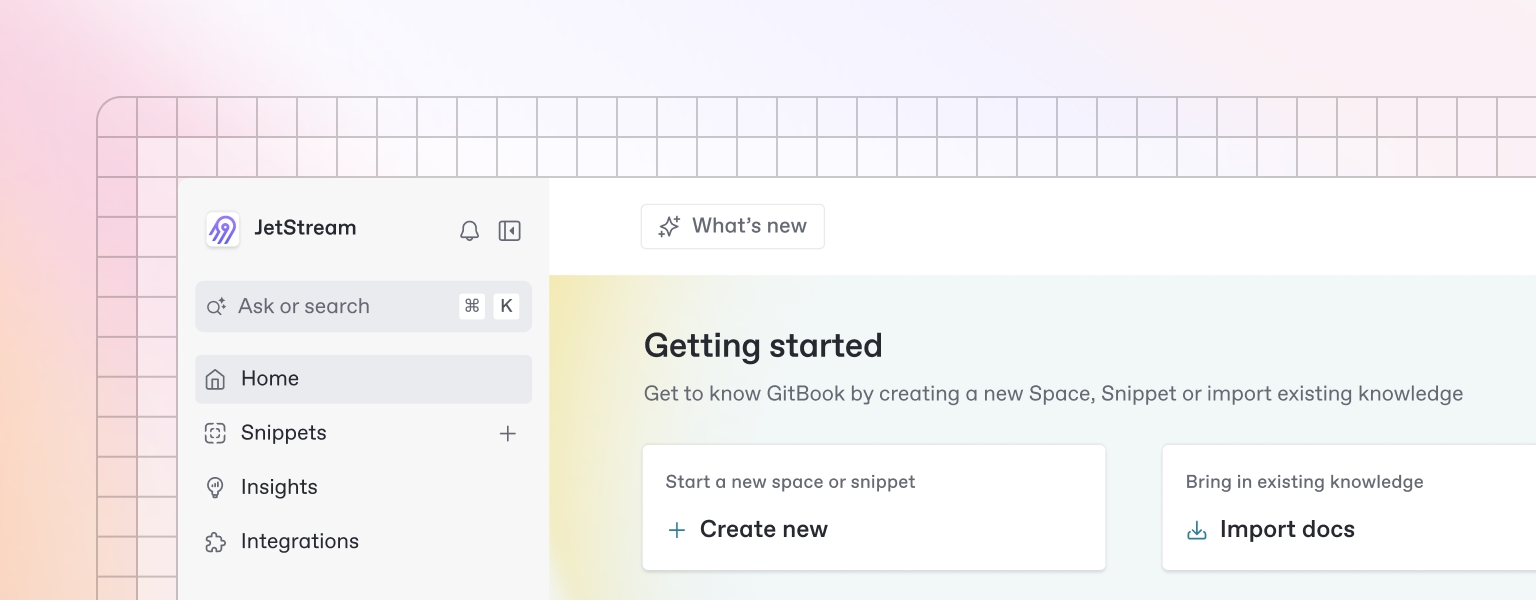
RewriteRule ^ https://%{HTTP_HOST}%{REQUEST_URI} [L,R=301]Once you’ve finished writing, editing, or importing your content, you can publish your work to the web as a docs site. Once published, your site will be accessible online only to your selected audience.
You can publish your site and find related settings from your docs site's homepage.
Spam emails can clutter your inbox, pose security risks, and reduce productivity. By setting up email filters, you can automatically detect and block unwanted messages before they reach your inbox. This guide will walk you through configuring spam filters in both cPanel and Plesk to help prevent spam effectively.
Log in to cPanel.
Navigate to the Email section and click on Spam Filters.
Locate the SpamAssassin section.
Click the toggle to enable Spam Filters.
Once enabled, cPanel will begin filtering spam automatically.
Click on Spam Threshold Score.
Lower scores make the filter stricter (default is 5; setting it to 3 is more aggressive).
Save changes to apply the new threshold.
Toggle Auto-Delete Spam to enable automatic deletion of spam emails.
Be cautious with this setting to avoid false positives.
Navigate to Email Filters in cPanel.
Click Create a New Filter and set up rules based on sender, subject, or keywords.
Define the action (e.g., move to Junk folder or delete).
Click Save to activate the filter.
Log in to Plesk.
Go to Mail and select your email account.
Click Spam Filter.
Check the box to enable spam filtering for the selected email account.
Click Apply to save changes.
Set the spam sensitivity level (lower values mean stricter filtering).
Recommended values: 5 for balanced filtering, 3 for stricter filtering.
Choose to either move spam to the Spam folder or delete it automatically.
Click Apply to finalize your changes.
Add trusted senders to the Whitelist to ensure their emails always arrive.
Add known spammers to the Blacklist to block their messages.
Click Apply to save these lists.
Use strong passwords to prevent email account hacks.
Never click on suspicious links in spam emails.
Use CAPTCHAs on contact forms to reduce spam submissions.
Report spam emails to improve filtering accuracy.
Setting up spam filters in cPanel or Plesk is an effective way to reduce unwanted emails and keep your inbox clean. By enabling spam detection, adjusting sensitivity settings, and configuring custom filters, you can significantly decrease the number of spam messages you receive. If you continue to experience spam issues, consider contacting your hosting provider for additional assistance.
Website security is crucial for safeguarding your data, maintaining your site's reputation, and protecting users' information. Hackers often exploit vulnerabilities in websites to steal data, disrupt operations, or inject malicious code. In this guide, we’ll walk you through essential steps to protect your website from hackers and minimize security risks.
One of the most common ways hackers gain access to websites is through outdated software and plugins. Developers regularly release updates that patch security vulnerabilities, so keeping everything current is crucial.
Update CMS platforms like WordPress, Joomla, and Drupal.
Update plugins and themes regularly.
Remove unused plugins to reduce potential entry points.
Enabling automatic updates where possible can make this process easier.
Weak passwords are an easy target for hackers. Use strong, unique passwords for your website’s admin area, database, and hosting accounts.
Create complex passwords: Use a mix of uppercase, lowercase, numbers, and symbols.
Avoid common words and easily guessed information.
Enable 2FA: Add an extra layer of security by requiring a second form of verification, like a code sent to your phone.
An SSL certificate encrypts data transferred between your website and visitors, making it harder for hackers to intercept sensitive information.
Use HTTPS instead of HTTP.
Get a free SSL certificate from Let’s Encrypt or use your hosting provider’s SSL options.
Force HTTPS redirection in your website settings.
A Web Application Firewall protects your website by filtering and monitoring HTTP traffic.
Use a cloud-based WAF like Cloudflare or Sucuri.
Enable your hosting provider’s firewall if available.
Configure security rules to block suspicious activity.
Reducing the number of login attempts and managing user access minimizes the risk of brute-force attacks and insider threats.
Limit failed login attempts using security plugins.
Change default admin usernames to something unique.
Assign proper roles and permissions to users — avoid giving admin access unless necessary.
Even with robust security, breaches can happen. Regular backups ensure you can quickly restore your website if it’s compromised.
Schedule automatic backups through your hosting panel.
Store backups in multiple locations, such as cloud storage and local drives.
Test your backups periodically to ensure they work.
Regular monitoring and malware scans help identify suspicious activity before it becomes a bigger problem.
Use security plugins like Wordfence or Sucuri for website scanning.
Monitor file changes and unauthorized logins.
Set up email alerts for suspicious activity.
Protecting your website from hackers requires proactive steps and ongoing maintenance. By keeping your software updated, using strong passwords, enabling SSL, and setting up firewalls, you can significantly reduce the risk of attacks. Regular backups and monitoring further ensure you’re prepared for any eventuality. For advanced security measures, consider consulting with your hosting provider or a cybersecurity expert.
Image optimization is one of the simplest and most effective ways to speed up your website. Unoptimized images can slow down page load times, affecting user experience, SEO rankings, and conversion rates. In this guide, we’ll explore the importance of image optimization and how to do it properly without sacrificing quality.
Optimizing images reduces file sizes without noticeable quality loss, leading to:
Faster Load Times: Smaller image files load quicker, speeding up your website.
Improved SEO: Google rewards fast websites with better search rankings.
Better User Experience: Visitors stay longer on fast, responsive sites.
Reduced Bandwidth Usage: Smaller files reduce server load and hosting costs.
Different image formats suit different needs:
JPEG: Best for photographs and images with lots of colors. Offers good compression with slight quality loss.
PNG: Ideal for transparent images and graphics. High quality but larger file size.
WebP: Modern format offering excellent compression and quality. Supported by most browsers.
SVG: Best for simple graphics like logos and icons. Scalable without quality loss.
Ensure your images aren’t larger than necessary. Use tools like Adobe Photoshop, GIMP, or Online Image Resizer to scale them down to the right dimensions.
Compression reduces file size without a significant loss of quality. Use tools like:
TinyPNG: Great for PNG and JPEG compression.
ImageOptim: Works well for Mac users.
ShortPixel: A WordPress plugin for automated image compression.
Lazy loading defers loading images until they’re needed. This reduces initial page load time. Enable lazy loading via:
WordPress Plugins: Like Smush or Lazy Load by WP Rocket.
HTML Attribute: Add loading="lazy" to image tags.
A CDN caches your images on multiple servers worldwide, delivering them from the nearest location to the user for faster load times. Popular CDN services include Cloudflare, Amazon CloudFront, and Akamai.
Descriptive File Names: Use meaningful, keyword-rich file names (e.g., beach-sunset.jpg instead of IMG12345.jpg).
Alt Text: Helps search engines understand your images and improves accessibility.
Online Tools: TinyPNG, JPEG-Optimizer, and Compressor.io.
WordPress Plugins: Smush, ShortPixel, and EWWW Image Optimizer.
Desktop Software: Adobe Photoshop, GIMP, and ImageOptim.
Optimizing images is crucial for a fast, efficient, and user-friendly website. By choosing the right formats, resizing, compressing, and using lazy loading and CDNs, you ensure your site loads quickly without compromising visual quality. Make image optimization a regular part of your web development process to keep your website performing at its best.
Email forwarding and autoresponders are useful features for managing email communication efficiently. Email forwarding allows you to automatically redirect emails from one address to another, while autoresponders send predefined replies to incoming messages. This guide will walk you through setting up email forwarding and autoresponders using cPanel or Plesk.
Log in to cPanel.
Navigate to the Email section and click on Forwarders.
Click Add Forwarder.
Enter the Email Address you want to forward emails from.
In the Destination field, enter the email address where you want to receive forwarded emails.
Click Add Forwarder to confirm the setup.
Send a test email to the original address and check if it arrives at the forwarded destination.
To view existing forwarders, go to the Forwarders section.
You can delete a forwarder if it's no longer needed by clicking Delete next to it.
Log in to Plesk.
Go to Mail and select the email account you want to configure.
Click Forwarding.
Check the Switch on mail forwarding box.
Enter one or more email addresses where you want emails forwarded.
Click OK to save the changes.
Log in to cPanel.
Go to Email > Autoresponders.
Click Add Autoresponder.
Choose the Character Set (UTF-8 recommended).
Set the Interval (how often the auto-reply is sent to the same sender).
Enter the Email Address for which the autoresponder is being set up.
Enter a From Name and Subject for the automated email.
Send an email to the configured address and check if the auto-reply is sent correctly.
Log in to Plesk.
Go to Mail > Select the email account.
Click on Auto-Reply.
Enable Auto-Reply.
Enter the Subject and Message.
Set up optional forwarding of incoming messages.
(Optional) Specify the start and end time.
Email forwarding and autoresponders are essential tools for email management. Whether you’re setting up automatic forwarding in cPanel or Plesk or configuring an autoresponder for vacation replies, following these steps will help you optimize your email workflow. If you experience any issues, check your settings or contact your hosting provider for assistance.
Choosing the right web hosting control panel is crucial for website management, whether you're a beginner or an experienced administrator. DirectAdmin and cPanel are two of the most popular options, each offering a unique set of features, usability, and pricing. This guide compares DirectAdmin and cPanel to help you decide which one suits your needs best.
DirectAdmin is a lightweight and user-friendly web hosting control panel designed for simplicity and efficiency. It provides essential features to manage domains, websites, emails, and databases without excessive resource consumption.
cPanel is a powerful and widely used web hosting control panel that offers an extensive range of features. It is known for its intuitive graphical user interface (GUI), automation tools, and comprehensive server management capabilities.
DirectAdmin: Features a minimalistic and straightforward design, making it easy to navigate. It is particularly suited for users who prefer a clutter-free experience.
cPanel: Offers a more feature-rich and visually appealing interface, making it user-friendly but sometimes overwhelming for beginners.
DirectAdmin: Includes essential hosting features such as domain management, email accounts, FTP access, and MySQL databases. It supports third-party plugins but is not as extensible as cPanel.
cPanel: Provides a comprehensive suite of tools, including Softaculous for one-click app installations, advanced security options, website backups, and integration with WHM (Web Host Manager) for Reseller Hosting.
DirectAdmin: Consumes fewer server resources, making it ideal for VPS and dedicated servers with limited resources.
cPanel: More resource-intensive due to its extensive feature set but provides greater functionality and flexibility.
DirectAdmin: Includes standard security measures such as Firewall configuration, SSL management, and brute-force attack protection.
cPanel: Offers advanced security features, including automatic SSL provisioning, Malware detection, and IP blocking.
DirectAdmin: Generally more affordable, with a one-time license fee and budget-friendly subscription options.
cPanel: More expensive due to its licensing structure, which charges per account, making it less cost-effective for hosting multiple domains.
DirectAdmin: Offers a smaller but dedicated support team, with community forums for troubleshooting.
cPanel: Boasts extensive documentation, a large user community, and professional support services.
Choose DirectAdmin if:
You are looking for a lightweight and budget-friendly control panel.
You prefer a minimalistic interface with essential features.
Your server has limited resources and requires efficient performance.
Both DirectAdmin and cPanel offer valuable hosting management solutions, each with its own strengths and weaknesses. DirectAdmin is a great choice for users who need a cost-effective, lightweight, and efficient control panel, while cPanel is ideal for those who require a robust and feature-packed hosting environment. Consider your hosting needs, budget, and technical requirements before making a decision.
Distributed Denial of Service (DDoS) attacks are among the most common and disruptive threats faced by websites and online services. These attacks overwhelm a server, network, or application with a flood of internet traffic, making it unavailable to users. Understanding DDoS protection and how to mitigate such attacks is crucial for maintaining your website’s uptime, performance, and security.
A DDoS attack works by sending an overwhelming number of requests to your server from multiple compromised devices, often forming a botnet. This flood of traffic can:
Slow down your website or make it entirely inaccessible.
Exhaust server resources, leading to crashes.
Disrupt normal business operations and cause revenue loss.
Types of DDoS attacks include:
Volume-based attacks: Overwhelm the server’s bandwidth with massive traffic.
Protocol attacks: Exploit server vulnerabilities by overwhelming network protocols.
Application layer attacks: Target specific applications with slow and stealthy traffic.
DDoS protection involves detecting and mitigating malicious traffic before it reaches your server. Key components include:
Traffic Analysis: Monitoring incoming traffic for unusual patterns.
Rate Limiting: Restricting the number of requests a single user can make.
IP Blacklisting/Whitelisting: Blocking suspicious IP addresses while allowing trusted sources.
Web Application Firewalls (WAF): Filtering malicious HTTP/S requests.
Cloud-based services like Cloudflare, Akamai, and AWS Shield offer robust DDoS protection by filtering out malicious traffic before it reaches your server.
Enable Web Application Firewalls (WAF) to block suspicious requests.
Install security plugins like Wordfence for WordPress or Imunify360 for cPanel.
Use tools like Google Analytics or your hosting control panel’s monitoring tools to track traffic spikes and set up alerts for unusual activity.
Use load balancers to distribute traffic across multiple servers.
Increase server capacity to handle higher traffic loads.
Limit login attempts and access to sensitive areas.
Blacklist suspicious IPs and allow only trusted sources.
Enable Two-Factor Authentication (2FA) for admin accounts.
Regularly update software and plugins to patch vulnerabilities.
Backup your website frequently to ensure quick recovery.
DDoS attacks can cripple your website, but with proper protection and mitigation strategies, you can minimize their impact. By using DDoS protection services, configuring firewalls, monitoring traffic, and optimizing server resources, you safeguard your website’s performance and security. Stay vigilant and proactive to keep your online presence safe from malicious threats.
Connecting your domain to your hosting account is a crucial step in getting your website online. Whether you’ve purchased your domain separately from your hosting provider or with the same company, the process involves configuring your domain’s DNS (Domain Name System) settings to point to your hosting server. This guide will walk you through the necessary steps to successfully connect your domain to your hosting.
When setting up a website, two fundamental components are required: a domain name and web hosting. While they work together to make your website accessible online, they serve distinct purposes. Understanding the difference between a domain and hosting is crucial for anyone looking to establish a website. This article will explain both terms in detail, highlighting their roles, how they interact, and why they are both necessary for a functional website.
A domain name is the address that users type into their web browsers to access your website. It is essentially the human-readable version of an IP Address, making it easier for users to find websites without remembering complex numerical strings.
Website uptime is crucial for maintaining user satisfaction, search engine rankings, and business credibility. Uptime monitoring ensures your site remains accessible and alerts you when downtime occurs. In this guide, we’ll explore why uptime monitoring matters, the tools you can use, and how to set up and manage monitoring for your website.
A custom error page enhances user experience by providing informative messages when an error occurs, such as a 404 Page Not Found or 500 Internal Server Error. Instead of displaying generic error messages, you can design your own error page with branding and helpful navigation links. This guide will walk you through setting up custom error pages for your website.
Two-Factor Authentication (2FA) is an essential security feature that adds an extra layer of protection to your website, server, and online accounts. By requiring a second form of verification—like a code sent to your phone or generated by an authenticator app—2FA makes it much harder for hackers to gain access even if your password is compromised. In this guide, we’ll walk you through the steps to enable 2FA for your website and hosting accounts.
Web hosting is a service that allows individuals and organizations to make their websites accessible on the internet. Hosting providers, like SiteCove, allocate space on their servers to store website files and ensure they are available to users online.
1. Shared Hosting – Multiple websites share a single server’s resources. Ideal for small websites and beginners.
2. VPS Hosting – A virtualized private server with dedicated resources, offering better performance and control.
3. Dedicated Hosting – A physical server dedicated to one client, providing maximum performance and customization.
Creating an email account in cPanel allows you to set up professional email addresses using your domain (e.g., [email protected]). cPanel provides an easy-to-use interface for managing email accounts, setting storage limits, and configuring access. This guide will walk you through the process of creating an email account in cPanel.
Cloudflare is a powerful service that enhances your website’s performance and security. Acting as a reverse proxy, it helps to speed up your website, protect against cyber threats, and manage traffic efficiently. This guide will walk you through the benefits of Cloudflare and how to set it up and optimize it for your site.
Write your Message in the body section.
(Optional) Set a start and end time if the autoresponder is temporary.
Click Create/Modify to enable the autoresponder.
Click OK to save the settings.
Choose cPanel if:
You need a feature-rich control panel with extensive customization options.
You manage multiple websites and require advanced automation tools.
You prefer comprehensive security features and better customer support.
Content Delivery Networks (CDN): Distributing traffic across multiple servers to absorb spikes.
Nameservers are a crucial part of DNS that direct your domain to the correct web hosting server. When you purchase hosting, your provider will provide Nameserver details, usually via email or within the hosting dashboard.
Common nameserver formats:
ns1.yourhostingprovider.com
ns2.yourhostingprovider.com
To find your nameservers:
Log in to your hosting account.
Navigate to the DNS settings or domain management section.
Locate the nameservers assigned to your account.
If you purchased your domain separately from your hosting provider, you’ll need to update the nameservers at your domain registrar.
Log in to your domain registrar (e.g., GoDaddy, Namecheap, Google Domains).
Navigate to the domain management section.
Look for the option to update nameservers.
In the nameserver settings section of your registrar’s dashboard, select the option to change or update nameservers.
Replace the existing nameservers with those provided by your hosting provider.
Save the changes and confirm the update if required.
DNS changes take time to propagate across the internet. This process can take anywhere from a few minutes to 48 hours.
To check if your domain is pointing correctly:
Use online tools like https://www.whatsmydns.net
Run the command nslookup yourdomain.com in the terminal (Windows) or use dig yourdomain.com (Mac/Linux)
Once the domain is pointing to your hosting provider, you may need to add it to your hosting control panel.
For cPanel:
Log in to your cPanel account.
Navigate to Addon Domains or Domain Manager.
Enter your domain name and save the settings.
For Other Hosting Panels:
The process varies, but look for “Add a Domain” or “Manage Domains” in your hosting dashboard.
If you are using additional services like email hosting, you may need to configure DNS records such as A records, MX records, or CNAME records.
A records: Point to a specific IP Address.
MX records: Direct email to the correct mail server.
CNAME records: Create subdomains or point to external services.
By following these steps, you can successfully connect your domain to your hosting account, ensuring that visitors can access your website. If you encounter any issues, contact your hosting provider’s support team for assistance. With proper configuration, your website will be live and accessible in no time!
Unique Identification: Each domain name is unique, meaning no two websites can have the same domain.
Easy Navigation: Instead of using numerical IP addresses, users can type a simple name like www.example.com.
Extensions and TLDs: Domains come with extensions such as .com, .org, .net, and country-specific ones like .au for Australia or .uk for the United Kingdom.
Renewal and Registration: Domains must be registered through a domain registrar and renewed periodically (e.g., annually or every few years).
www.google.com
www.facebook.com
www.yourbusinessname.com
Web hosting is a service that provides the storage and resources needed to keep a website accessible online. Hosting companies allocate space on their servers where website files, databases, and other elements are stored.
Storage for Website Files: Hosting providers store all necessary website components, including HTML files, images, videos, and databases.
Server Performance: Different hosting plans offer varying levels of performance, affecting page load speed and reliability.
Security and Backups: Many hosting services provide security measures like SSL certificates, firewalls, and automatic backups.
Support for Various Technologies: Hosting platforms may support different programming languages and databases, such as PHP, MySQL, or Python.
Shared Hosting: Multiple websites share the same server resources, making it cost-effective but limited in scalability.
VPS Hosting: A virtual private server offers more dedicated resources and control than shared hosting.
Dedicated Hosting: A server exclusively for one website, providing maximum performance and customization.
Cloud Hosting: Uses multiple servers to ensure Uptime and scalability.
Managed Hosting: The hosting provider handles server maintenance, updates, and security for you.
Even though domain names and hosting serve different purposes, they work together to make websites accessible. Here’s how they interact:
Domain Registration: You purchase a domain name from a domain registrar.
Hosting Subscription: You sign up for a web hosting service to store your website’s files.
Domain Name System (DNS) Configuration: You link your domain name to your hosting provider’s server via DNS settings.
Website Accessibility: When users type your domain name in a browser, it points to the correct hosting server, loading your website.
A Domain Without Hosting: Yes, you can register a domain name without hosting a website. Some people do this for branding purposes, future website projects, or email services.
Hosting Without a Domain: Technically, yes. Hosting providers often assign temporary subdomains, but a custom domain is necessary for a professional online presence.
A domain name and web hosting are both essential for creating a fully functional website. While a domain serves as your website’s address, hosting provides the storage and infrastructure needed to keep your site online. Understanding the difference between the two ensures you make informed decisions when setting up your website. Always choose a reliable domain registrar and hosting provider to ensure smooth operation and a great user experience.
Monitoring your website uptime offers several key benefits:
Improved Reliability: Quickly detect and resolve outages.
Enhanced User Experience: Ensure consistent site availability.
Protect Search Rankings: Downtime impacts SEO performance.
Business Continuity: Avoid revenue loss from inaccessible services.
Choose from a variety of tools based on your needs and budget:
UptimeRobot: Free and premium plans with simple uptime checks.
Pingdom: Comprehensive monitoring and detailed reporting.
Site24x7: Advanced monitoring for websites, servers, and applications.
StatusCake: Affordable plans with global monitoring.
Visit the monitoring tool’s website and create an account.
Choose a plan based on your site’s needs and traffic volume.
Enter your website’s URL in the monitoring tool’s dashboard.
Select monitoring intervals (e.g., every 1, 5, or 10 minutes).
Set up email, SMS, or app notifications for downtime alerts.
Add multiple contacts to ensure key team members are informed.
Verify the service is correctly detecting your site’s status.
Simulate downtime (if possible) to check alert responsiveness.
Identify patterns or recurring issues causing outages.
Note the duration and frequency of downtime events.
Ensure your site loads quickly to maintain user experience.
Investigate slow response times for potential server issues.
Aim for at least 99.9% uptime (also known as “three nines”).
Address any dips below this standard promptly.
Confirm your hosting provider isn’t experiencing issues.
Restart your server if it’s unresponsive.
Ensure your domain’s DNS records are configured correctly.
Verify nameserver settings and propagation status.
Minimize heavy plugins, large files, and inefficient code.
Use caching and a Content Delivery Network (CDN) for faster load times.
Monitoring website uptime helps you maintain site reliability, protect your business reputation, and ensure a positive user experience. By using monitoring tools and responding swiftly to downtime alerts, you can minimize disruptions and keep your website accessible around the clock.
Enabling 2FA significantly improves your website’s security by:
Preventing unauthorized access: Even if your password is stolen, hackers can’t log in without the second verification step.
Protecting sensitive data: Keeps personal, financial, and customer information safe.
Reducing the risk of brute force attacks: Adds an extra barrier against automated login attempts.
Log in to your cPanel account.
Go to the Security section and click Two-Factor Authentication.
Click Set Up Two-Factor Authentication.
Open your preferred authenticator app (like Google Authenticator or Authy).
Scan the QR code displayed on your screen.
Enter the 6-digit code from your app and click Configure 2FA.
Once configured, cPanel will confirm that 2FA has been successfully enabled. You’ll now be required to enter a code from your authenticator app whenever you log in.
Log in to your Plesk control panel.
Go to Extensions and search for Google Authenticator or a similar 2FA extension.
Install and activate the extension.
Go to My Profile and click Two-Factor Authentication.
Open your authenticator app and scan the QR code.
Enter the 6-digit code from the app and save your settings.
Log in to your WordPress dashboard.
Go to Plugins > Add New.
Search for a 2FA plugin like Two-Factor or Wordfence Login Security.
Install and activate the plugin.
Navigate to the plugin’s settings.
Choose your authentication method (e.g., an authenticator app).
Scan the QR code and enter the verification code.
Log out and log back in to ensure that 2FA is working correctly.
Backup recovery codes: Store recovery codes in a safe place in case your device is lost.
Use a trusted authenticator app: Google Authenticator, Authy, and Microsoft Authenticator are widely recommended.
Enable 2FA on your hosting account: If your hosting provider offers it, enable 2FA for your main hosting login.
Two-Factor Authentication is one of the simplest and most effective ways to secure your website and online accounts. By following these steps, you add a powerful layer of security, protecting your data and reducing the risk of unauthorized access. Make sure to enable 2FA wherever possible and regularly review your security settings.
4. Cloud Hosting – Websites are hosted on multiple interconnected servers, ensuring scalability and reliability.
5. Managed Hosting – The provider handles server management, security, and updates for you.
When a user enters your website’s domain name, the browser sends a request to your hosting provider’s server. The server then retrieves the website files and displays them to the user.
Selecting the right hosting plan depends on your website’s needs, traffic expectations, and technical expertise.
1. Traffic Volume – Estimate the number of visitors your site will receive.
2. Resource Requirements – Look at storage, Bandwidth, and CPU needs.
3. Website Type – Static sites require less power, while dynamic sites (e.g., e-commerce) need more resources.
4. Scalability – Ensure the hosting plan can grow with your website.
5. Security Features – Check for SSL, firewalls, and DDoS protection.
6. Support & Uptime – A reliable hosting provider should offer 24/7 support and 99.9% uptime.
- For Beginners: Shared Hosting
- For Growing Businesses: VPS Hosting
- For Large Websites: Dedicated Hosting
- For High Traffic & Scalability: Cloud Hosting
Follow these steps to get started with SiteCove:
Step-by-Step Guide:
1. Select a Plan – Pick a plan that suits your needs (Shared, VPS, Dedicated, Cloud).
2. Register a Domain Name – Many providers offer a free domain with hosting plans.
3. Set Up Your Account – Provide your details and create an account.
4. Complete the Payment – Select your billing cycle and make a payment.
5. Access Your Hosting Dashboard – After purchase, log into your control panel (e.g., cPanel, Plesk) to start managing your website.
Open your web browser and go to https://yourdomain.com/cpanel.
Enter your cPanel username and password.
Click Log In to access the cPanel dashboard.
Once in cPanel, locate the Email section.
Click on Email Accounts.
You will be directed to the email account management page.
Click on the Create button.
Select the domain for the email address (if you have multiple domains).
Enter your desired email address (e.g., [email protected]).
Set a strong password or use the Generate Password feature.
Choose the Storage Space for the account (e.g., 500MB, 1GB, or unlimited).
Click Create to finalize the email account setup.
After creating the email account, you can access it in multiple ways:
Go to https://yourdomain.com/webmail.
Enter your email address and password.
Choose a webmail client (e.g., Roundcube or Horde).
Click Open to access your inbox.
To use your email with a desktop or mobile email client:
In cPanel, go to Email Accounts and find your newly created email address.
Click Connect Devices.
Note the IMAP, POP3, and SMTP server settings provided.
Open your email client and enter the settings as prompted.
Once your email is set up, you can manage it under Email Accounts in cPanel:
Change Password – Click Manage and update your email password.
Adjust Storage Limits – Increase or decrease the allocated storage.
Delete an Email Account – If no longer needed, remove it to free up space.
In cPanel, go to Forwarders under the Email section.
Click Add Forwarder.
Enter the email address you want to forward emails from.
Enter the destination email address where emails should be sent.
Click Add Forwarder.
Setting up an email account in cPanel is a straightforward process that allows you to create professional email addresses for your domain. Whether you access it via webmail, an email client, or set up forwarding, cPanel provides all the tools necessary to manage your email effectively.
Cloudflare offers a range of performance and security features, including:
Improved Website Speed: Cloudflare’s global content delivery network (CDN) ensures faster load times by caching content on servers closer to your users.
DDoS Protection: Safeguards your site from distributed denial-of-service (DDoS) attacks.
SSL Encryption: Provides free SSL certificates for secure connections.
Web Application Firewall (WAF): Blocks malicious traffic and prevents common security threats.
DNS Management: Faster and more secure domain name system (DNS) resolution.
Go to Cloudflare.com and sign up.
Enter your website’s domain and click Add Site.
Free Plan: Ideal for small websites.
Pro Plan: Enhanced performance and security for growing sites.
Business & Enterprise Plans: Advanced features for high-traffic and mission-critical websites.
Cloudflare provides new nameservers (e.g., dora.ns.cloudflare.com).
Log in to your domain registrar (e.g., GoDaddy, Namecheap) and replace existing nameservers with Cloudflare’s.
Once nameservers propagate (can take up to 24 hours), Cloudflare will confirm your site is active.
Go to Caching in your Cloudflare dashboard and set Caching Level to Standard.
Enable Always Online to serve cached pages when your server is down.
Navigate to Speed and turn on Brotli Compression for faster page load times.
Under Speed, enable Polish to compress and optimize images automatically.
In Speed, enable minification for CSS, JS, and HTML to reduce file sizes.
Go to SSL/TLS and choose Full (Strict) for the highest security.
Under Security, turn on the WAF to block common threats.
Cloudflare automatically mitigates DDoS attacks, but you can set custom rules for additional protection.
Use Firewall Rules to block or challenge suspicious traffic.
Cloudflare is an essential tool for boosting website performance and security. By enabling caching, compression, and security features, you ensure faster load times and robust protection against online threats. Setting up and optimizing Cloudflare is straightforward and provides long-term benefits for your website.
Web hosting is the backbone of any website, providing the necessary storage, Bandwidth, and server resources to keep it accessible online. Choosing the right type of web hosting is crucial, as it impacts your website’s performance, security, scalability, and cost.
There are four main types of web hosting:
1. Shared Hosting – Affordable and beginner-friendly
2. VPS Hosting (Virtual Private Server) – Offers more control and better performance
3. Dedicated Hosting – Provides an entire server for maximum performance and security
4. Cloud Hosting – Scalable and highly reliable for fluctuating traffic
In this article, we’ll break down each hosting type, explaining how they work, their advantages, disadvantages, and ideal use cases.
What is Shared Hosting?
Shared hosting is a hosting environment where multiple websites share the same server resources, including CPU, RAM, and storage. This makes it the most cost-effective and widely used hosting option.
Advantages of Shared Hosting:
✅ Affordable – It’s the cheapest hosting option, making it ideal for beginners.
✅ Easy to Use – No technical knowledge is required; the hosting provider manages server maintenance.
✅ Pre-configured Settings – Comes with one-click installers for WordPress and other CMS platforms.
Disadvantages of Shared Hosting:
❌ Limited Resources – Performance can suffer if other sites on the same server use excessive resources.
❌ Security Risks – If one website gets hacked, others may be vulnerable.
❌ Less Control – Limited server customization options.
Who Should Use Shared Hosting?
✔️ Small businesses, personal websites, blogs, and startups with low traffic.
What is VPS Hosting?
VPS (Virtual Private Server) hosting provides a virtualized server environment where a single physical server is divided into multiple private virtual machines. Each VPS gets its own dedicated resources, offering more power and flexibility than shared hosting.
Advantages of VPS Hosting:
✅ More Performance – Higher speed and reliability compared to shared hosting.
✅ Better Security – Since your resources are isolated, other websites on the server don’t affect your performance.
✅ Customization – Root access allows for custom software installations and configurations.
Disadvantages of VPS Hosting:
❌ Higher Cost – More expensive than shared hosting.
❌ Requires Some Technical Knowledge – Managing a VPS requires basic server administration skills.
Who Should Use VPS Hosting?
✔️ Medium-sized businesses, growing blogs, eCommerce websites, and developers needing more control.
What is Dedicated Hosting?
Dedicated hosting provides an entire physical server exclusively for your website, offering maximum performance, security, and control. It is the most powerful hosting solution available.
Advantages of Dedicated Hosting:
✅ Full Control – Complete access to server configurations, including software and security settings.
✅ High Performance – Dedicated resources ensure faster load times and higher reliability.
✅ Enhanced Security – No risk from other websites, making it a preferred choice for financial institutions and large enterprises.
Disadvantages of Dedicated Hosting:
❌ Expensive – The most costly hosting option.
❌ Technical Expertise Needed – Requires advanced server management skills or hiring an administrator.
Who Should Use Dedicated Hosting?
✔️ Large businesses, enterprises, high-traffic websites, and organizations that require maximum security.
What is Cloud Hosting?
Cloud hosting uses multiple connected servers to host your website, ensuring high availability and performance. If one server fails, another takes over, making cloud hosting a scalable and highly reliable solution.
Advantages of Cloud Hosting:
✅ Scalability – Easily increase or decrease server resources as needed.
✅ High Uptime – Since multiple servers share the workload, downtime is minimized.
✅ Pay-As-You-Go Pricing – You only pay for the resources you use.
### Disadvantages of Cloud Hosting:
❌ More Expensive Than Shared Hosting – Pricing can be unpredictable if traffic spikes.
❌ Complex Setup – Requires some technical knowledge to configure properly.
Who Should Use Cloud Hosting?
✔️ Websites with fluctuating traffic, startups, apps, and businesses needing high reliability.
Choosing the best web hosting type depends on your website’s needs, budget, and technical expertise:
- For beginners or small businesses, shared hosting is the best choice.
- For growing websites that need better performance, VPS hosting is ideal.
- For high-traffic, resource-intensive websites, dedicated hosting is the top option.
- For websites requiring scalability and high availability, cloud hosting is the best solution.
By understanding the differences between these hosting types, you can make an informed decision and choose the best hosting for your website’s growth and success.
Search engine algorithms are complex systems used to retrieve and rank web pages based on relevance to user queries. These algorithms help search engines like Google, Bing, and Yahoo analyze billions of web pages and provide users with the most relevant results. Understanding how search engine algorithms work is essential for website owners and digital marketers to improve their rankings and visibility online.
A search engine algorithm is a set of rules and calculations used to determine the order of search results based on multiple ranking factors. These algorithms scan, analyze, and rank content to provide users with the most relevant web pages when they perform a search.
How Search Engine Algorithms Work
Crawling – Search engine bots (or spiders) browse the web and discover new content.
Indexing – The discovered content is stored in a massive database for retrieval.
Ranking – The indexed content is analyzed and ranked based on hundreds of ranking signals.
Search engines evaluate web pages based on various factors to determine their ranking position. The most important ranking signals include:
1. Relevance
The algorithm determines how well a page matches a user’s search query.
Keywords in titles, meta descriptions, headings, and body content influence relevance.
2. Quality of Content
Search engines prioritize high-quality, original, and valuable content.
Content should provide in-depth answers, be free of duplicate content, and be structured well.
3. Backlinks & Authority
Websites with high-quality backlinks from authoritative sources rank higher.
Google’s PageRank algorithm measures a website’s authority based on link-building efforts.
4. User Experience (UX)
Factors like page speed, mobile-friendliness, and site usability impact rankings.
Websites that provide a smooth experience rank higher in search results.
5. Freshness & Updates
Google’s Freshness Algorithm prioritizes recently updated and trending content.
News articles, event-related content, and frequently updated blogs benefit from this ranking factor.
6. Mobile-Friendliness
Google uses mobile-first indexing, meaning mobile-optimized sites get priority in rankings.
Websites that are not mobile-friendly may rank lower in search results.
7. Secure & Accessible Website
HTTPS (SSL encryption) is a ranking signal that enhances security.
Proper indexing setup (robots.txt and sitemaps) ensures search engines can crawl the website.
Search engines continuously refine their algorithms to improve search results. Some of the most notable updates include:
1. Google Panda (2011)
Penalized low-quality, thin, and duplicate content.
Rewarded sites with high-quality, original content.
2. Google Penguin (2012)
Targeted spammy backlinks and keyword stuffing.
Focused on rewarding natural, high-quality link-building efforts.
3. Google Hummingbird (2013)
Improved search results by understanding search intent.
Prioritized conversational queries and semantic search.
4. Google RankBrain (2015)
Introduced AI-based machine learning for search rankings.
Improved interpretation of search intent and query relevance.
5. Google BERT (2019)
Improved natural language processing (NLP) to understand search queries better.
Helped search engines understand the context of words in searches.
6. Google Core Web Vitals (2021)
Focused on page experience, loading speed, interactivity, and stability.
Websites with poor user experience saw ranking declines.
To improve website rankings, follow these SEO best practices:
1. Focus on High-Quality Content
Write in-depth, informative, and original content.
Avoid duplicate content and update old content regularly.
2. Optimize for Search Intent
Use tools like Google Keyword Planner or Ahrefs to find relevant keywords.
Structure content to answer user queries clearly and concisely.
3. Improve Page Speed & Mobile-Friendliness
Compress images, enable caching, and use fast-loading web hosting.
Ensure your website is fully responsive for mobile devices.
4. Build High-Quality Backlinks
Earn links from authoritative and relevant websites.
Avoid spammy link-building tactics to prevent penalties.
5. Enhance User Experience (UX)
Use clear navigation, internal linking, and a well-structured layout.
Reduce pop-ups and intrusive interstitials that disrupt users.
6. Use Structured Data (Schema Markup)
Implement schema markup to help search engines understand your content better.
This improves your chances of appearing in rich snippets (star ratings, FAQs, etc.).
Search engine algorithms determine how websites rank in search results by analyzing content relevance, backlinks, user experience, and other factors. Google, Bing, and other search engines frequently update their algorithms to provide better search experiences.
Reducing server resource usage is essential for maintaining a fast, stable, and cost-effective website. High resource usage can lead to slow load times, server crashes, and increased hosting costs. In this guide, we’ll explore practical strategies to optimize server performance and keep resource consumption in check.
Minimizing resource usage benefits your website and hosting environment in several ways:
Improved Website Speed: Reduces server response time and improves load speeds.
Enhanced Stability: Prevents server overloads and downtime.
Cost Savings: Helps avoid exceeding hosting limits and paying for extra resources.
Better Scalability: Prepares your site to handle traffic spikes more efficiently.
Before making changes, identify what’s using the most resources:
cPanel Metrics: Check CPU, memory, and disk usage stats.
Plesk Monitoring: Use Plesk’s resource usage tools.
Third-Party Tools: Tools like New Relic or Datadog offer advanced monitoring.
Caching reduces server load by serving static content:
Page Caching: Saves full HTML pages to reduce dynamic requests.
Object Caching: Stores database query results.
Browser Caching: Uses user-side storage for static files.
A CDN reduces server load by distributing content across global servers:
Cloudflare: Free and premium plans.
Amazon CloudFront: Integrated with AWS.
Akamai: Enterprise-grade CDN.
Large files consume server bandwidth and slow load times:
Compress Images: Use tools like TinyPNG or ImageOptim.
Resize Images: Ensure images are appropriately scaled.
Use Next-Gen Formats: WebP offers better compression and quality.
Reducing file sizes decreases server load:
Online Minifiers: Use tools like Minify or CSSNano.
WordPress Plugins: Autoptimize and WP Rocket.
Disable unnecessary cron jobs and background tasks.
Reduce server strain by keeping databases efficient:
Regular Cleanups: Remove old revisions and spam comments.
Optimize Tables: Use phpMyAdmin’s optimization features.
Heavy themes and plugins increase CPU and memory usage:
Choose Efficient Themes: Use well-coded, lightweight options.
Limit Plugins: Only install essential plugins.
Compress web content before sending it to the browser.
Optimize memory limits and execution times in the PHP configuration.
Tools like Varnish or Redis offer advanced caching capabilities.
Reducing server resource usage improves website performance, stability, and cost-efficiency. By monitoring usage, optimizing files, and managing server processes, you ensure your site runs smoothly even under heavy traffic. Implement these strategies regularly for long-term server health and efficiency.
Common error pages include:
404 Not Found – When a page does not exist.
403 Forbidden – When access is denied.
500 Internal Server Error – When the server encounters an issue.
503 Service Unavailable – When the server is temporarily down.
Identify which pages you want to customize before proceeding.
Open a text editor or an HTML editor (e.g., Notepad++, Visual Studio Code).
Create an HTML file with a descriptive message, such as:
HTMLCOPY
Save the file as 404.html, 403.html, or the corresponding error name.
Open File Manager in cPanel or connect via FTP.
Navigate to the public_html directory.
Upload the custom error page files (e.g., 404.html).
Locate the .htaccess file in public_html (create one if it doesn’t exist).
Open it with a text editor and add the following lines:
ApacheCOPY
Save and upload the updated .htaccess file.
Log into cPanel.
Navigate to Advanced > Error Pages.
Select the domain for which you want to set up error pages.
Click on the error code (e.g., 404), then enter or paste your custom HTML content.
Click Save.
Open a browser and type a non-existent URL (e.g., yourdomain.com/nonexistentpage).
If configured correctly, your custom 404 error page should appear.
Repeat the test for other error pages.
Custom error pages improve user experience by offering helpful guidance when an error occurs. Whether using .htaccess or cPanel’s built-in options, setting up branded and user-friendly error pages helps maintain engagement and professionalism on your website.
<!DOCTYPE html>
<html>
<head>
<title>Page Not Found</title>
<style>
body { text-align: center; font-family: Arial, sans-serif; }
h1 { color: red; }
</style>
</head>
<body>
<h1>Oops! Page Not Found (404)</h1>
<p>The page you are looking for might have been removed or is temporarily unavailable.</p>
<a href="/">Return to Homepage</a>
</body>
</html>ErrorDocument 404 /404.html
ErrorDocument 403 /403.html
ErrorDocument 500 /500.htmlAccessing your hosting account is essential for managing your website, email accounts, databases, and other hosting-related features. Whether you need to update website files, configure settings, or monitor performance, knowing how to log in is the first step. This guide will walk you through the various methods to access your hosting account.
Before logging in, ensure you have the necessary credentials. Typically, you need:
Your hosting account username or email
Your password
The URL to the hosting provider's login page
These details are usually sent to you via email after signing up for a hosting plan.
Most hosting providers offer a centralized login portal on their website. Follow these steps:
Open your web browser and go to your hosting provider’s website.
Look for a Login or Sign In button, usually located at the top-right corner.
Enter your email/username and password.
Click Login to access your hosting dashboard.
If you forgot your password, use the Forgot Password option to reset it via email.
If your hosting provider uses cPanel or another control panel, you can log in directly:
Open your web browser.
Type your hosting login URL, usually in one of the following formats:
https://yourdomain.com/cpanel
https://yourhost.com/cpanel
If your hosting provider uses a different control panel (e.g., Plesk, DirectAdmin), the login process will be similar but with a different URL.
Some hosting companies have a dedicated client portal where you can manage billing, support, and hosting settings.
Visit your hosting provider’s main website.
Click on Client Area, My Account, or similar options.
Enter your login credentials.
Navigate to the Hosting section and select your hosting account.
From here, you can usually find a one-click login option to access cPanel or your control panel.
For advanced users managing a VPS or dedicated server, logging in via SSH is an option.
Open a terminal (Linux/Mac) or Command Prompt (Windows).
Type the following command:
Plain textCopy
Enter your password when prompted.
Once authenticated, you have command-line access to your hosting server.
If you need to upload or download website files, use an FTP client like FileZilla:
Open your FTP client.
Enter your FTP credentials:
Host: ftp.yourdomain.com
Username: Your FTP username
Logging into your hosting account is simple once you know the available methods. Whether through the provider’s website, cPanel, client area, SSH, or FTP, accessing your hosting dashboard allows you to manage your website efficiently. If you experience login issues, check your credentials, reset your password, or contact your hosting provider’s support team for assistance.
Secure Shell (SSH) is a crucial tool for remote server management, allowing users to securely access and control their servers via a command-line interface. Whether you're a developer, system administrator, or website owner, enabling SSH access can significantly enhance your ability to manage your server. This guide will walk you through the steps to enable SSH access on your server, covering different control panels and server environments.
Before enabling SSH, check if it is already active on your server.
On Linux/macOS, open a terminal and type:
BashCopy
If you receive a connection prompt, SSH is already enabled.
If the connection is refused, follow the next steps to enable SSH.
Log into cPanel
Access your cPanel by navigating to https://yourdomain.com/cpanel.
Go to SSH Access
Log into DirectAdmin
Navigate to your DirectAdmin panel: https://yourdomain.com:2222.
Check User-Level Access
Log into Plesk
Access Plesk via https://yourdomain.com:8443.
Enable SSH for Your User Account
If you are using a VPS or Dedicated Server without a control panel, you may need to enable SSH manually.
On Ubuntu/Debian-based servers:
BashCopy
On CentOS/RHEL-based servers:
BashCopy
If your firewall blocks SSH connections, allow SSH access:
BashCopy
Check if SSH is running with:
BashCopy
To enhance security, follow these best practices:
Change the Default SSH Port (e.g., from 22 to another number):
Edit the SSH configuration file: sudo nano /etc/ssh/sshd_config
Change Port 22 to another port (e.g., Port 2222), save, and restart SSH: sudo systemctl restart ssh
Enabling SSH access to your server allows for secure and efficient management. Whether you're using cPanel, DirectAdmin, Plesk, or a standalone Linux server, following these steps ensures you can access your server safely. Always prioritize security by using strong authentication methods and limiting SSH access where necessary.
A staging site is a clone of your live website that allows you to test updates, new features, or major changes before deploying them to the live site. This ensures that any potential issues can be resolved without affecting your users. Many hosting providers offer built-in staging environments, while others require manual setup. This guide will walk you through creating a staging site using different methods.
Before setting up a staging site, check if your hosting provider offers one-click staging. Managed WordPress hosting services like SiteGround, Bluehost, and WP Engine provide built-in staging environments.
Log into your hosting account.
Look for a staging option under your website management section.
If available, use the built-in tool to create a staging copy.
If not available, follow the manual setup process outlined below.
If your hosting provider does not offer built-in staging, you can create a manual staging site using cPanel.
Log into cPanel.
Click on Subdomains under the Domains section.
Enter a name for your staging site (e.g., staging.yourdomain.com).
Click Create
Open File Manager in cPanel.
Navigate to public_html (your live site directory).
Select all files and click Copy.
Paste them into the subdomain folder (staging.yourdomain.com
In cPanel, go to MySQL Databases.
Create a new database for the staging site.
Create a new database user and assign it to the new database.
Grant All Privileges to the user.
Open the wp-config.php file in File Manager.
Update the database name, username, and password to match the new database.
Save the changes.
For WordPress users, staging can be simplified using a plugin.
WP Staging (Free & Pro versions available)
Duplicator (Manual cloning & migration)
All-in-One WP Migration
Install and activate the WP Staging plugin.
Go to WP Staging > Create New Staging Site.
Click Start Cloning.
Once complete, access your staging site and test changes.
Once you’ve tested your updates on the staging site, you can push them live.
Click the Push to Live button in your hosting panel.
WP Staging Pro allows a one-click deployment.
Duplicator can be used to migrate changes manually.
Copy updated files from the staging site to the live site using FTP or File Manager.
Export the updated database and import it into the live database.
A staging site is an essential tool for website development and maintenance. Whether you use a hosting provider’s built-in staging, a WordPress plugin, or a manual method via cPanel, setting up a staging site helps prevent errors on your live website. Always test changes thoroughly before deploying them to ensure a smooth user experience.
File Transfer Protocol (FTP) is a standard method for transferring files between your computer and a web server. It is commonly used to upload websites, update files, and manage web content efficiently. This guide will walk you through the steps to upload your website via FTP.
FTP (File Transfer Protocol) is a method used to transfer files to and from a web server. You need an FTP client, such as FileZilla, Cyberduck, or WinSCP, to connect to your server and upload files.
Common Uses of FTP:
Uploading website files.
Updating existing website content.
Managing and organizing files on the server.
Backing up website files.
Before uploading your website via FTP, ensure you have the following:
FTP Client – Install an FTP program like FileZilla (Windows/Mac/Linux) or Cyberduck (Mac/Windows).
FTP Credentials – Your hosting provider will provide the details:
FTP Host (Server Name): e.g., ftp.yourdomain.com
Step 1: Connect to Your FTP Server
Open your FTP client (e.g., FileZilla).
Go to File > Site Manager.
Click New Site and enter the following details:
Host: Your FTP server name (e.g., ftp.yourdomain.com
Step 2: Navigate to Your Website’s Root Directory
Once connected, locate the public_html or www folder.
This is your website’s root directory where all public files are stored.
Step 3: Upload Website Files
On your computer, find the folder containing your website files.
Drag and drop files from your local computer to the public_html folder.
Wait for the transfer to complete. The status bar will show progress.
Step 4: Verify File Uploads
After uploading, check that all files appear in the public_html folder.
Visit your domain (www.yourdomain.com) to confirm that your website is live.
If you're using a CMS like WordPress, Joomla, or Drupal, you may need to upload specific directories such as:
/wp-content/themes/ for WordPress themes.
/wp-content/plugins/ for WordPress plugins.
/images/ for website images.
Cannot Connect to FTP Server
Ensure FTP details are correct.
Check if FTP access is enabled in your hosting panel.
Try using SFTP (secure FTP) if standard FTP is blocked.
Files Not Appearing on Website
Ensure files are uploaded to the correct public_html folder.
Clear your browser cache and refresh the page.
Check file permissions (use chmod 644 for files and chmod 755 for folders).
Slow File Transfers
Compress large files into a .zip archive and extract them on the server.
Switch to SFTP for better stability and security.
Uploading your website via FTP is a reliable and efficient way to manage website files. By following this guide, you can successfully transfer your files and troubleshoot common issues. Regularly updating your website via FTP ensures smooth performance and security.
Website speed is a critical factor for user experience, SEO rankings, and conversion rates. A slow website can drive visitors away and hurt your search engine performance. Two of the most effective ways to speed up your website are caching and using a Content Delivery Network (CDN). In this guide, we’ll explain how caching and CDNs work and how to implement them for faster load times and better performance.
A fast-loading website provides several benefits:
Better User Experience: Visitors expect quick responses and seamless browsing.
Higher Search Rankings: Google and other search engines prioritize faster websites.
Increased Conversions: Faster websites often see lower bounce rates and higher sales or lead generation.
Improved Mobile Performance: Speed is even more crucial for mobile users with slower connections.
Caching stores copies of your website’s files in a temporary storage location so they can be served faster to users.
Browser Caching: Stores static files (like images, CSS, and JavaScript) on a user’s device.
Server-Side Caching: Stores frequently accessed data on your web server to reduce load times.
Object Caching: Speeds up database queries by storing results in memory.
Page Caching: Saves entire pages as static files to avoid generating them dynamically each time.
Via cPanel:
Go to Optimize Website in cPanel.
Enable compression for faster loading of text-based content.
Using Plugins (WordPress):
A CDN is a network of servers distributed worldwide that store and deliver copies of your website’s content from the server closest to the user.
Faster Load Times: Content is served from geographically closer locations.
Reduced Server Load: CDN offloads traffic from your main server.
Enhanced Security: Many CDNs offer DDoS protection and security features.
Improved Availability: CDNs can keep your website online even during traffic surges.
Cloudflare: Offers free and premium plans with performance and security features.
Amazon CloudFront: High-performance CDN integrated with AWS.
Akamai: Enterprise-grade CDN with global reach.
Sign Up for a CDN Service (e.g., Cloudflare).
Update Your DNS Settings to point to the CDN’s nameservers.
Configure CDN Settings for caching, security, and content optimization.
Test Your Website’s Speed using tools like GTmetrix or Google PageSpeed Insights.
Minify CSS, JavaScript, and HTML: Reduces file sizes and speeds up load times.
Optimize Images: Use tools like TinyPNG or ImageOptim to compress images without quality loss.
Use Lazy Loading: Defers the loading of offscreen images until they’re needed.
Enable GZIP Compression
Speeding up your website with caching and a CDN is one of the best ways to improve user experience, SEO performance, and overall site efficiency. By implementing these tools and following best practices for optimization, you ensure that your website remains fast, accessible, and competitive. Stay proactive in monitoring and tweaking your site’s performance for the best results.
Transferring a domain to another hosting provider can seem complicated, but with the right steps, it can be done smoothly. Whether you want to switch hosting providers for better performance, pricing, or support, this guide will walk you through the entire process of transferring a domain to another host.
A domain transfer involves moving a domain name from one registrar (domain provider) to another. The hosting provider may remain the same, or you might choose to move both domain registration and hosting services.
Reasons for Transferring a Domain
Better customer support or pricing
Improved security and management features
Consolidating domains under one registrar
Changing hosting providers and moving everything together
Step 1: Prepare Your Domain for Transfer
Before initiating a domain transfer, ensure your domain meets the following conditions:
Domain is 60+ Days Old: ICANN regulations prevent domain transfers within 60 days of registration or previous transfer.
Unlock the Domain: Most registrars lock domains by default to prevent unauthorized transfers.
Log in to your current domain registrar.
Navigate to Domain Settings
Step 2: Initiate the Transfer with the New Registrar
Once you have completed the domain preparation:
Visit your new registrar’s website.
Look for the Transfer a Domain option.
Enter your domain name and the EPP/Authorization Code.
Confirm the transfer request and make payment (if required).
Step 3: Approve the Transfer Request
After submitting the transfer request:
You will receive an email from the current registrar asking for confirmation.
Approve the transfer by clicking the link in the email.
Some registrars may take up to 5-7 days to process the request.
Step 4: Update DNS Records (If Changing Hosting Providers)
If you are also changing web hosting providers:
Log in to your new hosting account.
Navigate to DNS Management.
Update your Nameservers to point to the new host (e.g., ns1.newhost.com, ns2.newhost.com).
Most registrars provide a transfer status dashboard. If the process takes too long, check for issues such as:
Pending approval from the old registrar.
Incorrect EPP/Authorization code.
Registrar transfer restrictions (e.g., 60-day rule).
Transfer Denied by Current Registrar
Ensure the domain is unlocked.
Verify that the domain is not under a 60-day lock.
Contact customer support for further assistance.
EPP Code is Invalid
Double-check the code and request a new one if needed.
Ensure the EPP code has not expired.
Email Verification Not Received
Check spam or junk folders.
Ensure the domain contact email is up to date.
DNS Not Resolving After Transfer
Update nameservers with your new hosting provider.
Check DNS propagation status using .
Potential Downtime
If nameservers are not updated quickly, there may be temporary website downtime.
It’s best to transfer during low-traffic periods.
Email Services May Be Affected
If your domain is linked to an email service (e.g., Google Workspace, Microsoft 365), ensure MX records are correctly configured post-transfer.
Renewal Date Considerations
Most registrars add one additional year to the domain expiration date upon transfer.
Ensure your domain doesn’t expire during the transfer process.
Transferring a domain to another host is a straightforward process if done correctly. By unlocking your domain, obtaining the EPP code, initiating the transfer with your new registrar, and updating DNS settings, you can complete the process with minimal downtime. If you encounter any issues, contact the support teams of both your old and new registrars to resolve them quickly.
Website errors can be frustrating for both users and website owners. Among the most common HTTP errors are 403 Forbidden, 404 Not Found, and 502 Bad Gateway. Each of these errors indicates a different issue with the website. In this guide, we will discuss the causes and step-by-step solutions for fixing these errors.
The 403 Forbidden error occurs when the server denies access to a requested resource. This can be due to incorrect file permissions, misconfigured .htaccess files, or security settings.
Incorrect permissions may restrict access to files and directories. The correct settings should be:
Folders: 755
Files: 644
To fix permissions via FTP:
Connect to your site via FTP.
Right-click on the root folder and choose File Permissions.
Set folder permissions to 755 and file permissions to 644.
A misconfigured .htaccess file can cause a 403 Forbidden error.
Locate the .htaccess file in your website’s root directory.
Rename it to .htaccess_backup.
Try reloading the site. If the error is resolved, generate a new .htaccess file by going to WordPress Dashboard > Settings > Permalinks and clicking Save Changes.
Security plugins can sometimes block legitimate access. To check:
Access the wp-content/plugins/ directory via FTP.
Rename the security plugin folder (e.g., wordfence to wordfence_backup).
Refresh the site to check if the error is resolved.
Some websites block access based on IP restrictions in the .htaccess file. Look for lines like:
If your IP is not allowed, edit or remove these lines.
The 404 Not Found error occurs when the requested page or resource cannot be found on the server. This usually happens due to broken links, missing files, or incorrect URL structures.
Ensure the URL is correctly spelled and formatted.
Try clearing your browser cache and reloading the page.
Log in to WordPress.
Go to Settings > Permalinks.
Click Save Changes to regenerate the .htaccess file.
If a page is missing, restore it from a backup or re-upload the necessary files via FTP.
Use a redirection plugin to point missing pages to a working URL. In .htaccess, add:
Disable plugins one by one to see if a plugin is causing 404 errors. If using a custom theme, switch to a default theme (like Twenty Twenty-Three) and check if the issue persists.
A 502 Bad Gateway error occurs when the server acting as a gateway or proxy receives an invalid response from the upstream server. This is often due to server overload, network issues, or misconfigured server settings.
Press Ctrl + F5 (Windows) or Cmd + Shift + R (Mac) to force reload the page.
Clear your browser cache and cookies.
If using shared hosting, check if your hosting provider is experiencing downtime.
Use online tools like DownDetector to check server status.
If you have access to your server:
Restart Apache:
Restart Nginx:
Restart PHP:
If using a CDN (like Cloudflare), try disabling it temporarily:
Log in to your CDN provider.
Pause or bypass the CDN service.
Refresh your site and check if the error is resolved.
A sudden spike in traffic can overload your server. Check for excessive CPU or memory usage in your hosting control panel.
If you have server access, try increasing server buffers by editing the nginx.conf file:
Restart Nginx after saving the changes.
The 403 Forbidden, 404 Not Found, and 502 Bad Gateway errors each have different causes and solutions. By following the troubleshooting steps outlined in this guide, you can quickly identify and fix these issues, ensuring a smooth user experience on your website. If the problem persists, reach out to your hosting provider for further assistance.
Search Engine Optimization (SEO) is the practice of improving a website’s visibility on search engines like Google, Bing, and Yahoo. SEO helps websites rank higher in search results, making it easier for users to find relevant information. Whether you run a blog, an online store, or a business website, understanding SEO can significantly impact your online success.
SEO is essential because it helps drive organic traffic to your website without paid advertisements. Here are some key benefits:
Increased Website Traffic: Higher rankings mean more visibility and visitors.
Better User Experience: SEO improves website speed, mobile-friendliness, and usability.
Higher Credibility & Trust: Users tend to trust websites that appear on the first page of search results.
Cost-Effective Marketing: Unlike paid ads, organic SEO traffic is free and sustainable.
Search engines like Google use bots (crawlers) to scan web pages and index their content. When a user searches for something, the search engine ranks the most relevant results based on multiple ranking factors.
Key Components of Search Engines:
Crawling – Bots scan websites to discover new content.
Indexing – The discovered pages are stored in a massive database.
Ranking – Pages are ranked based on relevance, quality, and SEO factors.
SEO consists of various elements that work together to improve a site’s ranking. These include on-page SEO, off-page SEO, and technical SEO.
1. On-Page SEO (Optimizing Your Website Content)
On-page SEO refers to optimizing the content and HTML elements of your website.
Keyword Research – Identifying the words and phrases users search for.
Title Tags & Meta Descriptions – Writing compelling page titles and descriptions.
Header Tags (H1, H2, H3, etc.) – Structuring content for better readability.
Image Optimization – Compressing images and using alt tags.
2. Off-Page SEO (Building Authority & Trust)
Off-page SEO involves activities outside your website that improve its reputation and ranking.
Backlinks – Getting links from other trusted websites.
Social Signals – Engagement on social media platforms.
Guest Blogging – Writing articles for other websites to gain exposure.
Online Reviews & Citations – Encouraging positive reviews on Google and other platforms.
3. Technical SEO (Enhancing Website Performance)
Technical SEO ensures that search engines can crawl and index your website effectively.
Website Speed Optimization – Faster-loading sites rank better.
Mobile-Friendliness – Ensuring your website is responsive.
Secure Website (SSL Certificate) – HTTPS encryption for security.
XML Sitemaps & Robots.txt – Helping search engines understand your website structure.
Choose the Right Keywords – Use tools like Google Keyword Planner or Ahrefs to find keywords.
Optimize for Mobile Users – Ensure your site is mobile-friendly.
Write High-Quality Content – Create valuable, original, and well-structured content.
Improve Page Load Speed – Use caching and optimize images.
SEO is a crucial part of digital marketing that helps websites attract more visitors and improve search rankings. By implementing on-page, off-page, and technical SEO strategies, even beginners can start optimizing their websites for better visibility. While SEO takes time, consistency and best practices will lead to long-term success.
MySQL is one of the most widely used relational database management systems (RDBMS) for web applications and software development. Creating and importing MySQL databases is a fundamental task for setting up new applications, migrating data, or restoring backups. This guide provides step-by-step instructions on how to create a MySQL database and import data into it.
Creating a Database via cPanel
If your hosting provider uses cPanel, follow these steps:
Log in to cPanel through your hosting provider.
Scroll to the Databases section and click on MySQL Databases.
Under Create New Database, enter a name for your database.
Click Create Database.
Once the database is created, you need to create a user:
Scroll down to MySQL Users.
Enter a username and password.
Click Create User.
Assign the user to the database:
Under Add User to Database, select the user and database.
Click Add, then grant All Privileges.
Click Make Changes.
Your MySQL database is now ready to use.
Creating a Database via phpMyAdmin
Access phpMyAdmin via cPanel or a direct URL like:
Click on the Databases tab.
Enter a name for your new database.
Click Create.
This method is useful for local environments using tools like XAMPP, MAMP, or WAMP.
Creating a Database via MySQL Command Line
For users comfortable with the command line:
Log in to MySQL:
Create a database:
Grant a user access:
Exit MySQL:
Importing a Database via phpMyAdmin
If you have an existing database .sql file, you can import it through phpMyAdmin:
Log in to phpMyAdmin.
Select the database where you want to import data.
Click on the Import tab.
Click Choose File and select the .sql file from your computer.
Importing a Database via MySQL Command Line
For large databases, the command line is more efficient:
Open a terminal and log into MySQL:
Replace myuser with your database username and mydatabase with your database name.
Enter the password when prompted.
This method ensures faster imports, especially for large .sql files.
Importing a Database via cPanel Backup Tool
Some hosting providers allow direct database restoration from backups:
Log in to cPanel.
Go to Backup Wizard.
Select Restore and choose MySQL Databases.
Upload the backup file and start the restore process.
"Unknown Database" Error
Ensure that the database you are importing into already exists.
If not, create it manually before running the import.
"Access Denied for User" Error
Verify the database username and password.
Make sure the user has the necessary privileges to access the database.
"Max Execution Time Exceeded" Error
For phpMyAdmin, increase the PHP execution time in php.ini:
Alternatively, use the command line method to import the database.
"Packet Too Large" Error
If importing a large .sql file, increase the packet size in MySQL configuration:
Restart MySQL after making the changes.
Creating and importing MySQL databases is a crucial task for managing web applications. Whether using cPanel, phpMyAdmin, or the command line, following the correct steps ensures a smooth process. If you encounter errors, troubleshooting using the provided solutions will help resolve issues efficiently. Regular backups are always recommended before making major database changes.
Once you've created an email account in cPanel, the next step is configuring it with your preferred email client, such as Microsoft Outlook or Gmail. This allows you to send and receive emails seamlessly from your domain-based email. This guide will walk you through setting up your email in both Outlook and Gmail.
Before setting up your email in Outlook or Gmail, you’ll need the following details:
IMAP (Incoming) Server: mail.yourdomain.com
POP3 (Incoming) Server: mail.yourdomain.com
SMTP (Outgoing) Server: mail.yourdomain.com
You can find these settings in cPanel by navigating to Email Accounts > Connect Devices.
Open Microsoft Outlook.
Click File > Add Account.
Select Manual setup or additional server types, then click Next.
Choose POP or IMAP and click Next
Your Name: Enter your full name or business name.
Email Address: Enter your domain email (e.g., [email protected]).
Account Type: Choose IMAP (recommended) or POP3.
Click More Settings > Outgoing Server tab.
Check My outgoing server (SMTP) requires authentication.
Under the Advanced tab:
Set IMAP port
Open Gmail and go to Settings (gear icon) > See all settings.
Click the Accounts and Import tab.
Under Check mail from other accounts, click Add a mail account.
Enter your email address (e.g.,
Choose Import emails using POP3 and click Next.
Enter the following details:
Username: Your full email address.
Password: Your email password.
Select Yes, I want to be able to send mail as , then click Next.
Enter your name and check Treat as an alias.
Enter the following SMTP details:
SMTP Server:
Configuring your domain email in Outlook and Gmail ensures smooth communication and professional email management. Whether you prefer a desktop client like Outlook or web-based Gmail, following these steps will enable you to send and receive emails efficiently.
Selecting the right hosting plan is crucial for the performance, security, and scalability of your website. With numerous hosting options available, understanding your needs and comparing different plans can save you from unnecessary expenses and technical headaches. This guide will walk you through the key factors to consider when choosing the best hosting plan for your website.
Before choosing a hosting plan, evaluate what your website requires in terms of resources and features. Ask yourself:
Plesk is a powerful and user-friendly web hosting control panel that allows users to manage websites, domains, emails, databases, and server settings efficiently. Whether you’re a beginner or an experienced web administrator, Plesk simplifies hosting management through an intuitive interface with automation capabilities. This guide provides an overview of Plesk and its essential features to help you manage your hosting effectively.
Over time, databases can accumulate unnecessary data, fragmentation, and corruption, leading to slow performance and errors. Regular optimization and repairs ensure that your database runs efficiently and remains error-free. This guide will walk you through the best methods to optimize and repair your database using different tools and techniques.
Databases require maintenance for the following reasons:
Your website’s performance, security, and resource availability depend heavily on your hosting plan. Over time, you may need to upgrade to handle increased traffic or downgrade to save costs. This guide will walk you through the steps of upgrading or downgrading your hosting plan and explain the key considerations involved.
Reasons to Upgrade Your Hosting Plan
cPanel is one of the most popular web hosting control panels, offering an intuitive interface for managing your website, email accounts, databases, and more. Whether you're a beginner or an experienced user, knowing how to navigate and utilize cPanel effectively can greatly improve your web hosting experience. This guide will walk you through the essential sections and features of cPanel to help you get started.
Managing users and permissions is crucial for maintaining security and control over your server or hosting environment. Whether you are using a control panel like cPanel, Plesk, or DirectAdmin, or managing a Linux server via SSH, understanding how to create users and assign appropriate permissions ensures that only authorized individuals can access and modify critical files. This guide will walk you through the process of managing users and permissions effectively.
The .htaccess file is a powerful configuration file used on Apache web servers to control various website functions, including redirects, security settings, and URL rewriting. Understanding how to use and edit .htaccess can help website administrators enhance security, improve performance, and customize website behavior.
.htaccess (Hypertext Access) is a hidden configuration file that allows webmasters to control server settings on a per-directory basis. It is primarily used with Apache
WordPress is a powerful and widely used content management system, but like any software, it can sometimes run into errors. These issues can be frustrating, especially if they disrupt your website’s functionality. This guide covers some of the most common WordPress errors and how to troubleshoot and fix them.
Installing a Content Management System (CMS) like WordPress, Joomla, or Drupal is an essential step in setting up a website. A CMS allows you to create, manage, and modify website content without extensive coding knowledge. This guide will walk you through installing WordPress (or other CMS) using different methods, including automated installers and manual installation.
Search Engine Optimization (SEO) is a crucial strategy for improving website rankings on search engines like Google. However, not all SEO techniques are created equal. SEO strategies are generally classified into two categories: White Hat SEO and Black Hat SEO. Understanding the differences between these approaches will help you make informed decisions about optimizing your website while avoiding potential penalties.
White Hat SEO refers to ethical and search-engine-approved techniques used to improve website rankings while following search engine guidelines.
Key White Hat SEO Strategies
Backing up your website is crucial to safeguarding your data and ensuring business continuity. Whether you’re updating your website, migrating to a new server, or recovering from unexpected data loss, having a reliable backup gives you peace of mind. This guide will show you how to back up and restore your website using both cPanel and Plesk.
If you no longer need your hosting plan or wish to switch providers, you may need to cancel your hosting account and possibly request a refund. Many web hosting providers offer cancellation policies, but refund eligibility depends on the host’s terms and conditions. This guide will help you understand the process of canceling a hosting plan and requesting a refund efficiently.
Before proceeding with cancellation, it’s important to understand your hosting provider’s policies.
Key Factors to Consider:
The File Manager in cPanel is a powerful tool that allows you to manage website files directly from your web browser, eliminating the need for FTP clients. It provides an intuitive interface to upload, edit, delete, and organize files on your hosting server. This guide will walk you through navigating and using File Manager in cPanel effectively.
Keeping your account information up to date is essential for ensuring smooth communication, security, and service access. Whether you need to update your email, change your password, or modify billing details, this guide will walk you through the process step by step.
Step 1: Log in to Your Account
Understanding keyword difficulty and search intent is crucial for SEO success. Choosing the right keywords ensures that your content ranks well on search engines and attracts the right audience. This guide will show you how to analyze keyword difficulty and search intent effectively.
Keyword difficulty (KD) is a metric that estimates how challenging it is to rank for a keyword in search engine results. It is based on factors such as competition, backlinks, and domain authority.
Why Keyword Difficulty Matters
Email communication is essential for both personal and business use. However, sometimes you may encounter issues sending or receiving emails. These problems can be caused by incorrect settings, server issues, or email client misconfigurations. This guide will help you troubleshoot and fix common email issues effectively.
The "Error Establishing a Database Connection" is a common issue that prevents a website from accessing its database. This error is often seen in WordPress and other database-driven websites when the connection between the website and the database server is disrupted. It can be caused by incorrect credentials, a corrupted database, server issues, or high traffic loads. In this guide, we will go through various troubleshooting steps to fix this error effectively.
Incorrect database credentials are one of the most common reasons for this error. To verify them:
Header tags (H1, H2, H3, H4, H5, H6) are essential for structuring web content, improving readability, and boosting Search Engine Optimization (SEO). Proper use of header tags helps search engines understand the hierarchy of your content while enhancing the user experience.
Header tags are HTML elements that define headings on a webpage. They help organize content and improve accessibility for both users and search engines.
Common Header Tags and Their Purpose:
Internal linking is a powerful yet often overlooked SEO strategy that improves website structure, user experience, and search engine rankings. When done correctly, internal links help Google understand content relationships, distribute page authority, and boost user engagement.
This guide will walk you through best practices for internal linking to maximize SEO benefits.
Internal linking refers to links that connect pages within the same website. Unlike external links (which point to other websites), internal links guide users and search engines to
Username: Your FTP account username
Password: Your FTP password
Port: Default is 21 for FTP and 22 for SFTP
Website Files – Ensure all website files, including index.html, CSS, and scripts, are ready for upload.
Port: 21 (for FTP) or 22 (for SFTP)
Protocol: Choose FTP - File Transfer Protocol
Encryption: Choose Use explicit FTP over TLS if available (for security)
Logon Type: Select Normal
Username and Password: Enter your credentials
Click Connect.
Install a caching plugin like WP Super Cache or W3 Total Cache.
Configure page, object, and browser caching.
Manual Configuration:
Edit your .htaccess file to add caching rules for static content.
Internal Linking – Linking to other pages within your website to improve navigation.
Build High-Quality Backlinks – Focus on getting links from reputable sites.
Monitor Performance – Use Google Analytics and Google Search Console to track SEO progress.
How much traffic do you expect?
Do you need special software, databases, or scripting languages?
How important is Uptime and speed for your site?
Your answers will help determine the type of hosting that suits you best.
There are different types of hosting plans available, each catering to specific needs:
Ideal for beginners, small blogs, and personal websites. In shared hosting, multiple websites share the same server resources, making it the most affordable option. However, it has limitations in terms of performance and scalability.
Pros:
Low cost
Easy to set up and manage
No technical maintenance required
Cons:
Limited resources (CPU, RAM, Bandwidth)
Slower performance if other sites on the server use too many resources
Less customization and control
A middle ground between shared hosting and dedicated hosting. A VPS provides dedicated portions of a server with allocated resources, offering better performance and control.
Pros:
More control and customization
Better performance and reliability than shared hosting
Scalable to accommodate traffic growth
Cons:
More expensive than shared hosting
Requires some technical knowledge
c. Dedicated Hosting
Best for large websites with high traffic and custom software requirements. A Dedicated Server means you have full access to all server resources.
Pros:
Maximum performance and security
Full control over server configurations
Can handle high traffic loads
Cons:
Expensive
Requires technical expertise to manage
A flexible and scalable option where your website is hosted across multiple servers. This ensures high availability and reliability.
Pros:
Scalable resources (pay for what you use)
High uptime and redundancy
Great for fluctuating traffic
Cons:
Can be more expensive based on usage
Requires some understanding of cloud infrastructure
e. Managed Hosting
A hosting provider handles server maintenance, security, updates, and performance for you. Ideal for businesses that don’t want to manage their own servers.
Pros:
Hassle-free server management
Security and performance optimizations included
Support and backups handled by the provider
Cons:
More expensive than unmanaged hosting
Less control over custom configurations
When comparing hosting plans, consider the following factors:
Performance: Look for SSD storage, sufficient bandwidth, and optimized servers for speed.
Uptime Guarantee: A good host should provide at least a 99.9% uptime guarantee.
Scalability: Ensure your hosting plan allows for upgrades as your website grows.
Security: Check for SSL certificates, DDoS protection, automatic backups, and Malware scanning.
Customer Support: 24/7 customer support is crucial in case of emergencies.
Control Panel: A user-friendly control panel like cPanel or Plesk makes website management easier.
Pricing and Renewal Fees: Compare initial costs and renewal rates, as some providers charge significantly higher fees upon renewal.
There are many hosting providers, but some of the most reputable ones include:
Bluehost (Best for WordPress sites)
SiteGround (Great customer support and performance)
HostGator (Affordable and beginner-friendly)
A2 Hosting (Fast and reliable)
Cloudways (Best for cloud hosting flexibility)
Compare reviews and features before making a decision.
Choosing the right hosting plan depends on your website’s needs, budget, and technical expertise. If you’re starting with a small blog, shared hosting is a great option. For growing businesses, VPS or cloud hosting provides better scalability. Large businesses should consider dedicated hosting for maximum performance. Managed hosting is ideal if you prefer a hands-off approach.
By evaluating your needs and comparing hosting features, you can make an informed decision that ensures your website runs smoothly, securely, and efficiently.
To access your Plesk control panel:
Open your web browser and enter your Plesk login URL, usually in the following format:
https://yourdomain.com:8443
https://yourserverip:8443
Enter your username and password.
Click Log In to access the Plesk dashboard.
If you have forgotten your credentials, use the Forgot Password option or contact your hosting provider.
After logging in, you’ll see the Plesk dashboard, which consists of several sections that allow you to manage different aspects of your hosting environment. The primary sections include:
1.Websites & Domains
This section allows you to manage all aspects of your domains and websites. Key features include:
Adding and managing domains and subdomains.
Configuring domain settings such as DNS and redirects.
Managing SSL/TLS certificates for secure connections.
2.Files
The File Manager in Plesk enables you to:
Upload, edit, and delete files directly from the browser.
Modify file permissions.
Extract and compress files within the interface.
3.Databases
Manage your MySQL and PostgreSQL databases easily with Plesk:
Create new databases and database users.
Use phpMyAdmin for database management.
Import and export database backups.
4.Email
Plesk provides built-in email management features that let you:
Create and manage email accounts.
Configure email forwarding and autoresponders.
Set up spam filters and anti-virus settings.
5.Security
Security is a critical aspect of web hosting, and Plesk offers several tools to keep your website safe:
SSL/TLS Certificates: Easily install free or paid SSL certificates.
Firewall Configuration: Protect your server from unauthorized access.
Fail2Ban: Prevent brute-force attacks by blocking repeated login attempts.
6.Applications
Plesk supports a variety of web applications, including:
One-click installations of WordPress, Joomla, and Drupal.
E-commerce tools such as Magento and PrestaShop.
Web development tools like Git and Node.js.
7.Backup & Restore
Ensuring your data is safe is crucial, and Plesk allows you to:
Schedule automatic backups of your websites and databases.
Restore backups when needed.
Download backups to your local machine.
8.Server Management
For users with VPS or dedicated servers, Plesk offers:
Resource monitoring for CPU, RAM, and disk usage.
Log file access to diagnose issues.
Ability to restart services like Apache, Nginx, and MySQL.
Plesk makes it simple to manage your websites. Here’s how to perform common tasks:
Navigate to Websites & Domains.
Click Add Domain or Add Subdomain.
Enter the required details and confirm.
Installing WordPress
Go to Applications and select WordPress Toolkit.
Click Install and configure your settings.
Complete the installation and access your WordPress dashboard.
To create a new email account:
Go to Mail > Create Email Address.
Enter your desired email address and password.
Choose the mailbox size limit and save the settings.
Access your email through Webmail or configure an external client like Outlook.
Plesk provides a feature-rich and intuitive platform for managing your hosting efficiently. Whether you need to handle domains, websites, emails, databases, or security, Plesk offers all the tools necessary to streamline hosting management. By familiarizing yourself with its interface and key functionalities, you can easily optimize your web hosting experience. If you encounter issues, consult Plesk’s documentation or reach out to your hosting provider’s support team for assistance.
Increased Traffic: If your site experiences a surge in visitors, you may need more resources.
Performance Issues: Slow page loading, frequent downtime, or high server load may indicate a need for an upgrade.
Security Enhancements: Higher-tier plans often include advanced security features such as malware scanning and automated backups.
E-commerce Growth: If you are running an online store, better hosting ensures smooth transactions and higher reliability.
Need for More Features: Advanced features such as SSH access, dedicated IPs, and better database support are often included in premium plans.
Reasons to Downgrade Your Hosting Plan
Reduced Traffic: If your website no longer needs high bandwidth or computing resources, you can switch to a lower-tier plan.
Cost Savings: Downgrading helps minimize expenses, especially if you are not using all the resources of your current plan.
Simplified Management: If you no longer need advanced server configurations or management, a simpler plan may be more efficient.
Step 1: Check Your Current Hosting Plan
Before upgrading, review your existing hosting plan’s features and limitations. Most hosting providers offer an account dashboard where you can see:
Disk space usage
Bandwidth consumption
CPU and RAM utilization
Step 2: Choose a New Hosting Plan
Compare available plans offered by your provider. Common types include:
Shared Hosting: Ideal for small websites and blogs.
VPS (Virtual Private Server): Provides dedicated resources for growing websites.
Cloud Hosting: Scalable solution for handling variable traffic.
Dedicated Hosting: Best for large-scale websites needing full server control.
Step 3: Backup Your Website
Before making changes, create a full backup of your site, including:
Files (via FTP or File Manager)
Databases (via phpMyAdmin or MySQL dump)
Emails and Configuration Settings
Step 4: Initiate the Upgrade
cPanel Users: Log in to your hosting account, navigate to Billing > Upgrade Plan, select your new plan, and confirm.
Managed Hosting Users: Contact customer support to request an upgrade.
VPS/Dedicated Server Users: If upgrading to a higher-tier VPS or dedicated server, you may need a migration plan.
Step 5: Verify and Test
After the upgrade:
Check if your website is functioning correctly.
Monitor speed improvements and resource availability.
Update DNS settings if required.
Step 1: Evaluate Resource Usage
Ensure that your website does not exceed the limits of the lower-tier plan. Check:
CPU and memory consumption
Disk space usage
Bandwidth requirements
Step 2: Backup Your Website
Since downgrading may require moving to a different server, take a full backup of your site.
Step 3: Optimize Website for a Smaller Plan
Before downgrading, reduce resource usage by:
Optimizing images and caching content
Removing unused plugins or scripts
Enabling a Content Delivery Network (CDN) to reduce server load
Step 4: Request the Downgrade
Log in to your hosting provider’s control panel.
Navigate to the Billing or Account section.
Select Change Plan and choose a lower-tier plan.
Confirm the downgrade and wait for the changes to take effect.
Step 5: Test Website Functionality
After the downgrade:
Ensure the site loads correctly and no data is missing.
Check email functionality if hosting includes email services.
Monitor performance to ensure smooth operation.
Downtime & Migration
Some upgrades/downgrades may require migration, leading to temporary downtime.
Use a staging site to test before finalizing changes.
Billing & Payment Changes
Upgrades usually charge the price difference immediately.
Downgrades may only take effect after the current billing cycle.
Support & Assistance
Contact your hosting provider’s support team for guidance.
Ask if there are any additional charges or conditions.
Upgrading or downgrading your hosting plan is essential for balancing performance and cost. Whether scaling up for growth or reducing expenses, following proper steps ensures a smooth transition. Always backup your site, evaluate your resource needs, and test thoroughly after making changes. If unsure, consult your hosting provider for expert guidance.
To access your cPanel account:
Open your web browser and go to one of the following URLs:
https://yourdomain.com/cpanel
https://yourhost.com/cpanel
https://yourdomain.com:2083
Enter your cPanel username and password.
Click Log In to access the cPanel dashboard.
If you’ve forgotten your login credentials, use the Forgot Password option or contact your hosting provider for assistance.
Once logged in, you’ll see the cPanel dashboard, which consists of multiple sections categorized for easy access. Here are the main sections you need to know:
File Manager: Allows you to upload, edit, and manage your website files.
Images: Manage and optimize image files.
FTP Accounts: Set up and manage FTP users for file transfers.
Backup: Create and restore backups of your website files and databases.
MySQL Databases: Create and manage MySQL databases.
phpMyAdmin: Provides a web-based interface to manage database tables, run queries, and export/import data.
MySQL Database Wizard: Simplifies database creation and user management.
Addon Domains: Allows you to host multiple domains on one hosting account.
Subdomains: Create subdomains like blog.yourdomain.com.
Aliases (Parked Domains): Point multiple domain names to the same website.
Redirects: Redirect one domain to another URL.
Email Accounts: Create and manage email addresses.
Forwarders: Automatically forward emails to another address.
Autoresponders: Set up automatic email replies.
Spam Filters: Manage spam protection settings.
Visitors: See recent traffic statistics for your website.
Errors: Check error logs for troubleshooting website issues.
Bandwidth: Monitor your website's data usage.
SSL/TLS: Manage SSL certificates to enable HTTPS security.
IP Blocker: Restrict access from specific IP addresses.
Leech Protection: Prevent unauthorized access to restricted directories.
Softaculous App Installer: Install popular applications like WordPress, Joomla, and Drupal.
PHP Version Selector: Manage and update your PHP version.
Perl Modules: Install and manage Perl scripts.
Cron Jobs: Automate scheduled tasks.
Apache Handlers: Customize how Apache handles file types.
Error Pages: Customize 404, 500, and other error pages.
The File Manager is a powerful tool within cPanel that allows you to manage your website files directly from the browser. To use it:
Click File Manager under the Files section.
Navigate to the public_html folder, which is the root directory of your website.
Upload, delete, or edit files as needed.
Use the built-in code editor to modify scripts and configuration files.
To create an email account:
Click Email Accounts under the Email section.
Click Create and enter your desired email address and password.
Choose the storage limit and click Create.
Access your email through Webmail or set up an email client like Outlook or Thunderbird.
If you want to install WordPress, follow these steps:
Scroll to the Software section and click Softaculous App Installer.
Select WordPress and click Install Now.
Fill in the necessary details such as site name, admin username, and password.
Click Install, and within minutes, WordPress will be set up.
cPanel is a powerful tool that simplifies website and server management. By familiarizing yourself with its sections and features, you can efficiently manage your hosting environment. Whether you need to update files, create databases, set up emails, or install software, cPanel provides an easy-to-use interface for all your web hosting needs. If you run into any issues, consult your hosting provider’s support team for assistance.
Incompatible themes or plugins
Exhausted memory limit
Syntax errors in code
Disable Plugins: Access your WordPress files via FTP, navigate to wp-content/plugins, and rename the plugins folder to deactivate them.
Switch to a Default Theme: Rename your active theme folder and WordPress will revert to a default theme.
Increase PHP Memory Limit: Add this line to your wp-config.php file: define('WP_MEMORY_LIMIT', '256M');
Corrupted .htaccess file
Plugin or theme conflict
PHP memory limit exceeded
Check .htaccess File: Rename .htaccess to .htaccess_old and see if the site works.
Increase Memory Limit: As mentioned above, increase PHP memory.
Re-upload Core Files: Replace WordPress core files via FTP, excluding wp-content.
Incorrect database credentials
Corrupted database
Server issues
Verify wp-config.php Settings: Ensure database name, username, password, and host are correct.
Repair Database: Add define('WP_ALLOW_REPAIR', true); to wp-config.php and visit /wp-admin/maint/repair.php.
Check Hosting Status: Confirm your database server isn’t down.
Broken permalinks
Deleted or missing content
Reset Permalinks: Go to Settings > Permalinks and click Save Changes.
Check URLs: Ensure the correct URL structure for pages and posts.
Interrupted updates
Delete .maintenance File: Access your site via FTP and remove the .maintenance file from the root directory.
Server misconfiguration
Spam filters
Use SMTP Plugin: Install and configure an SMTP plugin like WP Mail SMTP.
Check Email Settings: Ensure the “From” address matches your domain.
Understanding and fixing common WordPress errors ensures your site remains functional and user-friendly. With the right approach, most issues can be resolved quickly, keeping your website running smoothly.
Log in to cPanel.
Go to the Files section and click Backup.
Under Full Backup, click Download a Full Website Backup.
Select the Backup Destination (e.g., Home Directory).
Enter your Email Address to receive a notification when the backup completes.
Click Generate Backup and wait for the process to finish.
Once the backup is ready, click the download link.
Save the backup file to a secure location on your computer or cloud storage.
Download Home Directory: Backs up your website files.
Download MySQL Databases: Backs up your databases.
Download Email Forwarders & Filters: Backs up email settings.
In cPanel, go to Files > Backup.
Under Restore a Home Directory Backup, click Choose File.
Select your backup file and click Upload.
Under Restore a MySQL Database Backup, click Choose File.
Select your database backup and click Upload.
Under Restore Email Forwarders & Filters, upload the respective backup files.
Log in to Plesk.
Go to Websites & Domains > Backup Manager.
Click Back Up.
Choose what to back up:
Website files and databases
Email configuration and content
Select Store in Plesk or an external storage option.
Click OK to start the backup.
Once the backup completes, go to Backup Manager.
Click the download icon next to your backup file.
Go to Websites & Domains > Backup Manager.
Click on the backup you want to restore.
Select Restore All Objects or choose specific items (e.g., files, databases, emails).
Click Restore and wait for the process to complete.
Automate backups: Schedule daily or weekly backups for convenience.
Use external storage: Save backups on cloud services for added security.
Test your backups: Periodically restore backups on a test server to ensure they work.
Regular backups are vital for website security and reliability. Whether using cPanel or Plesk, following these steps ensures you can quickly back up and restore your website when needed. For additional support, reach out to your hosting provider.
Refund Eligibility: Check if your hosting plan qualifies for a refund.
Money-Back Guarantee Period: Most providers offer a 30-day refund window.
Contract Terms: Some plans have monthly or yearly contracts, which may affect refund eligibility.
Cancellation Fees: Some providers charge a cancellation fee.
Refund Exclusions: Domains, SSL certificates, and add-ons are usually non-refundable.
Step 1: Backup Your Data
Before canceling, ensure you save all important data, including:
Website Files (via FTP or File Manager)
Databases (via phpMyAdmin)
Emails (export emails if your hosting includes email services)
Step 2: Log in to Your Hosting Account
Go to your hosting provider’s dashboard or client area.
Navigate to Billing or Account Settings.
Look for a Cancel Hosting or Request Cancellation option.
Step 3: Submit a Cancellation Request
Select the hosting plan you want to cancel.
Choose the reason for cancellation (optional but may be required by some hosts).
Confirm the request.
Step 4: Verify Cancellation Confirmation
Most hosts send an email confirmation after successful cancellation.
Check if your hosting plan status is updated to canceled in your dashboard.
If your hosting plan qualifies for a refund, follow these steps:
Step 1: Check the Refund Policy
Look for the money-back guarantee terms on the hosting provider’s website.
Ensure you are within the refund period (usually 30 days).
Some hosts do not offer refunds on certain plans (e.g., promotional or discounted pricing).
Step 2: Contact Customer Support
Log in to your hosting account.
Open a support ticket or use live chat.
Clearly state that you want to cancel and request a refund.
Provide necessary details (e.g., account ID, plan details, reason for cancellation).
Step 3: Wait for Approval
Refund requests usually take 3-10 business days to process.
The refund will be issued via the original payment method (credit card, PayPal, etc.).
If denied, check the terms and conditions or escalate the request.
No Refund Given After Cancellation
Verify if you canceled within the refund period.
Check if you purchased non-refundable services (e.g., domains, SSLs).
Contact customer support for clarification.
Refund Delayed
Refunds may take up to 10 business days depending on the payment method.
If the refund is delayed, ask for a transaction reference ID to track the payment.
Unable to Cancel Hosting Plan
Some providers require cancellation via phone or support ticket.
Ensure you do not have pending invoices (some hosts prevent cancellation if unpaid balances exist).
If you are canceling due to performance issues or high costs, consider:
Downgrading Your Plan: Switch to a lower-tier plan instead of canceling.
Transferring to Another Host: Migrate your website to a different provider.
Renewal Discounts: Some providers offer discounts if you contact support before canceling.
Canceling a hosting plan and requesting a refund is a straightforward process if you follow the right steps. Always backup your data, review refund policies, and contact customer support if needed. If you are unsure about canceling, consider downgrading or migrating your hosting instead. Properly handling cancellations ensures you avoid unexpected charges and retain control of your website assets.
Log into cPanel
Visit https://yourdomain.com/cpanel and enter your credentials.
Locate the File Manager
In the Files section, click on File Manager.
Choose the Directory
By default, it opens in the home directory. Navigate to public_html for your website files.
The File Manager interface consists of:
Left Sidebar: Displays the directory structure.
Right Panel: Shows the contents of the selected directory.
Toolbar: Contains options like upload, create, rename, and delete.
Navigate to the destination folder (e.g., public_html).
Click on Upload in the top toolbar.
Select Files from your local computer.
Monitor the Upload Progress and return to File Manager once completed.
Click on + File in the toolbar.
Enter the file name and destination folder.
Click Create New File.
Select the file you want to edit.
Click Edit in the toolbar.
Modify the content and click Save Changes.
Select the file/folder.
Click Rename in the toolbar.
Enter the new name and press Enter.
Select the file/folder.
Click Delete in the toolbar.
Confirm deletion by clicking Delete Permanently or move to Trash.
Select the file/folder.
Click Move in the toolbar.
Specify the destination folder and confirm.
Select the file/folder.
Click Permissions in the toolbar.
Adjust the read, write, and execute permissions.
Click Change Permissions.
Select the compressed file (e.g., .zip or .tar).
Click Extract in the toolbar.
Choose the destination folder and confirm extraction.
Select the files/folders to compress.
Click Compress in the toolbar.
Choose the compression type (ZIP, TAR, etc.).
Click Compress Files.
The File Manager in cPanel is a user-friendly tool for managing your website files without needing additional software. By using its features efficiently, you can upload, edit, organize, and secure your files with ease. Whether you're a beginner or an advanced user, mastering File Manager will streamline website managemen
Click on Login or Sign In.
Enter your username/email and password.
Access your Account Settings or Profile section.
Step 2: Modify Personal Details
Locate the section for Personal Information.
Update details such as:
Full Name
Contact Number
Mailing Address
Time Zone
Click Save Changes to apply updates.
Step 3: Verify Your Changes
Some changes, such as updating your email or phone number, may require verification via a confirmation email or SMS.
Step 1: Navigate to Account Settings
Log in to your account.
Click on Profile Settings or Account Information.
Locate the Email Address field.
Step 2: Enter a New Email
Input your new email address.
Click Save Changes.
A verification email will be sent to the new address.
Step 3: Confirm the Change
Check your new email inbox for a verification message.
Click the confirmation link to finalize the change.
Note: Some services may require you to enter your current password to authorize the update.
Step 1: Access Password Settings
Log in to your account.
Navigate to Security Settings or Change Password.
Step 2: Change Your Password
Enter your current password.
Input a new password (ensure it meets security requirements).
Confirm the new password.
Click Save Changes.
Step 3: Confirm Password Change
Some services will send a notification email confirming the update.
If you didn’t request a password change, contact support immediately.
Step 1: Access Billing Settings
Log in to your account.
Go to Billing & Payments.
Click on Payment Methods.
Step 2: Add or Update Payment Method
Choose Add New Payment Method or edit an existing one.
Enter credit card, PayPal, or bank details.
Click Save Changes.
Step 3: Verify and Confirm
Some payment changes may require authorization (e.g., two-factor authentication or email confirmation).
Updating Two-Factor Authentication (2FA)
Navigate to Security Settings.
Select Enable/Disable 2FA.
Choose authentication method (SMS, Authenticator App, Email).
Follow the on-screen instructions to activate or deactivate 2FA.
Updating Security Questions
Go to Account Security.
Select Change Security Questions.
Enter a new question and answer.
Click Save.
Cannot Change Email Address?
Ensure the new email isn’t already in use.
Check for verification emails in spam or junk folders.
Some services may have restrictions on email changes.
Forgot Password?
Click Forgot Password? on the login page.
Enter your registered email.
Follow the link sent to reset your password.
Billing Update Not Working?
Ensure the payment method is valid.
Check for errors like incorrect card details or expired cards.
Contact support if issues persist.
Updating your account information is essential for security, communication, and uninterrupted service access. Regularly reviewing and modifying your personal details, password, email, and payment information ensures smooth account management. If you encounter issues, reach out to customer support for assistance.
Helps determine whether a keyword is worth targeting.
Ensures you focus on realistic ranking opportunities.
Prevents wasted effort on overly competitive terms.
1. Check Keyword Competition Level
High Competition – Harder to rank, dominated by high-authority websites.
Medium Competition – Some competition, but ranking is achievable with good SEO.
Low Competition – Easier to rank, great for new websites.
Tip: Target low-to-medium difficulty keywords if your website is new.
2. Use Keyword Research Tools
Several SEO tools provide Keyword Difficulty (KD) scores:
Ahrefs – Shows KD from 0 to 100. (Below 30 = easier to rank)
SEMrush – Measures difficulty based on backlinks and search volume.
Moz Keyword Explorer – Uses "Difficulty Score" to assess ranking potential.
Ubersuggest – Free tool that estimates competition levels.
Example:
"Best laptops" (KD: 85, High) Too Competitive
"Best laptops under $500" (KD: 35, Medium) Easier to Rank
"Best budget laptops for students" (KD: 20, Low) Ideal for SEO
3. Analyze Domain & Page Authority of Top Results
Check Domain Authority (DA) of ranking websites using Moz.
Look at Page Authority (PA) to see if newer pages can rank.
Tip: If the top-ranking pages have a DA under 50, you have a better chance of ranking.
4. Evaluate Backlink Profiles
Use Ahrefs or SEMrush to check how many backlinks top-ranking pages have.
Fewer backlinks = lower keyword difficulty.
Tip: Target keywords where the top results have fewer than 20 backlinks.
Search intent refers to the reason behind a user's search query. Search engines prioritize pages that best match user intent.
Types of Search Intent
Informational (Know) – Users want to learn something.
Example: "How to do keyword research"
Content Type: Blog posts, guides, FAQs
Navigational (Go) – Users want to visit a specific website.
Example: "Facebook login"
Content Type: Homepage, official brand pages
Transactional (Buy) – Users intend to make a purchase.
Example: "Buy running shoes online"
Content Type: Product pages, eCommerce sites
Commercial Investigation (Consider) – Users compare options before purchasing.
Example: "Best SEO tools for beginners"
Content Type: Reviews, comparison articles
Tip: Align your content with the correct search intent for higher rankings.
1. Examine the Top Search Results
Search the keyword on Google and analyze the top-ranking pages.
Identify whether they are blog posts, product pages, or reviews.
Example:
"Best smartphones 2024" → Comparison articles = Commercial intent.
"How to lose weight fast" → Step-by-step guides = Informational intent.
2. Use Google’s "People Also Ask" & Related Searches
"People Also Ask" (PAA) questions reveal common search intent.
Related searches show additional intent-based queries.
3. Check SERP Features (Rich Results, Videos, etc.)
If Google shows videos, the intent favors video content.
If Google Shopping ads appear, the keyword has transactional intent.
Choose Keywords with Achievable Difficulty
Look for low-to-medium competition terms.
Target keywords where top-ranking pages have low DA and few backlinks.
Match Search Intent with the Right Content Type
Informational intent → Blog posts, tutorials
Transactional intent → Product pages, sales pages
Optimize Content for SEO
Use the target keyword in titles, meta descriptions, and headers.
Provide a better answer than competitors to outrank them.
Track Performance & Adjust Strategy
Monitor keyword rankings using Google Search Console.
Update content regularly to match evolving search intent.
Incorrect email settings are a common reason for email problems. Verify the following details in your email client:
IMAP (Incoming) Server: mail.yourdomain.com
POP3 (Incoming) Server: mail.yourdomain.com
SMTP (Outgoing) Server: mail.yourdomain.com
Username: Your full email address (e.g., [email protected])
Password: Your email account password
IMAP Port: 993 (SSL) or 143 (non-SSL)
POP3 Port: 995 (SSL) or 110 (non-SSL)
SMTP Port: 465 (SSL) or 587 (TLS)
Authentication: SMTP authentication should be enabled
Check these settings in cPanel > Email Accounts > Connect Devices to ensure they match your email client.
If your internet connection is unstable or down, your email client may not be able to send or receive messages. Try these steps:
Open a web browser and visit any website to confirm connectivity.
Restart your modem or router if the connection is slow.
Use a different network (e.g., mobile hotspot) to test email functionality.
If you're experiencing issues in an email client (e.g., Outlook, Gmail), try logging into your email through webmail:
Go to https://yourdomain.com/webmail.
Enter your email address and password.
If you can send and receive emails here, the problem is likely with your email client settings.
If your email account has exceeded its storage limit, new emails may not be received. To check and free up space:
Log into cPanel and navigate to Email Accounts.
Locate your email address and check its storage usage.
Delete old emails or increase storage limits if necessary.
Outgoing email issues often occur due to missing SMTP authentication. To enable it:
In your email client, go to Account Settings.
Navigate to Outgoing Mail Server (SMTP).
Ensure My outgoing server requires authentication is enabled.
Use the same credentials as the incoming mail server.
Sometimes, incoming emails may be marked as spam and moved to the junk folder. Check these folders and mark legitimate emails as "Not Spam" to prevent future filtering.
Incorrect DNS or MX records can affect email delivery. Verify these records in your domain settings:
Log into your domain registrar or hosting panel.
Ensure the MX records point to your mail server (mail.yourdomain.com).
Add or update SPF, DKIM, and DMARC records to improve email deliverability.
If none of the above steps resolve the issue, your hosting provider may be experiencing email server problems. Contact their support and provide details such as error messages and the troubleshooting steps you've taken.
Email sending and receiving issues can often be resolved by verifying settings, checking webmail access, ensuring storage availability, and confirming authentication details. Following these steps will help you quickly troubleshoot and resolve common email issues.
Obtain the EPP/Authorization Code: This code is required to authorize the transfer.
Find it under Transfer Settings or Request Transfer Code.
Disable WHOIS Privacy (If Enabled): Some registrars require this to verify ownership during the transfer.
Verify Domain Contact Information: Ensure your email address is correct, as the new registrar will send verification emails.
Username: Your full email address (e.g., [email protected])
Password: The password you set when creating the email account
Port for IMAP: 993 (SSL) or 143 (non-SSL)
Port for POP3: 995 (SSL) or 110 (non-SSL)
Port for SMTP: 465 (SSL) or 587 (TLS)
mail.yourdomain.com.Outgoing Mail Server (SMTP): Enter mail.yourdomain.com.
Username: Your full email address.
Password: Your email password.
993Set SMTP port to 465 (SSL) or 587 (TLS).
Click OK, then Next.
Outlook will test the settings; if successful, click Finish.
POP Server: mail.yourdomain.com
Port: 995
Check Always use a secure connection (SSL).
Click Add Account.
mail.yourdomain.comPort: 465 (SSL) or 587 (TLS)
Username: Your full email address
Password: Your email password
Click Add Account.
Gmail will send a confirmation email to your domain email. Click the verification link to complete the setup.
Search engines like Google, Bing, and Yahoo help users find relevant information on the internet by crawling, indexing, and ranking web pages. Understanding how search engines work can help website owners and digital marketers optimize their content for better visibility and search rankings.
A search engine is an online tool that retrieves and ranks web pages based on a user’s query. When a user enters a search term, the search engine analyzes its database to display the most relevant results. Google dominates the search market, but alternatives like Bing, Yahoo, DuckDuckGo, and Baidu also serve millions of searches daily.
Why Search Engines Matter
Help users find information quickly.
Drive organic traffic to websites.
Connect businesses with potential customers.
Influence online visibility and credibility.
Search engines operate using a three-step process:
1. Crawling (Discovering Content)
Search engines use bots (also called crawlers or spiders) to browse the web and discover new or updated content.
Crawlers start by visiting a few known web pages.
They follow links on these pages to find new content.
Websites can submit sitemaps to help search engines find their pages faster.
Factors Affecting Crawling:
Websites with strong internal linking are crawled more frequently.
Search engines may ignore duplicate or low-quality content.
Robots.txt files can block crawlers from certain pages.
2. Indexing (Storing and Organizing Content)
Once crawlers discover content, the search engine indexes it in a massive database.
Pages are analyzed for keywords, meta tags, and content structure.
Structured data (schema markup) helps search engines understand page context.
Indexing ensures a page appears in search results when relevant queries are entered.
How to Improve Indexing:
Use clear and descriptive titles and headings.
Optimize meta descriptions to summarize page content.
Ensure your website structure is clean and easy to navigate.
3. Ranking (Displaying the Most Relevant Results)
When a user searches for something, the search engine ranks indexed pages based on relevance and quality.
The ranking process uses hundreds of ranking factors.
Algorithms determine which pages best match the search query.
High-ranking pages receive more visibility and clicks.
Key Ranking Factors:
Relevance: Does the page content match the user’s query?
Authority: Does the site have high-quality backlinks?
User Experience: Is the page mobile-friendly and fast-loading?
Freshness: Is the content recent and updated?
While Google and Bing follow the same basic steps, their ranking algorithms differ slightly.
Google’s Search Algorithm
Uses machine learning (RankBrain) to understand search intent.
Prioritizes mobile-first indexing for ranking.
Prefers high-quality, authoritative backlinks.
Emphasizes Core Web Vitals (page speed, user experience, security).
Bing’s Search Algorithm
Favors exact match keywords in page content and metadata.
Places more emphasis on social signals from Facebook and Twitter.
Uses Bing Webmaster Tools to help webmasters optimize their sites.
Search engines categorize searches into different types based on intent:
1. Navigational Searches
Users look for a specific website (e.g., "Facebook login").
Search engines prioritize brand websites in results.
2. Informational Searches
Users seek knowledge or answers (e.g., "how does SEO work?").
Search engines show blog posts, guides, and featured snippets.
3. Transactional Searches
Users intend to make a purchase (e.g., "buy running shoes online").
Search engines display product pages, ads, and shopping results.
To improve search rankings and visibility, follow these SEO best practices:
1. Use Relevant Keywords
Find keywords using tools like Google Keyword Planner or Ahrefs.
Use keywords naturally in titles, meta descriptions, and content.
2. Improve Website Speed & Performance
Optimize images and enable browser caching.
Use a Content Delivery Network (CDN) for faster loading times.
3. Build High-Quality Backlinks
Get links from authoritative websites.
Avoid spammy or low-quality backlinks.
4. Optimize for Mobile & User Experience
Ensure your site is mobile-friendly.
Improve navigation and site structure.
5. Publish Fresh & High-Quality Content
Regularly update your blog and website pages.
Use structured data to help search engines understand content.
Search engines like Google and Bing play a crucial role in organizing and delivering web content. By understanding how they crawl, index, and rank pages, website owners can optimize their sites for better search visibility. Using effective SEO strategies helps businesses and individuals attract more organic traffic and improve their online presence.
Before installing WordPress or any CMS, ensure you have the right hosting setup:
Shared Hosting: Ideal for beginners, comes with control panels like cPanel or Plesk.
VPS or Dedicated Hosting: Provides more control and requires manual setup.
Managed WordPress Hosting: Optimized for WordPress performance and security.
Most hosting providers offer automated installation tools, such as Softaculous, Installatron, or Plesk’s WordPress Toolkit.
Log into cPanel
Access your cPanel by navigating to https://yourdomain.com/cpanel.
Open Softaculous Installer
Locate Softaculous Apps Installer under the Software section.
Click on WordPress.
Configure Installation Settings
Choose the domain where you want to install WordPress.
Set up an admin username, password, and email.
Install WordPress
Click Install and wait for the process to complete.
Access your website at https://yourdomain.com/wp-admin/.
Log into Plesk
Access Plesk via https://yourdomain.com:8443.
Use WordPress Toolkit
Navigate to Applications > WordPress.
Click Install, select domain, and configure admin details.
Complete Installation
Once installed, log in via https://yourdomain.com/wp-admin/.
Log into DirectAdmin
Access DirectAdmin via https://yourdomain.com:2222.
Use Installatron
Navigate to Extra Features > Installatron.
Select WordPress, configure details, and install.
If you prefer manual installation, follow these steps:
Go to WordPress.org and download the latest version.
Extract the downloaded zip file.
Use an FTP client like FileZilla to connect to your server.
Upload WordPress files to the root directory (public_html).
Log into cPanel or Plesk.
Navigate to MySQL Databases.
Create a new database and user, then assign full privileges.
Rename wp-config-sample.php to wp-config.php.
Open the file and add database details:
PHPCopy
Open your browser and visit https://yourdomain.com/wp-admin/install.php.
Follow the on-screen instructions to complete the setup.
The process for installing Joomla or Drupal is similar to WordPress:
Use Auto Installers: Available in cPanel, Plesk, or DirectAdmin.
Manual Installation: Upload CMS files, create a database, and follow the setup instructions from the CMS provider.
Installing WordPress or another CMS is straightforward with auto-installers, but manual installation provides more control. Whether you use cPanel, Plesk, DirectAdmin, or a standalone VPS, this guide ensures a smooth CMS setup for your website.
https://yourdomain.com:2083
Enter your cPanel username and password.
Click Login to access the control panel.
Password: Your FTP password
Click Connect to access your website files.
Manage SSH Keys
Click Manage SSH Keys to create a new key pair (public and private).
Select Generate a New Key, enter a passphrase (optional), and click Generate Key.
Authorize the newly created key under Manage Keys.
Download and Use Your SSH Key
Click View/Download the private key and save it to your computer.
Use an SSH client like PuTTY (Windows) or OpenSSH (Linux/macOS) to connect.
If the option is not available, contact your hosting provider to enable SSH.
Create an SSH Key Pair
Click Create SSH Key, generate the keys, and download the private key.
Use an SSH client to connect.
Set the Access to the server over SSH option to /bin/bash or another shell.
Use SSH to Connect
Open a terminal and connect using:
BashCopy
Disable Root Login:
Edit sshd_config and set PermitRootLogin no.
Use SSH Keys Instead of Passwords:
Generate an SSH key using ssh-keygen and copy it to the server with ssh-copy-id your-user@your-server-ip.
Click Go to begin the import.
Wait for the process to complete. A success message will appear once the import is finished.
Reduced Storage Usage: Deleting overhead data frees up disk space.
Error Prevention: Repairing tables prevents crashes and corruption.
Improved User Experience: A fast, responsive database enhances website and application performance.
Optimizing a database improves efficiency by reorganizing data storage, defragmenting tables, and removing unnecessary overhead.
Optimize a Database Using phpMyAdmin
Log in to phpMyAdmin via your hosting control panel.
Select the database you want to optimize.
Click on the Structure tab.
Check the tables you want to optimize or click Check All.
From the dropdown menu, select Optimize Table.
phpMyAdmin will optimize the selected tables and confirm completion.
Optimize a Database Using MySQL Command Line
If you have command-line access, use the OPTIMIZE TABLE command:
For all tables in a database, run:
This method is faster for large databases.
Optimize a WordPress Database with a Plugin
For WordPress users, plugins can simplify database optimization:
WP-Optimize
WP Rocket
Advanced Database Cleaner
These plugins allow one-click optimization and automatic scheduling.
If your database is corrupted or showing errors, repairing it can restore functionality.
Repair a Database Using phpMyAdmin
Log in to phpMyAdmin.
Select the affected database.
Click on the Structure tab.
Check the tables with errors (usually marked in red).
From the dropdown menu, select Repair Table.
phpMyAdmin will attempt to fix the corruption.
Repair a Database Using MySQL Command Line
If you have SSH or terminal access, use the REPAIR TABLE command:
For all tables in a database, run:
Repair a WordPress Database Using wp-config.php
If your WordPress site has database issues, enable the built-in repair tool:
Open your wp-config.php file.
Add the following line before /* That's all, stop editing! */:
Visit:
Click Repair Database.
Remove the added line from wp-config.php after repairing.
Regular optimization and repair prevent performance issues. Consider automating maintenance:
WordPress Plugins: Use WP-Optimize for scheduled cleanups.
MySQL Event Scheduler: Run optimization and repair scripts at set intervals.
cPanel Cron Jobs: Set up a cron job to execute MySQL optimization commands automatically.
Example of a cron job command:
If database issues persist despite optimization and repairs:
Contact your hosting provider for server-related issues.
Request database recovery if backups are needed.
Upgrade your hosting plan if the database is exceeding resource limits.
Optimizing and repairing your database is essential for maintaining performance and preventing corruption. Whether using phpMyAdmin, command-line tools, or WordPress plugins, regular maintenance ensures a stable and efficient database. Automating these processes further reduces the chances of database-related issues.
Administrator (Root/Superuser): Has full control over the server and all files.
Reseller: In control of managing multiple hosting accounts (common in shared hosting environments).
Regular Users: Can manage their websites and email accounts but have limited access to server settings.
FTP Users: Only have access to upload/download files.
Read (r): Allows viewing file contents.
Write (w): Allows modifying or deleting files.
Execute (x): Allows running scripts or applications.
Owner, Group, Others: Determines who can access files (owner, specific user groups, or the public).
Log into cPanel
Access cPanel via https://yourdomain.com/cpanel.
Create New Users
Navigate to User Manager under the Preferences section.
Click Add User, enter details (username, email, password), and set privileges.
Assign File Permissions
Use the File Manager in cPanel.
Right-click a file or folder and select Change Permissions to modify access levels.
Manage FTP Accounts
Go to FTP Accounts to create and manage access for different users.
Log into Plesk
Access Plesk via https://yourdomain.com:8443.
Create User Accounts
Navigate to Users > Add User.
Assign roles such as Administrator, Web User, or FTP User.
Set Permissions
In File Manager, select a file or directory and modify access settings.
Manage FTP & Database Users
Under Websites & Domains, you can create database and FTP users with restricted access.
Log into DirectAdmin
Access DirectAdmin via https://yourdomain.com:2222.
Add Users
Go to Account Manager > User Accounts.
Click Create User and assign necessary privileges.
Modify File Permissions
Use the File Manager to adjust file and folder permissions.
If you're using a VPS or dedicated server without a control panel, you can manage users via SSH.
BashCopy
Change file ownership:
BashCopy
Modify permissions:
BashCopy
To give a user administrative privileges, add them to the sudo group:
BashCopy
List users:
BashCopy
Delete a user:
BashCopy
Use the principle of least privilege (PoLP): Grant only necessary permissions.
Regularly review user access: Remove or restrict inactive users.
Use strong passwords and SSH keys: Enhance security by enforcing strong authentication methods.
Monitor user activity: Check logs for unauthorized access attempts.
Proper user and permission management is essential for maintaining security and efficiency in your hosting environment. Whether using cPanel, Plesk, DirectAdmin, or a Linux server, ensuring the right users have the correct level of access helps protect your data and server integrity.
Common Uses of .htaccess
URL Redirection (301 & 302 redirects)
Enforcing HTTPS
Password Protection
Blocking IP Addresses
Custom Error Pages
Enabling Gzip Compression
Accessing .htaccess via cPanel
Log in to cPanel.
Navigate to File Manager.
Go to the public_html directory (or the root directory of your website).
Look for the .htaccess file.
If you don’t see it, enable hidden files by clicking Settings > Show Hidden Files.
Accessing .htaccess via FTP
Use an FTP client like FileZilla.
Connect to your server using FTP credentials.
Navigate to the public_html directory.
Locate the .htaccess file.
Creating a New .htaccess File
If .htaccess does not exist:
Open File Manager or an FTP client.
Create a new file and name it .htaccess (ensure there is no file extension).
Add basic configurations and save the file.
Editing .htaccess via cPanel File Manager
Open File Manager in cPanel.
Locate .htaccess and right-click > Edit.
Make necessary changes and Save the file.
Editing .htaccess via FTP
Download .htaccess to your local computer.
Open it with a text editor like Notepad++ or VS Code.
Make your changes and re-upload it to the server.
Editing .htaccess via SSH
For users with SSH access:
Connect to your server via SSH.
Navigate to the website’s root directory:
Open the file using a text editor:
Make changes and save using Ctrl + X, then Y to confirm.
Redirecting HTTP to HTTPS
Forcing HTTPS ensures all traffic is encrypted:
Creating 301 Redirects (Permanent Redirect)
Redirect an old URL to a new one:
Blocking Specific IP Addresses
To block unwanted visitors from accessing your site:
Password Protecting a Directory
To restrict access to certain directories:
Create an .htpasswd file:
Add the following to .htaccess:
Custom Error Pages
Set up a custom 404 error page:
Enabling Gzip Compression
Speed up website load times by compressing files:
Internal Server Error (500 Error)
Check for syntax errors using an online .htaccess validator.
Rename .htaccess to .htaccess_backup and check if the error disappears.
Changes Not Taking Effect
Clear your browser and server cache.
Ensure mod_rewrite is enabled (for Apache servers).
Restart the Apache server:
The .htaccess file is a powerful tool for website configuration, security, and optimization. By understanding how to edit and apply common rules, you can customize your website’s behavior, enforce security policies, and improve performance. Always back up your .htaccess file before making changes to prevent unexpected errors.
Access the website files via FTP or File Manager in your hosting control panel.
Locate and open the wp-config.php file (for WordPress sites).
Look for the following lines:
Cross-check these details with the database information in your hosting control panel under MySQL Databases.
If the credentials are incorrect, update them in the wp-config.php file and save the changes.
After making the corrections, refresh your website to check if the error is resolved.
Sometimes, the issue is due to the database server being temporarily down.
If you have access to phpMyAdmin, try logging in to see if the database is accessible.
Contact your hosting provider to check for any ongoing server issues.
If using a VPS or dedicated server, restart the MySQL service:
For cPanel users, you may need to restart MySQL from the hosting dashboard.
A corrupted database can also cause this error. WordPress has a built-in repair tool:
Open the wp-config.php file and add this line:
Save the file and go to:
Click Repair Database or Repair and Optimize Database.
Once done, remove the WP_ALLOW_REPAIR line from wp-config.php for security reasons.
If core WordPress files are corrupted, re-uploading fresh files may fix the issue:
Download the latest WordPress version from wordpress.org.
Extract the files and delete the wp-content folder (to preserve your themes and plugins).
Upload the remaining files via FTP to overwrite existing ones.
Refresh your website to check if the error is fixed.
If the issue started after recent changes, restoring a previous backup might resolve it:
Use your hosting provider’s backup service if available.
If using a backup plugin (e.g., UpdraftPlus, VaultPress), restore the latest working backup.
A low PHP memory limit can cause database connection errors. To increase it:
Open the wp-config.php file and add:
Save the file and reload your site.
If that doesn’t work, modify the php.ini file (if accessible):
Then restart the web server.
Sometimes, a faulty plugin or theme can cause database connection issues.
Access your website files via FTP.
Navigate to wp-content/plugins/ and rename the plugins folder to plugins_backup.
Refresh your site. If the error is resolved, a plugin is the culprit.
Rename the folder back and disable plugins one by one to identify the problem.
Go to wp-content/themes/.
Rename your active theme folder (e.g., mytheme to mytheme_backup).
WordPress will automatically switch to a default theme.
Check if the issue is resolved.
For VPS or dedicated hosting users, restarting the web server can resolve connection issues:
Restart Apache:
Restart Nginx:
Restart MySQL:
A sudden spike in traffic can overload the server and cause the database to become unresponsive.
Monitor server resource usage via cPanel or SSH (top or htop commands).
Optimize the database using a plugin like WP-Optimize.
Upgrade your hosting plan if necessary.
If none of the above steps work, reach out to your hosting provider’s support team. Provide details such as:
The error message displayed.
Steps you have taken to troubleshoot.
Any recent changes made to the site.
The "Error Establishing a Database Connection" can occur due to incorrect database credentials, server issues, corrupted files, or resource limits. By systematically checking credentials, server status, database integrity, and file corruption, you can resolve the issue efficiently. If the problem persists, contacting your web host for support is the best option.
H1 (Main Heading): The title of the page, used once.
H2 (Subheadings): Major sections within the content.
H3 (Sub-subheadings): Further break down H2 sections.
H4, H5, H6: Used for additional subcategories if needed.
Example Structure:
SEO Benefits – Helps search engines understand page hierarchy.
Improves Readability – Makes content easier to scan.
Enhances Accessibility – Assists screen readers in navigating content.
Boosts User Engagement – Organizes content for a better reading experience.
1. Use Only One H1 Tag Per Page
The H1 tag is the most important heading and should only be used once.
It should clearly describe the main topic of the page.
Good Example:
Bad Example: (Multiple H1 tags)
2. Use H2 Tags for Main Sections
H2 tags divide the content into main topics.
Think of them as chapter titles within your content.
Example:
3. Use H3 Tags for Subtopics
H3 tags further break down H2 sections.
Think of them as subsections within a chapter.
Example:
4. Use Lower-Level Headings (H4-H6) Sparingly
Use H4-H6 for even deeper sections if needed.
Overuse of these headings may clutter the page.
Example:
1. Use Keywords Naturally in Headers
Place relevant keywords in H1 and H2 tags for SEO.
Avoid keyword stuffing.
Example: "Best SEO Strategies for Small Businesses"
2. Keep Headings Concise and Clear
Avoid long and confusing headings.
Aim for 5-10 words per heading.
3. Maintain a Logical Heading Structure
Headings should follow a logical order (H1 > H2 > H3).
Do not skip levels (e.g., H1 → H3 without an H2).
Bad Example:
Good Example:
4. Use Headers to Improve Readability
Break up long text with well-structured headings.
Helps users quickly find important sections.
5. Don’t Use Headers for Styling
Headers should structure content, not just for text styling.
Use CSS for styling text instead of heading tags.
Bad Example:
Using Multiple H1 Tags on One Page
Skipping Heading Levels (H1 > H3 instead of H1 > H2 > H3)
Overusing H4-H6 Tags (Unnecessary complexity)
Using Headings for Styling Instead of Structure
Types of Internal Links:
Navigational Links – Found in menus, sidebars, and footers for website navigation.
Contextual Links – Placed within content to guide users to related topics.
Breadcrumb Links – Show the user’s location within the site hierarchy.
Footer Links – Include important pages like Privacy Policy and About Us.
Example of an Internal Link:
Improves Website Structure – Helps Google understand page relationships.
Boosts Page Authority – Distributes link equity (ranking power) across pages.
Enhances User Experience – Guides users to relevant content, reducing bounce rates.
Increases Page Indexing – Helps Google discover and index new pages faster.
Encourages Longer Visits – More internal links = higher session duration and engagement.
1. Use Descriptive Anchor Text
Anchor text is the clickable text in a hyperlink.
Use relevant keywords in anchor text for SEO.
Keep it natural (avoid generic links like "click here").
Example:
Bad Example:
2. Link to Relevant Pages
Internal links should be topically related to the content.
Avoid linking just for SEO; focus on providing value to users.
Example: "For a detailed guide, check out our SEO keyword research guide."
Bad Example: "We also have a random blog post you might like."
3. Use a Logical Linking Structure
Link important pages more often to boost their authority.
Maintain a hierarchical structure, linking from broad to detailed pages.
Best Practice:
Homepage → Category Pages → Subcategory Pages → Blog Posts
4. Keep Links to a Reasonable Number
Google recommends keeping links per page reasonable (~100 links max, including navigation links).
Avoid overstuffing internal links in a single post.
Best Practice:
Blog posts: 3-5 internal links per 1,000 words.
Landing pages: Only link where relevant.
5. Update Old Content with New Internal Links
Revisit older articles and add links to new relevant content.
Helps keep older pages fresh and relevant.
Pro Tip: Use Google Search Console to find pages with low internal links.
6. Use Breadcrumbs for Better Navigation
Breadcrumbs show the hierarchical structure of a website.
Improve user experience and site organization
Example:
7. Use Internal Links to Pass Link Equity (PageRank)
Linking from high-authority pages helps transfer SEO value.
Link to important pages like cornerstone content or high-converting pages.
Example:
High-traffic page → New blog post to boost rankings.
8. Avoid Orphan Pages
Orphan pages have no internal links pointing to them, making them hard to discover.
Ensure every page has at least one internal link.
Pro Tip: Use Ahrefs or Screaming Frog to find orphan pages.
Google Search Console – Check for internal link structure.
Ahrefs Site Audit – Identify pages with weak internal linking.
Screaming Frog – Find orphan pages and broken links.
Yoast SEO (WordPress) – Suggests relevant internal links.
Using Generic Anchor Text – "Click here" offers no SEO value.
Overloading with Internal Links – Too many links reduce effectiveness.
Not Updating Older Posts – Missing new content opportunities.
Linking to Irrelevant Pages – Confuses both users and search engines.
Ignoring Orphan Pages – Every page should be linked from somewhere.
define('DB_NAME', 'your_database');
define('DB_USER', 'your_username');
define('DB_PASSWORD', 'your_password');
define('DB_HOST', 'localhost');ssh your-user@your-server-ipssh your-user@your-server-ipsudo apt update && sudo apt install openssh-server -y
sudo systemctl enable ssh
sudo systemctl start sshsudo yum install -y openssh-server
sudo systemctl enable sshd
sudo systemctl start sshdsudo ufw allow ssh # For Ubuntu/Debian
sudo firewall-cmd --permanent --add-service=ssh && sudo firewall-cmd --reload # For CentOS/RHELsudo systemctl status sshDeny from all
Allow from 123.45.67.89Redirect 301 /old-page.html https://yourwebsite.com/new-page.htmlsudo service apache2 restartsudo service nginx restartsudo service php-fpm restartproxy_buffers 8 16k;
proxy_buffer_size 32k;https://yourdomain.com/phpmyadminmysql -u root -pCREATE DATABASE mydatabase;GRANT ALL PRIVILEGES ON mydatabase.* TO 'myuser'@'localhost' IDENTIFIED BY 'mypassword';FLUSH PRIVILEGES;
EXIT;mysql -u myuser -p mydatabase < /path/to/database.sqlmax_execution_time = 300max_allowed_packet = 64Mdefine('WP_ALLOW_REPAIR', true);https://yourwebsite.com/wp-admin/maint/repair.phpOPTIMIZE TABLE table_name;mysqlcheck -o -u username -p database_nameREPAIR TABLE table_name;mysqlcheck -r -u username -p database_namemysqlcheck -o -r -u username -p database_namesudo adduser newusernamesudo chown username:groupname /path/to/filesudo chmod 755 /path/to/filesudo usermod -aG sudo newusernamecat /etc/passwdsudo deluser usernamecd /var/www/htmlnano .htaccesshtpasswd -c /home/user/.htpasswd usernameAuthType Basic
AuthName "Restricted Area"
AuthUserFile /home/user/.htpasswd
Require valid-usersudo systemctl restart apache2RewriteEngine On
RewriteCond %{HTTPS} !=on
RewriteRule ^(.*)$ https://%{HTTP_HOST}/$1 [R=301,L]Redirect 301 /old-page.html https://yourwebsite.com/new-page.htmlOrder Deny,Allow
Deny from 123.45.67.89
Deny from 111.222.333.444ErrorDocument 404 /custom-404.html<IfModule mod_deflate.c>
AddOutputFilterByType DEFLATE text/html text/plain text/xml text/css application/javascript
</IfModule>define('DB_NAME', 'your_database_name');
define('DB_USER', 'your_database_user');
define('DB_PASSWORD', 'your_database_password');
define('DB_HOST', 'localhost');sudo service mysql restartdefine('WP_ALLOW_REPAIR', true);https://yourwebsite.com/wp-admin/maint/repair.phpdefine('WP_MEMORY_LIMIT', '256M');sudo service apache2 restartsudo service nginx restartsudo service mysql restartmemory_limit = 256M<h1>Main Topic (Page Title)</h1>
<h2>Subheading 1</h2>
<h3>Sub-topic under Subheading 1</h3>
<h2>Subheading 2</h2>
<h3>Sub-topic under Subheading 2</h3><h1>Best SEO Tips for 2024</h1><h1>SEO Strategies</h1>
<h1>Keyword Research Techniques</h1><h1>How to Improve SEO Rankings</h1>
<h2>1. Optimize Your Website for Speed</h2>
<h2>2. Use the Right Keywords</h2>
<h2>3. Build High-Quality Backlinks</h2><h2>1. Optimize Your Website for Speed</h2>
<h3>Why Page Speed Matters</h3>
<h3>How to Check Your Page Speed</h3><h3>How to Check Your Page Speed</h3>
<h4>Using Google PageSpeed Insights</h4>
<h4>Optimizing Images for Speed</h4><h1>SEO Guide</h1>
<h3>Keyword Research</h3><h1>SEO Guide</h1>
<h2>Keyword Research</h2>
<h3>How to Find Keywords</h3><h2 style="font-size: 30px;">Click Here for More Info</h2>Good Example:<p style="font-size: 30px; font-weight: bold;">Click Here for More Info</p><a href="https://example.com/seo-guide">Read our complete SEO Guide</a><a href="https://example.com/content-marketing">Learn more about content marketing strategies</a><a href="https://example.com/page123">Click here</a><a href="https://example.com">Home</a> > <a href="https://example.com/blog">Blog</a> > Current PostQuality Content Creation
Publishing valuable, original, and well-researched content.
Using relevant keywords naturally without stuffing.
Proper Keyword Research & Usage
Using keywords strategically in titles, meta descriptions, and headings.
Leveraging long-tail keywords for better targeting.
Optimized Website Structure
Creating clear navigation and site architecture.
Using descriptive URLs and proper heading structures.
User Experience Optimization
Enhancing website speed and mobile responsiveness.
Ensuring secure browsing with an SSL certificate.
Building High-Quality Backlinks
Earning links from authoritative and relevant websites.
Engaging in ethical outreach and guest blogging.
Technical SEO Best Practices
Implementing structured data and schema markup.
Submitting XML sitemaps and optimizing robots.txt files.
Advantages of White Hat SEO
Long-Term Rankings: White Hat SEO ensures sustainable ranking improvements.
No Risk of Penalties: Since it follows Google’s guidelines, websites are less likely to face penalties.
Improved User Experience: Enhances site usability and visitor satisfaction.
Black Hat SEO refers to unethical and manipulative tactics used to improve search rankings by violating search engine guidelines. While these tactics may provide quick results, they can lead to penalties and site bans.
Common Black Hat SEO Techniques
Keyword Stuffing
Overloading content with excessive keywords to manipulate rankings.
Example: "Best running shoes, buy running shoes, cheap running shoes, top running shoes..."
Cloaking
Showing different content to search engines and users to manipulate rankings.
Example: A page filled with spammy keywords shown to Google, but displaying normal content to users.
Buying Links (Link Farms & PBNs)
Acquiring backlinks from low-quality, spammy websites.
Creating Private Blog Networks (PBNs) to artificially boost link-building efforts.
Hidden Text & Links
Placing invisible text or links to manipulate rankings.
Example: White text on a white background containing hidden keywords.
Clickbait & Misleading Redirects
Using deceptive meta tags or redirects to unrelated pages.
Example: Clicking on an article titled "Healthy Diet Tips" but being redirected to a gambling site.
Risks of Black Hat SEO
Google Penalties: Your website can be deindexed or severely penalized.
Loss of Trust: Users may stop trusting your site if they encounter deceptive content.
Short-Term Results: Any ranking improvements achieved through Black Hat SEO are usually temporary.
Compliance
Follows search engine guidelines
Violates search engine rules
Ranking Speed
Takes time to build rankings
May show quick results but is risky
Sustainability
Long-term, stable rankings
Short-lived with high risk of penalties
User Experience
Enhances website usability
Apart from White Hat and Black Hat SEO, there is also Grey Hat SEO, which consists of tactics that are not explicitly forbidden by search engines but may still carry risks.
Examples of Grey Hat SEO Techniques
Clickbait Titles: Writing exaggerated or misleading headlines.
Expired Domain Redirects: Redirecting expired domains with existing backlinks to boost rankings.
Automated Link Building: Using bots to generate backlinks quickly.
While Grey Hat SEO is less risky than Black Hat SEO, search engines may still penalize websites that rely heavily on these techniques.
To achieve sustainable rankings and avoid penalties, follow these ethical SEO practices:
Focus on Quality Content – Write informative and engaging content that provides value to users.
Earn Organic Backlinks – Build relationships with authoritative sites for natural link-building.
Optimize for Mobile & Speed – Ensure your site is mobile-friendly and loads quickly.
Use Ethical Link-Building Strategies – Avoid paid or spammy links.
Follow Google’s Guidelines – Regularly check for updates to ensure compliance.
Domain Name System (DNS) issues can cause websites to become inaccessible, disrupt email services, or slow down browsing. DNS is responsible for translating domain names (e.g., example.com) into IP addresses that computers use to identify servers. If DNS fails, users may experience errors such as "DNS Server Not Found" or "DNS_PROBE_FINISHED_NXDOMAIN." This guide covers how to check and fix DNS issues effectively.
Before fixing DNS issues, determine the source of the problem using the following methods:
Check DNS Resolution with nslookup
Run the following command in the terminal (Windows, Mac, Linux) to check if the domain resolves correctly:
If the response does not return an IP address, the DNS server may be down or misconfigured.
Test with Ping
To check connectivity to the server:
If the ping fails but resolves an IP address, the issue may be with the website’s server rather than DNS.
Use dig (Linux/Mac)
To query DNS records:
This will display the DNS response from the queried server, helping diagnose propagation issues.
These tools help verify DNS records across different locations.
Cached DNS records may cause incorrect or outdated resolutions. To clear the cache:
Windows:
Mac:
Linux:
If DNS issues persist, try the following solutions.
A simple router reboot can resolve network-related DNS issues. Turn off the modem and router, wait 10 seconds, then turn them back on.
If your ISP’s DNS is slow or unreliable, switch to a public DNS provider:
Google DNS: 8.8.8.8 and 8.8.4.4
Cloudflare DNS: 1.1.1.1 and 1.0.0.1
OpenDNS: 208.67.222.222
Windows:
Open Control Panel > Network and Internet > Network and Sharing Center.
Click Change adapter settings.
Right-click your network and select Properties.
Select Internet Protocol Version 4 (TCP/IPv4) and click Properties.
Mac:
Open System Preferences > Network.
Select your connection and click Advanced.
Go to the DNS tab and add the new DNS servers.
Click OK and Apply.
A misconfigured hosts file can override DNS settings.
Windows:
Open Notepad as an administrator.
Navigate to C:\Windows\System32\drivers\etc\hosts.
Ensure no incorrect entries are redirecting domains.
Mac/Linux:
Open Terminal and run:
Remove incorrect entries and save the file.
Firewalls and antivirus programs can block DNS queries. Temporarily disable security software to see if it resolves the issue.
If you're troubleshooting a website’s DNS, check its DNS records:
A Record: Maps the domain to an IP address.
CNAME Record: Alias for another domain.
MX Record: Defines mail servers for email delivery.
Use an online DNS lookup tool or your hosting provider’s DNS management panel to verify these settings.
On Windows, restart the DNS client service:
On Linux:
If you’ve recently changed DNS records, propagation can take up to 48 hours. Use to check global propagation.
If none of the above solutions work:
Contact your Internet Service Provider (ISP) if all websites fail to resolve.
Contact your domain registrar or hosting provider if only your website is affected.
DNS issues can be frustrating, but with systematic troubleshooting, they can be identified and resolved. Start by checking DNS resolution, clearing cache, and switching to reliable DNS servers. If problems persist, verify DNS records, inspect firewall settings, and check for misconfigurations. Following these steps will help ensure a smooth and reliable browsing experience.
PHP is a widely used scripting language for web development, and different applications may require different PHP versions or settings to function properly. Whether you need to upgrade for security reasons, downgrade for compatibility, or modify settings for performance, this guide will show you how to change your PHP version and customize settings on different platforms.
Changing the PHP version can be necessary for several reasons:
Application Compatibility: Some websites and applications require a specific PHP version.
Security Updates: Newer PHP versions include important security patches.
Performance Optimization: Later PHP versions improve performance and reduce resource usage.
Feature Support: Some functions and libraries are only available in newer versions of PHP.
Before making changes, check the current PHP version running on your server.
Check PHP Version via Command Line
If you have SSH access, run the following command:
This will display the installed PHP version.
Check PHP Version via cPanel
Log in to cPanel.
Navigate to Software > Select PHP Version.
Your current PHP version will be displayed at the top of the page.
Check PHP Version via a PHP Script
Create a new file called phpinfo.php.
Add the following code:
Upload the file to your website’s root directory.
Visit https://yourdomain.com/phpinfo.php in your browser.
Change PHP Version in cPanel
Log in to cPanel.
Go to Select PHP Version under the Software section.
Use the dropdown menu to choose your desired PHP version.
Click Set as Current to apply the change.
Change PHP Version in Plesk
Log in to Plesk.
Navigate to Websites & Domains > PHP Settings.
Use the dropdown menu to select a different PHP version.
Click Apply or OK to save changes.
Change PHP Version Using .htaccess (Apache Servers)
If your server allows .htaccess overrides, add this line:
Replace php81 with your desired PHP version.
Change PHP Version via Command Line (Linux)
For VPS or dedicated servers:
List available PHP versions:
Change PHP version:
Verify the change:
Certain applications may require modifications to PHP settings like memory limit, max execution time, and file upload size.
Modify PHP Settings via cPanel
Log in to cPanel.
Go to Select PHP Version > Options.
Adjust settings such as:
memory_limit
Modify PHP Settings via php.ini
For servers with direct access to PHP configuration files:
Locate the php.ini file:
Edit it using a text editor:
Modify values, for example:
Save and restart the web server:
Modify PHP Settings via .htaccess
If you do not have access to php.ini, modify settings via .htaccess:
Save the file and check if the changes take effect.
Modify PHP Settings via CLI
For CLI applications:
"500 Internal Server Error" After Changing PHP Version
Ensure that required PHP extensions are enabled.
Check the error log (/var/log/apache2/error.log or /var/log/nginx/error.log).
Try switching back to a previous PHP version to see if the issue resolves.
"php.ini Changes Not Taking Effect"
Restart Apache or Nginx:
Check for multiple php.ini files using:
Verify changes with phpinfo().
"Extensions Not Loading"
Enable necessary PHP extensions in cPanel > Select PHP Version.
Install missing extensions via CLI:
Restart PHP services after installing extensions.
Changing PHP versions and modifying settings is essential for compatibility, security, and performance. Whether using cPanel, Plesk, CLI, or .htaccess, following the correct steps ensures a smooth transition. Regularly updating to supported PHP versions and optimizing settings helps keep your applications running efficiently.
Cron jobs are scheduled tasks that run automatically at specified intervals on Unix-based systems, including Linux and macOS. They are commonly used for automating repetitive tasks such as database backups, script executions, and log cleanups. Understanding how to set up and manage cron jobs can improve efficiency and automate essential processes for websites and applications.
A cron job is a scheduled command or script that runs at a predetermined time and frequency. The cron daemon manages these tasks in the background without user intervention.
Common Use Cases for Cron Jobs
Running backups at regular intervals.
Clearing temporary files or cache.
Sending automated emails or reports.
Executing scripts for data synchronization.
Step 1: Access the Crontab File
The crontab (cron table) is the configuration file where cron jobs are stored. To edit it, use the following command:
If this is your first time using crontab, it may ask you to select a text editor (e.g., nano or vim).
Step 2: Understanding Cron Job Syntax
A cron job entry follows this format:
Each asterisk represents a scheduling parameter:
Step 3: Creating a Custom Cron Job
To schedule a cron job, add an entry in crontab with the desired timing and script.
Example 1: Running a Backup Every Day at Midnight
This executes backup.php at midnight (00:00) every day.
Example 2: Clearing Temporary Files Every Hour
This deletes all files in /home/user/temp/ at the start of every hour.
Example 3: Running a Script Every Monday at 6 AM
This executes myscript.sh at 6:00 AM every Monday.
Viewing Existing Cron Jobs
To list currently scheduled cron jobs, use:
Removing a Cron Job
To remove all cron jobs for the current user:
To remove a specific cron job, open crontab -e, delete the relevant line, and save the file.
Running a Cron Job Manually for Testing
To execute a cron job manually, run the command directly in the terminal:
Or for PHP scripts:
Many web hosting providers offer cron job management through cPanel.
Steps to Create a Cron Job in cPanel
Log in to cPanel.
Navigate to Advanced > Cron Jobs.
Under Add New Cron Job, choose a time interval (e.g., "Once Per Day").
In the Command field, enter your script’s full path, e.g.:
By default, cron jobs may generate output that gets emailed to the server user. To prevent this, redirect output to a log file or suppress it.
Redirect Output to a Log File
This stores cron job output in cron.log.
Suppress Output Completely
This discards all output and prevents unnecessary email notifications.
Cron Job Not Running?
Check the cron log:
Ensure the script has execute permissions:
Use absolute paths in scripts: Instead of php script.php, use:
Syntax Errors in Crontab?
If your cron job isn’t working, check for syntax errors using:
Cron Jobs Overlapping?
To prevent a script from running multiple instances simultaneously, use flock:
This prevents the script from running again if the previous execution is still in progress.
Setting up custom cron jobs helps automate essential tasks like backups, file management, and script execution. Whether configuring through the Linux command line or cPanel, following best practices ensures reliability and efficiency. By testing, monitoring logs, and handling permissions correctly, you can create cron jobs that run smoothly and efficiently.
A database connection issue occurs when a website or application cannot establish a link between the database and the server. This is a common problem for platforms like WordPress, Joomla, and other database-driven applications. The causes can range from incorrect database credentials to server downtime. This guide will walk you through troubleshooting and fixing database connection issues effectively.
Before diving into solutions, it’s important to understand the common reasons why a database connection fails:
Incorrect Database Credentials: The database name, username, password, or hostname is incorrect.
Database Server Downtime: The database server may be down due to maintenance or high traffic.
Corrupted Database: Corruption in tables or database files can prevent a connection.
Exceeding Resource Limits: Shared hosting plans often impose limits on database connections.
Corrupt or Missing Files: Missing core application files (like wp-config.php in WordPress) can break the database connection.
One of the most common reasons for a failed database connection is incorrect database credentials. You need to verify:
Database Name: Ensure it matches the one set up in your hosting control panel.
Database Username and Password: Cross-check the credentials with those stored in your website’s configuration file.
Database Hostname: Most shared hosting providers use localhost, but some require a different hostname (e.g., db.yourdomain.com).
How to Verify Credentials in WordPress
Access your website’s files using FTP or the hosting control panel.
Open the wp-config.php file.
Locate these lines:
If incorrect, update them and save the file.
If the credentials are correct but the connection still fails, check if the database server is running:
Use phpMyAdmin: Log in to phpMyAdmin from your hosting control panel. If you can access it, the server is running.
Use MySQL Command Line:
If it connects, the database server is operational.
Check with Your Host: If the server is down, contact your hosting provider.
A corrupt database can cause connection failures. You can attempt a repair using the following methods:
Repair Using phpMyAdmin
Log in to phpMyAdmin.
Select your database.
Check all tables and choose Repair Table from the dropdown menu.
Repair Using WordPress Built-in Tool
Open wp-config.php and add this line:
Go to:
Click Repair Database.
Once complete, remove the repair line from wp-config.php.
If your site is experiencing high traffic, the database server may be overwhelmed. To fix this:
Upgrade Hosting Plan: Consider moving to a VPS or dedicated server if on shared hosting.
Increase PHP Memory Limit:
Open wp-config.php and add:
If your site was working fine previously, restoring a backup can resolve the issue:
Use Hosting Backups: Most hosting providers offer daily backups.
Use a Backup Plugin: If using WordPress, plugins like UpdraftPlus can restore database backups.
Manual Restore:
Open phpMyAdmin.
If you have root access, restarting the MySQL service can resolve database connection problems:
For Apache servers:
For Nginx servers:
A poorly coded plugin or theme can interfere with the database connection.
Disable Plugins
Access your site’s files via FTP.
Navigate to wp-content/plugins/.
Rename the plugins folder to plugins_backup.
Switch to a Default Theme
Go to wp-content/themes/.
Rename your active theme folder.
WordPress will default to a built-in theme.
Check if the database connection is restored.
If none of these solutions work, reach out to your hosting provider. Provide them with:
Error messages you are seeing.
Steps you have taken to troubleshoot.
Recent changes made to the site.
Database connection issues can be frustrating, but following a systematic approach can help identify and fix the problem. Start by verifying credentials, checking server status, repairing the database, and increasing resources if necessary. If all else fails, restoring a backup or contacting your hosting provider can help resolve the issue.
Internal linking is a powerful yet often overlooked SEO strategy that improves website structure, user experience, and search engine rankings. When done correctly, internal links help Google understand content relationships, distribute page authority, and boost user engagement.
This guide will walk you through best practices for internal linking to maximize SEO benefits.
Internal linking refers to links that connect pages within the same website. Unlike external links (which point to other websites), internal links guide users and search engines to related pages on your site.
Types of Internal Links:
Navigational Links – Found in menus, sidebars, and footers for website navigation.
Contextual Links – Placed within content to guide users to related topics.
Breadcrumb Links – Show the user’s location within the site hierarchy.
Footer Links – Include important pages like Privacy Policy and About Us.
✅ Example of an Internal Link:
✅ Improves Website Structure – Helps Google understand page relationships. ✅ Boosts Page Authority – Distributes link equity (ranking power) across pages. ✅ Enhances User Experience – Guides users to relevant content, reducing bounce rates. ✅ Increases Page Indexing – Helps Google discover and index new pages faster. ✅ Encourages Longer Visits – More internal links = higher session duration and engagement.
1. Use Descriptive Anchor Text
Anchor text is the clickable text in a hyperlink.
Use relevant keywords in anchor text for SEO.
Keep it natural (avoid generic links like "click here").
✅ Example:
❌ Bad Example:
2. Link to Relevant Pages
Internal links should be topically related to the content.
Avoid linking just for SEO; focus on providing value to users.
✅ Example: "For a detailed guide, check out our ."
❌ Bad Example: "We also have a you might like."
3. Use a Logical Linking Structure
Link important pages more often to boost their authority.
Maintain a hierarchical structure, linking from broad to detailed pages.
✅ Best Practice:
Homepage → Category Pages → Subcategory Pages → Blog Posts
4. Keep Links to a Reasonable Number
Google recommends keeping links per page reasonable (~100 links max, including navigation links).
Avoid overstuffing internal links in a single post.
✅ Best Practice:
Blog posts: 3-5 internal links per 1,000 words.
Landing pages: Only link where relevant.
5. Update Old Content with New Internal Links
Revisit older articles and add links to new relevant content.
Helps keep older pages fresh and relevant.
✅ Pro Tip: Use Google Search Console to find pages with low internal links.
6. Use Breadcrumbs for Better Navigation
Breadcrumbs show the hierarchical structure of a website.
Improve user experience and site organization.
✅ Example:
7. Use Internal Links to Pass Link Equity (PageRank)
Linking from high-authority pages helps transfer SEO value.
Link to important pages like cornerstone content or high-converting pages.
✅ Example:
High-traffic page → New blog post to boost rankings.
8. Avoid Orphan Pages
Orphan pages have no internal links pointing to them, making them hard to discover.
Ensure every page has at least one internal link.
✅ Pro Tip: Use Ahrefs or Screaming Frog to find orphan pages.
Google Search Console – Check for internal link structure.
Ahrefs Site Audit – Identify pages with weak internal linking.
Screaming Frog – Find orphan pages and broken links.
Yoast SEO (WordPress) – Suggests relevant internal links.
❌ Using Generic Anchor Text – "Click here" offers no SEO value. ❌ Overloading with Internal Links – Too many links reduce effectiveness. ❌ Not Updating Older Posts – Missing new content opportunities. ❌ Linking to Irrelevant Pages – Confuses both users and search engines. ❌ Ignoring Orphan Pages – Every page should be linked from somewhere.
Internal linking is one of the easiest and most effective SEO strategies to improve site structure, user experience, and rankings. By using descriptive anchor text, linking relevant pages, and updating old content, you can significantly boost your website’s SEO performance.
Start implementing better internal linking today for higher rankings and improved user engagement!
Google Keyword Planner is a powerful tool designed to help businesses and marketers find relevant keywords for their SEO and advertising campaigns. While it’s primarily built for Google Ads, it also provides valuable insights for organic search optimization. This guide will walk you through how to use Google Keyword Planner (GKP) effectively for SEO.
Google Keyword Planner is a free keyword research tool offered by Google that helps you:
Discover new keyword ideas based on your niche.
Check search volume to understand keyword popularity.
Analyze competition levels to find low-competition keywords.
See Cost-Per-Click (CPC) data for PPC advertising.
Generate keyword lists for content and SEO strategy.
Why Use Google Keyword Planner for SEO?
Free and easy to use.
Provides accurate search volume data directly from Google.
Helps identify keyword opportunities to rank higher.
Useful for local and global SEO strategies.
Finds long-tail keywords with lower competition.
To use Google Keyword Planner, follow these steps:
Sign in to Google Ads
Go to .
Sign in with your Google account.
If you don’t have an account, create one.
Option 1: Discover New Keywords
This option helps you generate keyword ideas based on a topic, website, or industry.
Steps:
Click Discover New Keywords.
Enter a keyword, phrase, or website URL.
Select a target location (Global, Country, or Local Search).
Click Get Results.
What You’ll See:
Keyword Ideas – A list of suggested keywords.
Average Monthly Searches – The estimated number of searches per month.
Competition Level – Shows if a keyword is Low, Medium, or High in competition.
CPC (Cost-Per-Click) – Useful for PPC but also hints at keyword commercial intent.
Tip: Use filters to find low-competition, high-search-volume keywords.
Option 2: Get Search Volume and Forecasts
This option allows you to check the search volume of specific keywords.
Steps:
Click Get Search Volume and Forecasts.
Enter a list of keywords (separated by commas).
Click Get Started.
What You’ll See:
Estimated impressions & clicks based on Google Ads campaigns.
Historical trends for keyword performance.
Predicted keyword growth over time.Pro Tip: Use this option to validate existing keyword ideas before targeting them.
Filter by Competition
Click on the Competition column.
Select Low or Medium competition keywords.
These are easier to rank for in organic search.
1. Optimize Blog Content with Keywords
Use high-volume, relevant keywords in your blog titles and meta descriptions.
Add long-tail keywords naturally in headings and content.
2. Create Keyword Clusters
Group related keywords together.
Example:
Main Keyword: "Best digital marketing tools"
Related Keywords: "Free digital marketing tools," "Best marketing software for startups"
3. Improve Existing Content
Use GKP to find related keywords and update old blog posts.
Add new keywords that are trending in your niche.
4. Optimize for Local SEO
Use location-based keywords (e.g., "best coffee shop in Chicago").
Check search volume for specific regions.
5. Track Keyword Performance
Use Google Search Console to see how well you rank for chosen keywords.
Adjust strategy based on ranking improvements or drops.
Ignoring Search Intent – Choose keywords that match user intent (informational, navigational, or transactional).
Targeting High-Competition Keywords – Avoid keywords dominated by high-authority sites.
Neglecting Long-Tail Keywords – These have less competition and higher conversion potential.
Not Checking Trends – Some keywords decline over time; always analyze historical trends.
Focusing Only on Search Volume – Consider competition and relevance, not just search volume.
Choosing the right keywords is a critical part of Search Engine Optimization (SEO). Keywords determine how your website ranks in search engine results and how much traffic it attracts. One common debate in SEO is whether short-tail keywords or long-tail keywords are better. This guide explores the differences, advantages, and when to use each for the best SEO strategy.
Short-tail keywords, also known as broad keywords, are general search terms that usually consist of one to three words.
Examples of Short-Tail Keywords:
"Shoes"
"Digital marketing"
"SEO tips"
"Fitness workouts"
Characteristics of Short-Tail Keywords:
High Search Volume – These keywords are searched frequently.
Broad Search Intent – Users searching for these terms may have different intentions.
High Competition – Many businesses target these keywords, making ranking difficult.
Lower Conversion Rate – Since intent is unclear, visitors may not take action immediately.
When to Use Short-Tail Keywords:
If you have a high-authority website that can compete with top-ranking pages.
When trying to increase brand awareness rather than immediate conversions.
For general informational content that serves a broad audience.
Long-tail keywords are more specific search phrases that usually contain four or more words.
Examples of Long-Tail Keywords:
"Best running shoes for flat feet"
"SEO tips for small businesses in 2024"
"How to create a digital marketing strategy"
"Home workouts for beginners without equipment"
Characteristics of Long-Tail Keywords:
Lower Search Volume – Fewer people search for these terms, but they are highly targeted.
More Specific Search Intent – Users searching for these terms are looking for specific answers.
Lower Competition – Easier to rank for since fewer websites compete for them.
Higher Conversion Rate – Visitors are more likely to take action, such as making a purchase or signing up for a service.
When to Use Long-Tail Keywords:
When targeting a niche audience with specific needs.
If your website is new or has low domain authority, making it difficult to rank for competitive terms.
When focusing on conversion-driven content, such as product pages, tutorials, and how-to guides.
The best choice depends on your goals, competition level, and audience.
Use Short-Tail Keywords If:
You have a high-authority website with strong backlink support.
You aim to build brand awareness and attract a broad audience.
Your website already ranks well and can compete in high-volume searches.
Use Long-Tail Keywords If:
You want to rank faster and face less competition.
You need to attract highly targeted traffic ready to take action.
Your business focuses on niche markets where detailed queries matter.
You are a new website looking to gain traction in search rankings.
A balanced SEO strategy incorporates both short-tail and long-tail keywords:
Use short-tail keywords for broader topics and pillar content.
Optimize for long-tail keywords to capture niche audiences and improve conversions.
Include long-tail variations in blog posts, product pages, and FAQ sections.
Analyze performance using tools like Google Search Console, Ahrefs, or SEMrush to refine your keyword approach.
Optimizing images for Search Engine Optimization (SEO) is essential for improving page speed, enhancing user experience, and increasing visibility on search engines like Google. Properly optimized images help websites load faster and rank better in search results, especially in Google Image Search.
This guide will walk you through best practices for optimizing images for SEO to boost your website’s performance and rankings.
Improves Page Load Speed – Faster pages enhance user experience and reduce bounce rates.
Boosts Google Image Search Rankings – Optimized images can appear in image search results. Enhances User Experience – Clear, well-optimized images improve website aesthetics.
Reduces Server Load – Compressed images use less bandwidth, improving performance.
Increases Accessibility – Alt text helps visually impaired users and improves SEO rankings.
1. Choose the Right Image Format
Selecting the correct file format affects image quality and file size. Use:
JPEG (JPG) – Best for photographs and complex images; small file sizes with good quality.
PNG – Best for transparent backgrounds and high-quality graphics.
WebP – Modern format with superior compression and quality (recommended for SEO).
SVG – Best for logos and vector graphics.
Pro Tip: Use WebP over JPEG or PNG for better compression without losing quality.
2. Compress Images to Reduce File Size
Large images slow down websites, affecting page speed and SEO rankings.
Tools to Compress Images:
TinyPNG – Compress PNG and JPEG images.
ImageOptim – Lossless compression for Mac users.
ShortPixel – Great for WordPress users.
Squoosh – Online tool by Google for quick image compression.
Ideal File Size: Keep images under 100KB where possible for faster loading.
3. Use Descriptive File Names
Search engines use file names to understand image content. Rename images before uploading.
Bad Example: IMG_12345.jpg
Good Example: blue-running-shoes-for-men.jpg
Best Practice:
Use hyphens (-) instead of underscores (_) or spaces.
Include keywords naturally in the file name.
4. Add SEO-Friendly Alt Text (Alternative Text)
Alt text helps search engines understand the image while improving accessibility for visually impaired users.
Best Practices for Alt Text:
Describe the image accurately and clearly.
Include relevant keywords naturally.
Avoid keyword stuffing.
Example:
Pro Tip: Alt text improves rankings in Google Image Search and provides a better user experience.
5. Use Responsive Images (Mobile Optimization)
Ensure images adjust properly on all screen sizes by using CSS media queries and responsive image attributes.
Best Practice: Use the srcset attribute to serve different image sizes based on screen resolution.
Pro Tip: Test mobile-friendliness with Google Mobile-Friendly Test.
6. Implement Lazy Loading for Faster Performance
Lazy loading delays image loading until the user scrolls down to them, improving initial page speed.
How to Enable Lazy Loading:
7. Optimize Image Dimensions
Resize images to fit the exact display size on your website.
Avoid using large images that are scaled down via HTML/CSS.
Best Practice:
Website Banners: 1200px width (max)
Blog Images: 800px width (optimized for desktop & mobile)
Thumbnails: 150px x 150px
8. Use Image Sitemaps to Help Search Engines
Image sitemaps help Google discover your images more efficiently.
Example Image Sitemap Code:
Submit image sitemaps via Google Search Console.
9. Optimize Open Graph (OG) & Twitter Card Images for Social Sharing
Ensure images appear correctly when shared on Facebook, Twitter, LinkedIn, etc. by adding Open Graph metadata.
Example:
Pro Tip: Use a 1200 x 630 px image for optimal social sharing.
10. Track Image Performance with Google Search Console
Check how images perform in Google Image Search.
Identify broken image links.
Monitor click-through rates (CTR) from image search.
Pro Tip: Use Google Analytics to track user interactions with images.
Uploading Large Images – Always compress images before uploading.
Missing Alt Text – Every image should have a descriptive alt attribute.
Using Non-Descriptive File Names – Rename images with relevant keywords.
Ignoring Mobile Optimization – Ensure images load properly on all devices.
Forgetting Lazy Loading – Helps improve page speed and user experience.
Title tags and meta descriptions play a crucial role in Search Engine Optimization (SEO). They help search engines understand your content and influence click-through rates (CTR) by enticing users to visit your website. This guide will show you how to optimize title tags and meta descriptions to improve rankings and attract more visitors.
Title Tag
A title tag is an HTML element that defines the title of a web page. It appears in:
Search engine results pages (SERPs)
Browser tabs
Social media previews
Example of a Title Tag:
Meta Description
A meta description is a brief summary of a webpage’s content that appears below the title in search results. While not a direct ranking factor, a well-written meta description can increase CTR.
Example of a Meta Description:
Boosts Click-Through Rates (CTR) – A compelling title and description encourage users to click. Improves SEO Rankings – Search engines consider relevant, keyword-optimized titles for rankings. Enhances User Experience – Helps users understand what your page is about before clicking. Increases Social Media Engagement – When shared, these elements serve as a preview of your content.
1. Keep Titles Within the Optimal Length
Recommended Length: 50-60 characters (including spaces)
Titles longer than 60 characters may be truncated in search results.
2. Use Primary Keywords Naturally
Place your main keyword near the beginning.
Avoid keyword stuffing (unnatural overuse of keywords).
Example:
Optimized: "Best SEO Strategies for 2024 | Expert Guide"
Overstuffed: "SEO Strategies, SEO Tips, SEO Guide for SEO in 2024"
3. Make Titles Engaging & Click-Worthy
Use power words: "Ultimate, Best, Guide, Proven, Expert"
Add numbers: "10 Best SEO Strategies for 2024"
Use questions: "How Can You Improve SEO in 2024?"
4. Include Your Brand Name (If Relevant)
Helps with branding and recognition.
Example: "SEO Best Practices | [Your Brand]"
5. Avoid Duplicate Titles
Ensure each page has a unique title to avoid SEO cannibalization.
1. Keep Meta Descriptions Concise
Recommended Length: 150-160 characters
Longer descriptions get cut off in search results.
2. Use Keywords Naturally
Google bolds keywords in search results, making them more noticeable.
Example: "Learn SEO tips to improve your website’s ranking and boost organic traffic."
3. Create a Clear Call-to-Action (CTA)
Encourage users to click, read, or learn more.
Example: "Discover expert SEO techniques. Read more now!"
4. Write in an Engaging, Persuasive Tone
Make it compelling while accurately describing the content.
Good Example: "Looking for the best SEO tips? Learn expert strategies to improve rankings and drive more traffic!"
Bad Example: "SEO is important. Click here to read more about SEO strategies."
5. Avoid Duplicate Meta Descriptions
Each page should have a unique meta description that reflects its content.
Too Long or Too Short Titles & Descriptions – Stay within character limits.
Keyword Stuffing – Don’t overload with keywords.
Misleading Content – Ensure the title and description accurately represent the page.
Lack of CTAs – Encourage users to click.
Google Search Console – Analyze CTR and optimize accordingly.
Yoast SEO (for WordPress users) – Helps preview and optimize meta tags.
Moz Title Tag Preview Tool – Check if your title gets truncated.
SERPsim – Simulates how your page appears in search results.
The robots.txt file is a crucial part of technical SEO, helping website owners control how search engines crawl and index their content. Properly configuring a robots.txt file ensures that search engines prioritize important pages while preventing them from accessing unnecessary or sensitive sections of your site.
This guide will explain what robots.txt is, how it works, and best practices for its usage to improve SEO performance and website management.
The robots.txt file is a simple text file placed in a website’s root directory that provides
Finding low-competition keywords is essential for ranking higher in search results, especially if you have a new website or are competing against well-established brands. Low-competition keywords have less competition, making it easier to rank and attract organic traffic. This guide will show you step-by-step strategies to find and target low-competition keywords for SEO success.
Low-competition keywords are search terms with relatively few websites competing for top rankings. These keywords are typically:
phpMyAdmin is a widely-used web-based tool for managing MySQL and MariaDB databases. It provides an intuitive graphical interface to create, modify, and delete databases, tables, and records without requiring command-line expertise. This guide will walk you through how to access phpMyAdmin and perform common database management tasks.
Accessing phpMyAdmin via cPanel
Directory listing is a server feature that displays the contents of a directory when no index file (e.g., index.html or index.php) is found. While enabling directory listing can be useful for certain applications, it can pose security risks if sensitive files are exposed. This guide will explain how to enable or disable directory listing using .htaccess, Apache, and Nginx configurations.
When a user accesses a directory on a web server without an index file, the server may display a list of all files and subdirectories. This behavior is called
Creating SEO-friendly content is essential for improving search engine rankings, driving organic traffic, and enhancing user engagement. Well-optimized content helps search engines understand your page’s relevance while providing value to readers. This guide covers the best practices for writing SEO-friendly content that ranks higher and attracts more visitors.
SEO-friendly content is written and structured to rank well on search engines like Google, Bing, and Yahoo. It balances high-quality writing with SEO optimization techniques to improve visibility.
Keyword research is the foundation of any successful Search Engine Optimization (SEO) strategy. It helps website owners and digital marketers understand what their target audience is searching for and how to optimize content accordingly. This guide will walk you through the step-by-step process of conducting keyword research to improve your website’s search rankings and attract relevant traffic.
Keyword research is the process of identifying and analyzing search terms that people use in search engines like Google, Bing, and Yahoo. By understanding the right keywords, businesses can create content that aligns with user intent, drive organic traffic, and improve conversion rates.
Website speed is a critical ranking factor for search engines and plays a major role in user experience. A fast-loading website improves engagement, reduces bounce rates, and helps improve SEO rankings. Google has emphasized page speed as part of its Core Web Vitals, making it essential for website owners to optimize their site’s performance.
This guide will cover why website speed matters, how to test your speed, and best practices for improving load times to boost your SEO rankings.
Improves Search Rankings – Google favors faster websites, improving their visibility.
Search Engine Optimization (SEO) is a critical strategy for improving a website’s visibility on search engines like Google and Bing. SEO is divided into two main categories: On-Page SEO and Off-Page SEO. While both play an essential role in search rankings, they focus on different aspects of website optimization. This guide will explain the differences between On-Page and Off-Page SEO and how they work together to enhance a site’s performance.
On-Page SEO refers to the optimization strategies applied directly to a website’s pages to improve its search ranking. These factors help search engines understand the content, structure, and relevance of a page.
Key On-Page SEO Elements
Technical SEO is the foundation of a well-optimized website. It focuses on improving website performance, crawlability, and indexing, ensuring that search engines can easily access and understand your content. Without a strong technical SEO structure, even the best content may struggle to rank well in search results.
This guide will cover the essential aspects of technical SEO, why it matters, and how to implement best practices for higher search rankings.
Enhances Website Crawlability – Ensures search engines can easily navigate your site.
Long-tail keywords (4+ words, specific search intent).
Less popular but highly targeted for a niche audience.
Easier to rank for, even for newer or smaller websites.
Benefits of Targeting Low-Competition Keywords
Higher Ranking Potential – Less competition means easier rankings.
More Targeted Traffic – Visitors are looking for specific information, making them more likely to convert.
Faster SEO Results – You can see results quicker than targeting high-competition keywords.
Great for New Websites – If you have a low domain authority, ranking for competitive keywords is difficult, but low-competition ones give you a chance to rank.
1. Use Google Autocomplete & Related Searches
Google’s search bar suggests low-competition long-tail keywords based on real user queries.
How to Use It:
Type a broad keyword into Google (e.g., "best running shoes for").
Note the autocomplete suggestions (e.g., "best running shoes for flat feet").
Scroll down to “Related Searches” at the bottom of the search results page.
Look for long-tail variations that are less competitive.
2. Use Google’s “People Also Ask” Feature
Google’s "People Also Ask" (PAA) box provides question-based keywords with low competition.
Click on a question to reveal more related queries.
Example: Searching for "SEO tips" might reveal "How can I improve my SEO ranking?" – a great long-tail keyword to target.
3. Use Free Keyword Research Tools
Several free tools can help you find low-competition keywords:
Google Keyword Planner – Find low-competition keywords under "Competition" (Low/Medium/High).
Ubersuggest – Check SEO difficulty scores; aim for scores under 30.
AnswerThePublic – Find common question-based search terms.
Keyword Sheeter – Generates thousands of keyword ideas.
4. Analyze Competitor Keywords with SEO Tools
Find low-competition opportunities by researching your competitors.
Best Tools for Competitor Research:
Ahrefs – Use "Keyword Explorer" to find keywords with a Keyword Difficulty (KD) below 30.
SEMrush – Find keywords that competitors rank for but have low difficulty scores.
Moz Keyword Explorer – Shows the "Priority Score," which factors in competition and search volume.
Tip: Look for competitor keywords ranking on page 2 or 3 of Google—these are easier to outrank!
5. Find Question-Based Keywords
Question-based keywords often have low competition because fewer websites target them directly.
Best Resources for Finding Questions:
Quora – Look for common user questions in your industry.
Reddit – Search subreddit discussions for niche topics.
AnswerThePublic – Generates hundreds of real-world user questions.
6. Check Keyword Difficulty & Search Volume
To find the best low-competition keywords, balance search volume and keyword difficulty.
What to Look For:
Keyword Difficulty (KD) under 30 → Easier to rank.
Search Volume between 100-5,000 per month → Enough traffic potential.
Long-Tail Keywords (4+ words) → Lower competition.
Example:
"Best hiking boots" (KD: 75, Search Volume: 50K) Too Competitive
"Best waterproof hiking boots under $100" (KD: 25, Search Volume: 1.5K) Low Competition & Targeted
7. Use Local & Niche Keywords
If you run a local business or serve a niche audience, geo-targeted or specific industry keywords often have less competition.
Examples:
"Best coffee shop in Seattle"
"Affordable wedding photographer in Miami"
"Beginner yoga classes in NYC"
Tip: Use Google My Business keywords if targeting local SEO.
Once you find low-competition keywords, optimize your content strategically.
1. Use Keywords in Strategic Locations
Title Tag & Meta Description – Include the keyword naturally. URL Structure – Example: yourwebsite.com/best-budget-laptops-2024
Headings (H1, H2, H3, etc.) – Use keywords in headings and subheadings.
Content Body – Use keywords naturally without stuffing.
Alt Text for Images – Helps with SEO and accessibility.
2. Create High-Quality Content Around the Keyword
Write in-depth articles (1,500+ words) targeting low-competition keywords.
Answer common questions users search for.
Use lists, tables, and bullet points for better readability.
3. Build Internal & External Links
Link to related blog posts within your website.
Earn backlinks from high-authority sites by creating valuable content.
4. Optimize for Featured Snippets & Voice Search
Use question-based keywords to rank in Google’s "People Also Ask" box.
Format content in Q&A or list format for better visibility.
5. Monitor Performance & Adjust
Track keyword rankings with Google Search Console.
Update content regularly to maintain rankings.
Add new related keywords based on search trends.
Helps understand audience needs and search behavior.
Improves content relevance and ranking potential.
Increases organic traffic without paid ads.
Enhances competitive analysis by identifying valuable opportunities.
Step 1: Define Your Goals
Before conducting keyword research, determine:
What type of content you are creating (blog post, product page, landing page, etc.).
Who your target audience is.
Whether you want to increase traffic, conversions, or brand awareness.
Step 2: Generate Keyword Ideas
Use different methods to come up with potential keywords:
1. Brainstorm Seed Keywords
Seed keywords are basic terms related to your industry, product, or service. For example, if you run a fitness blog, your seed keywords could be:
Weight loss tips
Workout routines
Healthy eating
2. Use Google Autocomplete
Type a keyword into Google’s search bar and note suggested phrases that appear. This can reveal popular long-tail keywords (e.g., "best workout routines for beginners").
3. Analyze Competitors
Find out what keywords your competitors are ranking for using tools like:
Ahrefs (Competitor Keyword Analysis)
SEMrush (Organic Research)
Ubersuggest (Keyword Ideas)
4. Explore Related Searches
Scroll to the bottom of Google’s search results page to find related keyword suggestions.
5. Use Keyword Research Tools
There are several keyword research tools that provide valuable insights:
Google Keyword Planner – Best for discovering search volume and competition.
Ahrefs Keywords Explorer – Provides difficulty scores and related keyword ideas.
SEMrush Keyword Magic Tool – Helps find keyword variations and search intent.
Google Trends – Shows keyword popularity over time.
Once you have a list of potential keywords, evaluate them based on:
1. Search Volume
Indicates how many people search for a keyword each month.
High search volume means more traffic potential but also more competition.
Low search volume may have less competition but could be too niche.
2. Keyword Difficulty (SEO Difficulty Score)
Measures how hard it is to rank for a keyword.
High-difficulty keywords are competitive and require strong backlinks and content.
Low-difficulty keywords are easier to rank for, making them ideal for new websites.
3. Cost-Per-Click (CPC)
Shows how much advertisers pay for that keyword in Google Ads.
Higher CPC keywords indicate strong commercial intent and buying potential.
4. Search Intent
Understanding search intent ensures that you target keywords aligned with user needs:
Informational: "How to lose weight fast"
Navigational: "Nike official website"
Transactional: "Buy protein powder online"
Commercial Investigation: "Best running shoes for beginners"
Prioritize keywords based on:
Relevance – Does the keyword match your content and business goals?
Search Volume vs. Competition – Is it worth targeting based on ranking difficulty?
Intent – Does the keyword align with what your audience is looking for?
Long-Tail vs. Short-Tail Keywords:
Short-Tail: High traffic, more competition (e.g., "SEO tips").
Long-Tail: Lower traffic, less competition, higher conversion rates (e.g., "Best SEO tips for small businesses").
1. Use Keywords in Strategic Places
Title Tag – Include the primary keyword in the page title.
Meta Description – Write an engaging meta description with your target keyword.
Headings (H1, H2, H3, etc.) – Use keywords naturally in subheadings.
URL Structure – Keep it clean and keyword-rich (e.g., yourdomain.com/keyword-research-guide).
Content Body – Use keywords naturally without keyword stuffing.
Image Alt Text – Describe images with relevant keywords.
2. Create High-Quality, Engaging Content
Provide valuable, in-depth information.
Include FAQs and structured data to enhance visibility in rich snippets.
Use internal linking to improve navigation and boost SEO.
3. Optimize for Voice Search
Use conversational, question-based keywords (e.g., "What is the best SEO tool?").
Structure content with FAQ sections.
Keyword rankings change over time due to competition and search engine updates. To maintain SEO success:
Monitor Rankings using Google Search Console, Ahrefs, or SEMrush.
Update Old Content with new keywords and relevant information.
Experiment with New Keywords to capture additional traffic opportunities.
Ignoring Search Intent – Choosing keywords without considering whether they match user intent.
Focusing Only on High-Volume Keywords – Overlooking long-tail keywords that are easier to rank for.
Keyword Stuffing – Overloading content with keywords, which can result in penalties.
Not Tracking Performance – Failing to monitor keyword rankings and traffic.
Neglecting Competitor Analysis – Missing out on opportunities by not analyzing competitor keywords.
Boosts Page Speed – Faster websites improve rankings and user experience.
Enhances Mobile-Friendliness – Optimizes the site for mobile users.
Improves Site Security – Secure websites (HTTPS) rank higher.
Without technical SEO, your content and backlinks may not be enough to achieve high rankings in search results.
1. Website Crawlability & Indexability
For your site to rank, Google must first crawl and index it. Properly setting up your website ensures search engines can easily find and store your pages.
How to Optimize Crawlability:
Use a robots.txt file to control what search engines can crawl.
Avoid disallowing important pages that should be indexed.
Submit a XML sitemap to Google Search Console.
Fix broken links and avoid unnecessary redirects.
Check your site’s crawlability with:
Google Search Console (Coverage Report)
Screaming Frog SEO Spider
2. Website Speed & Performance
Google considers page speed a ranking factor. Slow websites frustrate users and increase bounce rates.
How to Improve Page Speed:
Compress images using TinyPNG or ShortPixel.
Enable browser caching.
Use a Content Delivery Network (CDN).
Minify CSS, JavaScript, and HTML files.
Implement lazy loading for images and videos.
Test your website speed with:
Google PageSpeed Insights
GTmetrix
Lighthouse (Chrome DevTools)
3. Mobile-Friendliness & Responsive Design
Google uses mobile-first indexing, meaning it primarily evaluates your site’s mobile version for ranking.
Best Practices for Mobile Optimization:
Use a responsive design that adapts to all screen sizes.
Ensure touch elements are easy to use.
Optimize images for faster mobile loading.
Avoid intrusive pop-ups that block content.
Test your site’s mobile-friendliness with:
Google’s Mobile-Friendly Test
4. Secure Website (HTTPS & SSL Certificates)
Google prioritizes secure websites with HTTPS encryption. An SSL certificate protects user data and improves trustworthiness.
How to Implement HTTPS:
Purchase and install an SSL certificate from a trusted provider.
Redirect HTTP pages to HTTPS to avoid duplicate content issues.
Update all internal links to HTTPS.
Check HTTPS status with:
SSL Labs SSL Test
5. Structured Data & Schema Markup
Structured data helps search engines understand content better and enables rich snippets in search results.
Common Schema Types:
Article Schema – For blog posts and news articles.
FAQ Schema – Helps FAQs appear in search results.
Review Schema – Displays star ratings in Google.
Product Schema – Enhances eCommerce product pages.
Test structured data with:
Google’s Rich Results Test
Schema Markup Validator
6. Canonicalization & Duplicate Content Prevention
Duplicate content confuses search engines and can harm rankings. A canonical tag helps specify the preferred version of a page.
How to Fix Duplicate Content Issues:
Use canonical tags (rel=canonical) on duplicate pages.
Redirect duplicate URLs to the main page (301 redirects).
Avoid thin or auto-generated content.
Check duplicate content issues with:
Siteliner
Google Search Console (Coverage Report)
7. Internal Linking & Site Architecture
A strong internal linking structure improves crawlability, user experience, and SEO rankings.
Best Practices for Internal Linking:
Link to important pages from within your content.
Use descriptive anchor text (avoid “click here”).
Avoid creating orphan pages (pages with no internal links).
Tools to analyze internal links:
Ahrefs Site Audit
Screaming Frog SEO Spider
8. Fixing 404 Errors & Broken Links
Broken links and 404 errors negatively impact user experience and SEO.
How to Fix 404 Errors:
Redirect broken URLs using 301 redirects.
Remove or update outdated links.
Use Google Search Console to find 404 errors.
Check broken links with:
Google Search Console (Coverage Report)
Dead Link Checker
Regularly auditing your site’s technical SEO helps maintain strong performance.
SEO Audit Checklist:
Check crawl errors in Google Search Console.
Analyze page speed using Google PageSpeed Insights.
Ensure mobile optimization using Google Mobile-Friendly Test.
Fix broken links and redirect errors.
Implement schema markup for rich snippets.
Use SEO audit tools like:
SEMrush Site Audit
Ahrefs Site Audit
Screaming Frog SEO Spider
Often ignores user experience
Risk Level
Low risk
High risk of penalties or bans
Access the Keyword Planner
Click on Tools & Settings (wrench icon in the top menu).
Under Planning, select Keyword Planner.
Choose a Research Option
Discover New Keywords – Find new keyword ideas.
Get Search Volume and Forecasts – Analyze search data for specific keywords.
Look for Long-Tail Keywords
Find keywords with four or more words.
Example: Instead of "fitness tips," target "best fitness tips for beginners".
Analyze Keyword Trends
Check seasonal search patterns.
Choose keywords that show consistent search demand.
Compare Keyword Search Volume vs. Competition
High search volume + low competition = best SEO keywords.
Avoid high-competition keywords unless you have strong domain authority.
Conversion Rate
Lower
Higher
Ranking Difficulty
Harder to rank
Easier to rank
SEO Benefit
Drives brand awareness
Drives targeted traffic & conversions
Word Length
1-3 words
4+ words
Search Volume
High
Low to Medium
Competition
High
Low
User Intent
Broad
Specific
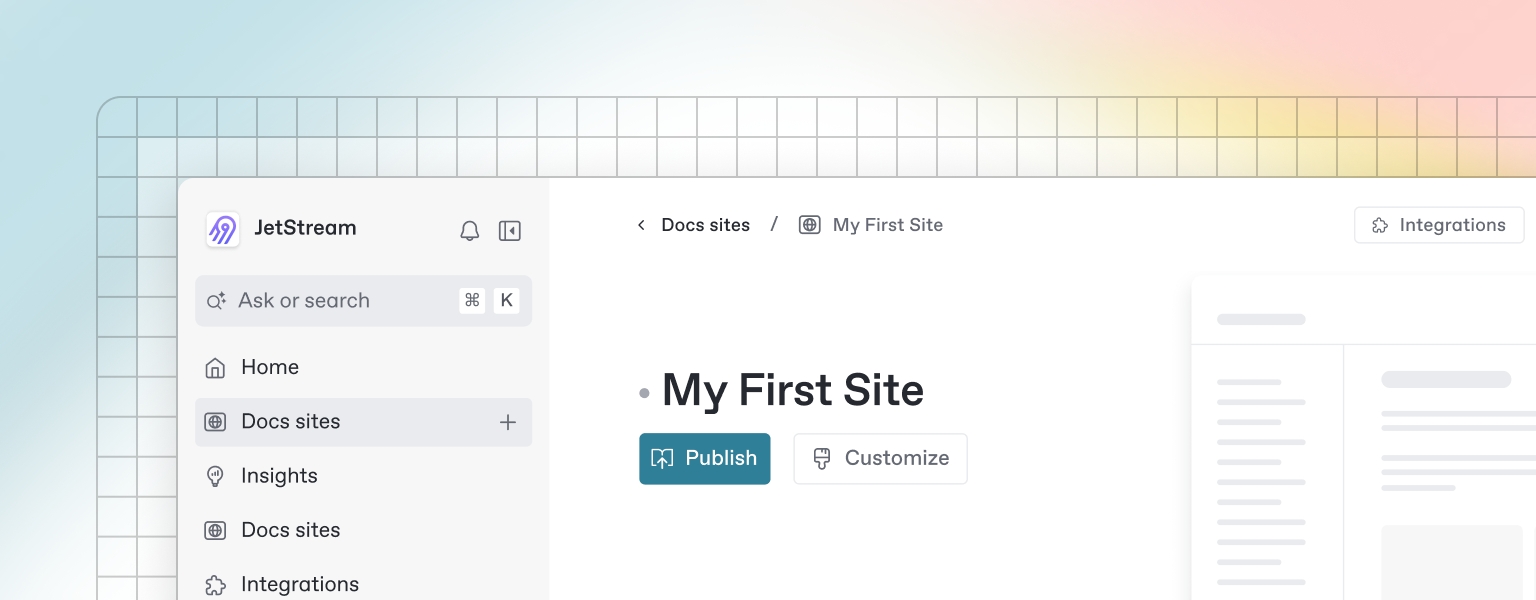
Enhances User Experience – Visitors stay longer and engage more with faster pages.
Reduces Bounce Rates – Slow-loading pages lead to high abandonment rates.
Increases Conversions – Faster sites encourage more purchases and sign-ups.
Essential for Mobile Optimization – Mobile users expect quick load times.
Google’s recommended page load time is under 3 seconds. Sites that take longer to load may lose traffic and rankings.
Before making improvements, measure your website’s speed using free performance testing tools:
1. Google PageSpeed Insights
Analyzes website speed and provides optimization recommendations.
Scores website performance for mobile and desktop.
Measures Core Web Vitals (LCP, FID, CLS).
2. GTmetrix
Provides detailed page speed reports, including waterfall analysis.
Grades performance based on speed, structure, and page requests.
3. Lighthouse (Google DevTools)
Chrome browser tool for measuring page speed and accessibility.
Includes performance audits to detect slow elements.
Access via Chrome DevTools > Lighthouse.
Tip: Run multiple tests to get an average loading time and performance score.
1. Optimize Images
Large images slow down websites. Compress and resize them to improve loading speed.
How to Optimize Images:
Use WebP format instead of PNG/JPEG for better compression.
Resize images to fit display dimensions (avoid large images scaled down).
Compress images using:
TinyPNG (tinypng.com)
ShortPixel (WordPress plugin)
ImageOptim (Mac)
Ideal Image File Size: Keep images under 100KB when possible.
2. Enable Browser Caching
Caching stores static files (images, CSS, JavaScript) so returning visitors experience faster page loads.
How to Enable Caching:Use .htaccess rules to set caching expiration times.
Install caching plugins:
WP Rocket (WordPress)
W3 Total Cache (WordPress)
Best Practice: Set caching expiration for images, CSS, and JavaScript to 1 year.
3. Minify CSS, JavaScript, and HTML
Minification removes unnecessary spaces, comments, and characters from code files, reducing their size and improving load speed.
Tools for Minification:
Minify Code Online: Minifier.org
WordPress Plugins:
Autoptimize
WP Super Minify
Tip: Combine CSS & JavaScript files to reduce HTTP requests.
4. Use a Content Delivery Network (CDN)
A CDN speeds up website loading by serving cached content from servers worldwide.
Best CDN Services:
Cloudflare (Free & Paid options)
Amazon CloudFront
Akamai
Tip: Use a CDN to serve images, CSS, and JavaScript faster.
5. Reduce Server Response Time
Your server’s performance affects page speed. Optimize it for faster responses.
How to Reduce Server Load:
Choose a fast web host (e.g., SiteGround, Kinsta, WP Engine).
Enable Gzip compression to reduce file sizes.
Optimize database queries by removing unused plugins and scripts.
Tip: Aim for a server response time under 200ms.
6. Implement Lazy Loading for Images & Videos
Lazy loading defers loading off-screen images/videos until they are needed, reducing initial load time.
How to Enable Lazy Loading:
Add loading="lazy" to images manually:
Use lazy loading plugins:
WP Rocket (WordPress)
a3 Lazy Load (WordPress)
Tip: Lazy load YouTube videos using the Lite YouTube Embed plugin.
7. Optimize Fonts and Reduce External Scripts
Web fonts and third-party scripts increase page load time. Optimize them for better speed.
Best Practices:
Use system fonts instead of custom web fonts.
Load fonts asynchronously (font-display: swap;).
Limit the use of third-party widgets (e.g., social media feeds, chatbots). Tip: Remove unused Google Fonts and FontAwesome icons to reduce requests.
Uploading Uncompressed Images – Always resize and compress images.
Not Using a CDN – A CDN dramatically improves speed for global users.
Too Many HTTP Requests – Reduce requests by combining CSS/JS files.
Neglecting Mobile Optimization – Ensure mobile speed is as fast as desktop.
Using Slow Web Hosting – A slow host kills performance—choose a fast, reliable provider.
Track performance consistently to maintain fast load times.
Tools for Monitoring Speed:
Google PageSpeed Insights (pagespeed.web.dev)
GTmetrix (gtmetrix.com)
Pingdom Tools (tools.pingdom.com)
Tip: Run tests monthly to ensure consistent speed performance.
208.67.220.220Choose Use the following DNS server addresses and enter the new DNS addresses.
Click OK and restart your connection.
If needed, enable or disable PHP extensions.
upload_max_filesize
post_max_size
max_execution_time
Save changes.
Click Add New Cron Job.
Select your database and go to Import.
Upload your .sql backup file.
Click Go to restore.
Rename back and enable plugins one by one to find the faulty plugin.
Why is Robots.txt Important for SEO?
Controls Search Engine Crawling – Directs bots on which pages to crawl or avoid.
Prevents Indexing of Unwanted Pages – Stops search engines from indexing duplicate, private, or low-value pages.
Saves Crawl Budget – Helps large websites prevent unnecessary crawling of non-important pages.
Protects Sensitive Data – Restricts access to admin areas, login pages, or private directories.
When a search engine bot (e.g., Googlebot) visits a website, it first checks for a robots.txt file. If the file is present, the bot follows the instructions within it.
Example of a Basic Robots.txt File:
Explanation:
User-agent: * → Applies to all search engine bots.
Disallow: /private/ → Prevents bots from crawling the /private/ directory.
Disallow: /wp-admin/ → Blocks WordPress admin area from being indexed.
Allow: /public/ → Ensures /public/ content is accessible to bots.
Tip: Robots.txt only controls crawling, not indexing. To prevent indexing, use the noindex meta tag within the page’s HTML.
1. Manually Create a Robots.txt File
Open Notepad (Windows) or TextEdit (Mac).
Type your robots.txt rules (see examples below).
Save the file as robots.txt.
Upload it to your website’s root directory (https://example.com/robots.txt).
Best For: Custom websites and manual control over crawl settings.
2. Generate Robots.txt Using a CMS Plugin
For WordPress, Joomla, or Shopify, use a plugin to manage the robots.txt file easily.
Best Plugins:
Joomla – JSitemap Pro
Shopify – Built-in robots.txt file (editable with Liquid templates)
Best For: Websites using CMS platforms.
1. Block Unnecessary Pages
Prevent search engines from crawling low-value or duplicate pages.
Best Practices:
Why? These pages do not need to be indexed as they are dynamic or user-specific.
2. Allow Crawling of Important Pages
Ensure that search engines can access key content and product pages.
Example:
Why? These pages contain valuable content that should be indexed.
3. Avoid Blocking CSS & JavaScript Files
Search engines need CSS and JavaScript to render pages correctly. Avoid blocking them.
Bad Example:
Good Example:
Why? Blocking resources can affect mobile usability and page rendering.
4. Use Wildcards & Dollar Signs for Better Control
* (Wildcard) – Matches any characters.
$ (End of URL) – Ensures exact URL matching.
Example:
Why? Prevents search engines from indexing tracking parameters and ZIP file downloads.
Once your robots.txt file is ready, submit it to Google Search Console.
Steps to Submit Robots.txt in Google Search Console:
Go to Google Search Console.
Select your website.
Click “Settings” → “Crawl Stats”.
Locate and test your robots.txt file.
Click Submit to ensure Google follows your directives.
Pro Tip: Use Google’s Robots.txt Tester to validate your rules.
Blocking Important Pages – Ensure blog posts and product pages are crawlable.
Disallowing All Search Bots – Avoid blocking User-agent: * entirely.
Blocking CSS & JavaScript – Prevents proper rendering of your site.
Forgetting to Update Robots.txt – Keep it aligned with site changes.
Using Robots.txt to Block Indexing – Instead, use noindex meta tags.
Google Search Console Robots.txt Tester – Checks for errors.
Screaming Frog SEO Spider – Crawls websites and detects issues.
Yoast SEO Plugin – Edits robots.txt within WordPress.
Tip: Regularly check your robots.txt file to ensure no accidental blocking of essential content.
Scroll down to the Databases section and click on phpMyAdmin.
This will open the phpMyAdmin interface where you can manage your databases.
Accessing phpMyAdmin via Direct URL
If your hosting provider allows direct access, use this URL:
You may be prompted to enter your database username and password, which can be found in your hosting account or wp-config.php file (for WordPress users).
Accessing phpMyAdmin on a Local Server
For local development using tools like XAMPP, MAMP, or WAMP:
Start your Apache and MySQL services.
Open your web browser and go to:
This will give you access to phpMyAdmin on your local machine.
In phpMyAdmin, click on the Databases tab.
Enter a name for your new database in the Create database field.
Select a collation (usually utf8mb4_general_ci for general use).
Click Create.
Your new database will now appear in the list of available databases.
If you have an existing database backup, follow these steps to import it:
Select the database where you want to import the data.
Click on the Import tab.
Click Choose File and select your .sql file.
Click Go to start the import process.
You will see a success message once the import is complete.
To back up your database:
Select the database you want to export.
Click the Export tab.
Choose the Quick export method and select SQL as the format.
Click Go to download the backup file.
For advanced users, the Custom option allows you to fine-tune export settings.
Creating a New Table
Select the database where you want to create a table.
Click on the Structure tab and scroll down to the Create Table section.
Enter a table name and specify the number of columns.
Define column names, data types, and constraints.
Click Save to create the table.
Editing an Existing Table
Click on a table name to view its structure.
Select Change next to a column to modify its type, name, or default value.
Click Save to apply changes.
Deleting a Table
Navigate to the Structure tab.
Click Drop next to the table you want to delete.
Confirm the deletion.
Warning: Deleting a table permanently removes all its data.
Creating a New Database User
Click on the User Accounts tab.
Click Add user account.
Enter a username and password.
Under Global Privileges, assign the necessary permissions.
Click Go to create the user.
Assigning User Privileges
Select a database and go to the Privileges tab.
Click Edit privileges next to the user.
Select the privileges needed (e.g., SELECT, INSERT, DELETE, etc.).
Click Go to save the changes.
Deleting a User
Go to the User Accounts tab.
Click Drop next to the user you want to remove.
Confirm deletion.
phpMyAdmin allows users to execute SQL commands directly.
Select your database.
Click the SQL tab.
Enter your SQL query, e.g.:
Click Go to execute the query.
Results will be displayed below.
Error: "Access Denied for User"
Ensure that the username and password are correct.
If using WordPress, check the wp-config.php file for correct credentials.
Reset the database user password in your hosting panel.
Error: "Connection Timed Out"
Increase the max_execution_time in the php.ini file.
Optimize large queries to improve performance.
Error: "Database Collation Issues"
Change collation settings using the following SQL command:
phpMyAdmin is a powerful tool for managing MySQL databases without requiring complex command-line operations. By following this guide, you can access phpMyAdmin, create and manage databases, import/export data, assign user privileges, and troubleshoot common issues efficiently. Keeping regular backups and understanding database management best practices will ensure your website or application runs smoothly.
Example of Directory Listing Output:
This allows users to browse and access files directly, which may not always be desirable.
Reasons to Enable Directory Listing:
To allow users to browse and download shared files.
Useful for public repositories or documentation directories.
When you need quick access to files without creating an index page.
Reasons to Disable Directory Listing:
Prevent unauthorized users from accessing sensitive files.
Reduce exposure to security risks such as information disclosure attacks.
Ensure that only intended pages and files are accessible.
Disable Directory Listing via .htaccess (Apache Servers)
For Apache servers, you can disable directory listing by adding the following line to the .htaccess file in your website’s root directory:
Steps:
Open cPanel or access your server via FTP.
Navigate to the public_html directory.
Locate or create the .htaccess file.
Add Options -Indexes to the file.
Save the file and reload your website.
If directory listing is successfully disabled, visitors attempting to access a directory without an index file will see a 403 Forbidden error.
Disable Directory Listing in Apache Configuration (httpd.conf)
If you have access to Apache’s configuration file (httpd.conf), you can disable directory listing globally:
Open the Apache configuration file:
Look for the <Directory /> section and modify it as follows:
Save the file and restart Apache:
Disable Directory Listing in Nginx
For Nginx servers, directory listing (autoindex) can be disabled in the configuration file:
Open the Nginx configuration file:
Locate the relevant server block and set autoindex to off:
Save the file and restart Nginx:
Now, directory listing will be disabled for your Nginx-powered website.
Enable Directory Listing via .htaccess (Apache)
If you need directory listing for a specific folder, add the following line to .htaccess:
Steps:
Navigate to the directory where you want to enable listing.
Create or edit the .htaccess file.
Add Options +Indexes.
Save the file and refresh the page.
Enable Directory Listing in Apache Configuration
To enable directory listing globally in Apache, modify the configuration file:
Open httpd.conf or apache2.conf:
Locate the <Directory /> section and modify it as follows:
Save the file and restart Apache:
Enable Directory Listing in Nginx
To enable directory listing in Nginx, modify the configuration file:
Open the Nginx configuration file:
Locate the server block and set autoindex to on:
Save the file and restart Nginx:
Now, visitors can see a directory listing when they access /files/ on your website.
Directory Listing Still Enabled After Disabling?
Ensure there are no conflicting .htaccess files in subdirectories.
Restart the web server after making changes.
Check the Apache configuration for other Options +Indexes directives.
403 Forbidden Error After Disabling Directory Listing?
This is the expected behavior when directory listing is disabled.
To allow access only to specific files, create an index.html file in the directory.
Changes Not Reflecting in Nginx?
Ensure you restart Nginx after modifying the configuration.
Check Nginx logs for syntax errors:
Directory listing can be a useful feature but also poses security risks if not managed properly. By using .htaccess, Apache, or Nginx configurations, you can enable or disable directory listing as needed. Always ensure that sensitive files remain protected, and consider alternative file-sharing methods if necessary.
Increases Organic Traffic – Helps search engines rank your content higher.
Improves User Engagement – Well-structured content enhances readability.
Boosts Conversions – Relevant and optimized content attracts the right audience.
Enhances Content Discoverability – More chances to appear in featured snippets and rich results.
1. Perform Keyword Research Before Writing
Identify target keywords using tools like Google Keyword Planner, Ahrefs, or SEMrush.
Focus on long-tail keywords for specific search intent.
Check search volume and competition to find rankable keywords.
Example: Instead of targeting “SEO,” use “best SEO tips for beginners”.
2. Use Keywords Naturally
Place your primary keyword in:
Title tag (H1)
First 100 words
Meta description
URL
Headings (H2, H3, etc.)
Avoid keyword stuffing (unnatural overuse of keywords).
Good Example: "Learn the best SEO strategies to improve your rankings and boost website traffic."
Bad Example: "SEO tips, SEO strategies, SEO content writing, SEO tools—SEO everywhere!"
3. Write a Compelling Title & Meta Description
Title: Keep it under 60 characters with a primary keyword.
Meta Description: Keep it under 160 characters with a clear CTA.
Example: Title: "10 Proven SEO Strategies to Boost Your Google Rankings" Meta Description: "Learn 10 expert SEO strategies to improve rankings and drive organic traffic. Read now!"
4. Use Header Tags (H1, H2, H3) for Structure
H1: Main title (used only once).
H2: Subheadings for major sections.
H3-H6: Subsections for clarity.
Example:
5. Create High-Quality, Engaging Content
Write original and valuable content.
Use a conversational tone to engage readers.
Add examples, case studies, and statistics for credibility.
Pro Tip: Aim for 1,500+ words for in-depth articles.
6. Optimize URL Structure
Keep URLs short, readable, and keyword-rich.
Avoid random numbers or symbols.
Good URL: yourwebsite.com/seo-friendly-content-guide ❌ Bad URL: yourwebsite.com/12345/?p=9876
7. Use Internal & External Links
Internal Links: Link to related pages on your website.
External Links: Link to authoritative sources.
8. Optimize Images for SEO
Use descriptive file names (seo-content-guide.jpg).
Add alt text with relevant keywords.
Compress images to improve page speed.
Example:
9. Focus on Readability & User Experience
Use short paragraphs (2-3 sentences).
Add bullet points and numbered lists.
Use bold and italics for emphasis.
Pro Tip: Use tools like Hemingway Editor or Grammarly to improve readability.
10. Optimize for Featured Snippets
Use question-based headings (e.g., "What is SEO?").
Provide concise answers (40-60 words) below headings.
Format content using lists, tables, and bullet points.
Example:
11. Ensure Mobile-Friendliness
Use a responsive design for all screen sizes.
Test using Google's Mobile-Friendly Test.
Pro Tip: 60%+ of web traffic comes from mobile users—optimize accordingly!
12. Improve Page Speed
Compress images with TinyPNG.
Use browser caching.
Minify CSS & JavaScript
Check speed: Use Google PageSpeed Insights.
13. Add Schema Markup for Rich Snippets
Use FAQ Schema, Review Schema, and How-To Schema to enhance SERP results.
Helps with voice search optimization.
Example:
14. Promote Content on Social Media
Share on Twitter, LinkedIn, Facebook.
Encourage social sharing by adding buttons.
Engage in forums and communities.
Pro Tip: Content with social engagement performs better in search rankings.
15. Regularly Update Old Content
Refresh outdated statistics, links, and keywords.
Update every 6-12 months to maintain rankings.
Example: "Updated: The latest SEO trends for 2024 to keep your strategy effective."
Ignoring search intent – Content must match what users are looking for.
Keyword stuffing – Overloading content with keywords.
Duplicate content – Always create original content.
Neglecting mobile users – Ensure responsive design.
No internal linking – Helps with SEO and navigation.
<img src="image.jpg" loading="lazy" alt="Example Image">nslookup example.comping example.comdig example.comipconfig /flushdnssudo killall -HUP mDNSRespondersudo systemd-resolve --flush-cachessudo nano /etc/hostsnet stop dnscache
net start dnscachesudo systemctl restart systemd-resolvedphp -v<?php
phpinfo();
?>AddHandler application/x-httpd-php81 .phpupdate-alternatives --list phpsudo update-alternatives --set php /usr/bin/php8.1php -vfind /etc -name php.inisudo nano /etc/php/8.1/apache2/php.inimemory_limit = 256M
max_execution_time = 300
upload_max_filesize = 64Msudo systemctl restart apache2php_value memory_limit 256M
php_value max_execution_time 300
php_value upload_max_filesize 64Mphp -d memory_limit=256M script.phpsudo systemctl restart apache2sudo systemctl restart nginxphp --inisudo apt install php8.1-mbstringcrontab -e* * * * * /path/to/command-or-script┌──────── minute (0 - 59)
│ ┌────── hour (0 - 23)
│ │ ┌──── day of the month (1 - 31)
│ │ │ ┌── month (1 - 12)
│ │ │ │ ┌ day of the week (0 - 6) (Sunday = 0 or 7)
│ │ │ │ │
* * * * * command-to-execute0 0 * * * /usr/bin/php /home/user/backup.php0 * * * * rm -rf /home/user/temp/*0 6 * * 1 /home/user/scripts/myscript.shcrontab -lcrontab -r/bin/bash /home/user/scripts/myscript.sh/usr/bin/php /home/user/script.php/usr/bin/php /home/user/public_html/cron.php0 0 * * * /path/to/script.sh >> /var/log/cron.log 2>&10 0 * * * /path/to/script.sh > /dev/null 2>&1cat /var/log/syslog | grep CRONchmod +x /path/to/script.sh/usr/bin/php /home/user/script.phpcrontab -l | grep "your_script_name"* * * * * /usr/bin/flock -n /tmp/myscript.lock /home/user/script.shdefine('DB_NAME', 'your_database_name');
define('DB_USER', 'your_database_user');
define('DB_PASSWORD', 'your_database_password');
define('DB_HOST', 'localhost');mysql -u your_user -pdefine('WP_ALLOW_REPAIR', true);https://yourwebsite.com/wp-admin/maint/repair.phpdefine('WP_MEMORY_LIMIT', '256M');sudo service mysql restartsudo service apache2 restartsudo service nginx restart<a href="https://example.com/seo-guide">Read our complete SEO Guide</a><a href="https://example.com/content-marketing">Learn more about content marketing strategies</a><a href="https://example.com/page123">Click here</a><a href="https://example.com">Home</a> > <a href="https://example.com/blog">Blog</a> > Current Post<img src="blue-running-shoes.jpg" alt="Blue running shoes for men with breathable mesh design"><img src="image-small.jpg" srcset="image-medium.jpg 600w, image-large.jpg 1200w" alt="Responsive image example"><img src="image.jpg" loading="lazy" alt="Example image"Pro Tip: Use lazy loading plugins for WordPress (e.g., WP Rocket, a3 Lazy Load).<urlset xmlns="http://www.sitemaps.org/schemas/sitemap/0.9">
<url>
<loc>https://example.com/sample-page/</loc>
<image:image>
<image:loc>https://example.com/images/seo-optimization.jpg</image:loc>
</image:image>
</url>
</urlset><meta property="og:image" content="https://example.com/image.jpg">
<meta name="twitter:image" content="https://example.com/image.jpg"><title>Best SEO Tips for 2024 - Improve Your Rankings</title><meta name="description" content="Learn the best SEO tips for 2024 to boost your website rankings and drive organic traffic. Expert strategies included!">User-agent: *
Disallow: /private/
Disallow: /wp-admin/
Allow: /public/User-agent: *
Disallow: /cart/
Disallow: /checkout/
Disallow: /thank-you/
Disallow: /search-results/User-agent: *
Allow: /blog/
Allow: /products/User-agent: *
Disallow: /wp-content/User-agent: *
Allow: /wp-content/themes/
Allow: /wp-content/plugins/User-agent: *
Disallow: /*?ref=*
Disallow: /downloads/*.zip$SELECT * FROM users;ALTER DATABASE database_name CHARACTER SET utf8mb4 COLLATE utf8mb4_general_ci;https://yourdomain.com/phpmyadminhttp://localhost/phpmyadmin/sudo nano /etc/apache2/apache2.conf # For Ubuntu/Debian
sudo nano /etc/httpd/conf/httpd.conf # For CentOS/RHEL<Directory />
Options -Indexes
</Directory>sudo systemctl restart apache2 # For Ubuntu/Debian
sudo systemctl restart httpd # For CentOS/RHELsudo nano /etc/nginx/nginx.confserver {
listen 80;
server_name yourdomain.com;
location / {
autoindex off;
}
}sudo systemctl restart nginxsudo nano /etc/apache2/apache2.conf # For Ubuntu/Debian
sudo nano /etc/httpd/conf/httpd.conf # For CentOS/RHEL<Directory />
Options +Indexes
</Directory>sudo systemctl restart apache2 # For Ubuntu/Debian
sudo systemctl restart httpd # For CentOS/RHELsudo nano /etc/nginx/nginx.confserver {
listen 80;
server_name yourdomain.com;
location /files/ {
autoindex on;
}
}sudo systemctl restart nginxsudo nginx -tIndex of /files
Parent Directory
document1.pdf
image.jpg
script.jsOptions -IndexesOptions +Indexes<h1>Best SEO Strategies for 2024</h1>
<h2>1. Optimize Your Website Speed</h2>
<h2>2. Focus on Mobile SEO</h2>
<h3>Why Mobile Optimization Matters</h3><img src="seo-content-guide.jpg" alt="SEO-friendly content writing tips"><h2>What is SEO?</h2>
<p>SEO (Search Engine Optimization) is the process of improving a website's visibility in search engines like Google.</p><script type="application/ld+json">
{
"@context": "https://schema.org",
"@type": "Article",
"headline": "Best SEO Practices",
"author": "John Doe"
}
</script>Keyword Optimization
Research and use relevant keywords naturally in titles, meta descriptions, headings, and content.
Avoid keyword stuffing, which can negatively impact rankings.
High-Quality Content
Create original, valuable, and informative content.
Ensure content is well-structured with proper use of H1, H2, and H3 tags.
Title Tags & Meta Descriptions
Title tags should be concise (under 60 characters) and include primary keywords.
Meta descriptions should be engaging (150-160 characters) and encourage users to click.
URL Structure
Use short, descriptive URLs with keywords (e.g., yourdomain.com/on-page-seo-tips).
Avoid long, complex URLs with random characters.
Image Optimization
Compress images to improve page speed.
Use alt text with relevant keywords for better indexing.
Internal Linking
Link to other related pages on your website to improve navigation.
Helps search engines discover and index content more effectively.
Mobile-Friendliness
Ensure your site is responsive and works well on mobile devices.
Use Google’s Mobile-Friendly Test to check compatibility.
Page Speed Optimization
Compress images and use browser caching.
Minimize CSS, JavaScript, and HTML files.
Schema Markup (Structured Data)
Helps search engines better understand content.
Enhances search result appearance with rich snippets (e.g., star ratings, FAQs).
Off-Page SEO focuses on activities outside your website that impact its authority and rankings. This includes building backlinks, increasing brand mentions, and leveraging social signals.
Key Off-Page SEO Elements
Backlink Building
High-quality backlinks from authoritative websites improve domain authority.
Strategies include guest blogging, outreach, and broken link building.
Social Media Signals
While not a direct ranking factor, engagement on platforms like Facebook, Twitter, LinkedIn can drive traffic.
Sharing content increases brand awareness and credibility.
Brand Mentions
Google considers unlinked brand mentions as a ranking factor.
Being featured on trusted sites improves authority.
Influencer Marketing
Collaborating with industry influencers boosts exposure and credibility.
Influencer-endorsed content gets more shares and backlinks.
Local SEO & Google My Business
Optimize Google My Business (GMB) profile for better local rankings.
Encourage customer reviews and ensure consistent NAP (Name, Address, Phone Number) across directories.
Forum & Community Engagement
Actively participate in relevant forums (e.g., Quora, Reddit) to build credibility.
Answering industry-related questions with valuable insights can drive traffic.
Press Releases & PR Campaigns
Publishing newsworthy content on authoritative sites increases brand trust.
Being featured on industry-leading blogs or news websites adds credibility.
Focus
Content & website structure
External factors & backlinks
Control
Fully controlled by website owner
Influenced by external sites & audience
Techniques
Keyword optimization, meta tags, page speed
Backlink building, social media, PR
Main Goal
Improve content relevancy & user experience
For a website to rank well, both On-Page and Off-Page SEO need to be implemented effectively. Here’s how they complement each other:
Strong content (On-Page SEO) attracts backlinks (Off-Page SEO).
Faster-loading pages (On-Page SEO) improve user experience, encouraging social shares (Off-Page SEO).
Internal linking (On-Page SEO) makes it easier for search engines to crawl pages linked by external sources (Off-Page SEO).
Start with On-Page SEO – Optimize content, meta tags, and site structure first.
Build High-Quality Backlinks – Focus on earning links from authoritative and relevant websites.
Leverage Social Media & PR – Promote your content to attract organic shares and mentions.
Monitor SEO Performance – Use tools like Google Analytics, Ahrefs, and SEMrush to track progress.
Regularly Update Content – Refresh old blog posts and pages to maintain relevance.
Both On-Page SEO and Off-Page SEO are crucial for improving search engine rankings and driving organic traffic. On-Page SEO ensures your website is optimized for search engines and users, while Off-Page SEO builds credibility and authority through external signals. A well-rounded SEO strategy incorporates both elements to achieve long-term success in search rankings.
Competitor backlink analysis is a powerful SEO strategy that helps you identify high-quality backlink opportunities, improve link-building strategies, and boost search rankings. By analyzing your competitors' backlinks, you can uncover authoritative websites that may also link to your site.
This guide explains how to analyze competitor backlinks step by step and leverage them to strengthen your SEO strategy.
Competitor backlink analysis involves examining the backlink profiles of top-ranking competitors to understand where they get their backlinks from and how you can replicate or improve upon their strategies.
Why is Competitor Backlink Analysis Important?
Find High-Authority Link Opportunities – Identify reputable websites that may link to your content. Understand Competitor Strategies – Learn how competitors acquire backlinks.
Improve Your Link-Building Efforts – Gain insights to refine your outreach strategy.
Boost SEO Rankings – More high-quality backlinks improve domain authority and rankings.
Without analyzing competitors’ backlinks, you may miss valuable linking opportunities that can help your site outrank them in Google SERPs.
1. Identify Your Top SEO Competitors
Before analyzing backlinks, determine who your real SEO competitors are.
How to Find SEO Competitors:
Google Search – Search for your target keywords and note the top-ranking websites.
Ahrefs/Semrush Competitor Analysis – Use SEO tools to discover sites with overlapping keywords. Moz Link Explorer – Compare domain authority (DA) and backlink profiles.
Example Search Query:
Tip: Focus on competitors with higher domain authority and strong backlink profiles.
2. Use SEO Tools to Analyze Competitor Backlinks
To analyze a competitor’s backlinks, use SEO tools that provide detailed backlink insights.
Best SEO Tools for Backlink Analysis:
Ahrefs Site Explorer ()
SEMrush Backlink Analytics ()
Moz Link Explorer ()
Majestic SEO ()
Steps to Analyze Competitor Backlinks in Ahrefs:
Enter the competitor’s domain in Ahrefs Site Explorer.
Navigate to Backlinks Report.
Filter for DoFollow links and high-authority sites.
Identify relevant linking domains and their linking pages.
Tip: Focus on backlinks from high-authority, relevant domains with a DoFollow attribute.
3. Identify High-Quality Backlinks
Not all backlinks are valuable. Focus on high-quality links that can improve your domain authority.
What Makes a Backlink High-Quality?
Comes from an Authoritative Domain – Websites with high DA/DR (Domain Authority/Domain Rating).
Relevant to Your Industry/Niche – Links from related websites are more valuable.
Has DoFollow Attributes – DoFollow links pass SEO value.
Placed Contextually – Links within body content are stronger than sidebar/footer links.
Has Organic Traffic – Websites with real traffic provide better value.
Tip: Use Ahrefs or Moz to filter backlinks by Domain Rating (DR) or Domain Authority (DA).
4. Find Common Backlink Sources
By identifying shared backlink sources across multiple competitors, you can find high-potential link-building opportunities.
How to Find Common Backlinks:
Use Ahrefs Link Intersect Tool
Enter your domain and competitor domains.
The tool shows websites that link to your competitors but not you.
Use SEMrush Backlink Gap Tool
Compare backlink profiles of 3-5 competitors.
Find common referring domains you haven’t acquired yet.
Tip: Reach out to these websites and offer valuable content or collaborations.
5. Analyze Competitor Link-Building Strategies
Once you have competitor backlinks, analyze their patterns to find ways to replicate or improve them.
Questions to Ask:
What type of content attracts backlinks? – Blog posts, infographics, case studies?
What link-building tactics do they use? – Guest posts, resource pages, sponsorships?
Which pages get the most backlinks? – Identify high-performing content.
Are they featured on directories or industry lists? – Apply for the same.
Tip: If a competitor earns links from guest posts, pitch to the same websites.
6. Replicate & Improve Their Best Backlinks
After identifying strong competitor backlinks, develop an outreach strategy to earn similar or better links.
Best Ways to Acquire Competitor Backlinks:
Guest Posting – Write for the same websites your competitors contribute to.
Broken Link Building – Find competitor backlinks that point to dead pages and suggest your content as a replacement.
Skyscraper Technique – Improve their most-linked content and promote it.
Resource Pages & Directories – Get listed on industry directories where competitors are featured.
HARO & PR Outreach – Get mentions from news sites and blog
Tip: Personalize outreach emails for better success rates.
Tip: Keep emails short, personalized, and value-driven.
Backlink Analysis Tools:
Ahrefs Backlink Checker – Comprehensive backlink reports.
Moz Link Explorer – DA and backlink comparison.
SEMrush Backlink Analytics – Competitor backlink monitoring.
Link-Building & Outreach:
BuzzStream – Outreach management tool.
Hunter.io – Find email addresses for outreach.
Google Alerts – Track new mentions of competitor brands.
Tip: Regularly track new backlinks competitors earn and target those opportunities.
Focusing Only on Quantity – Prioritize quality over the number of backlinks.
Ignoring NoFollow Links – They can still drive referral traffic.
Not Checking Spam Score – Avoid low-quality, spammy backlinks.
Skipping Outreach Follow-Ups – Many backlinks require multiple follow-ups.
Neglecting Internal Links – Strong internal linking improves SEO alongside backlinks.
Guest blogging, also known as guest posting, is a content marketing and SEO strategy where individuals write and publish articles on third-party websites. It helps businesses and individuals build brand awareness, acquire high-quality backlinks, and drive targeted traffic.
When done correctly, guest blogging can significantly enhance a website’s domain authority, search rankings, and credibility. This guide explains what guest blogging is, its SEO benefits, and how to implement it effectively.
Guest blogging is the process of writing articles or blog posts for external websites in exchange for a backlink to your own site. It is a win-win strategy where the guest blogger gets exposure and backlinks, while the host website receives valuable content.
How Guest Blogging Works:
You write a high-quality article related to your niche.
You submit it to a reputable website as a guest post.
If accepted, the website publishes your content and includes a backlink to your site.
Your site gains referral traffic, backlinks, and SEO authority.
Tip: Always guest blog on relevant, high-authority websites to maximize SEO benefits.
1. Builds High-Quality Backlinks
Backlinks from authoritative websites are one of the strongest ranking factors in Google’s algorithm.
Why Backlinks Matter:
Improve Domain Authority (DA) – Increases your site’s credibility.
Boost SERP Rankings – Helps your pages rank higher in Google search.
Passes Link Equity – Transfers SEO value from one site to another.
Increases Referral Traffic – Brings visitors from external sources.
Example Guest Post Link:
Tip: Focus on earning DoFollow backlinks from relevant, high-authority websites.
2. Increases Website Traffic & Brand Awareness
Guest blogging exposes your content to a new audience, driving qualified traffic to your site.
Best Practices for Traffic Growth:
Target Industry-Specific Blogs – Publish on niche-relevant sites.
Include a Clear CTA – Encourage readers to visit your website.
Write Authoritative, Engaging Content – High-value posts generate organic shares & referrals.
Tip: Leverage social media sharing to amplify guest post reach.
3. Establishes Authority & Thought Leadership
Guest posting on reputable websites positions you as an industry expert.
How to Build Authority with Guest Blogging:
Write Data-Driven Content – Include statistics and case studies.
Get Featured on Industry-Leading Sites – Authority sites enhance credibility.
Consistently Publish Valuable Content – Become a trusted voice in your field.
Tip: Aim to contribute to respected industry blogs like Moz, HubSpot, or Forbes.
4. Expands Your Network & Builds Relationships
Guest blogging fosters relationships with industry influencers, bloggers, and businesses.
Networking Benefits:
Increases Collaboration Opportunities – Guest blogging can lead to future partnerships.
Enhances Social Proof – Being published on top sites boosts credibility.
Provides Future Content Opportunities – Sites may invite you for repeat contributions.
Tip: Engage with blog editors & industry experts to expand your reach.
1. Use Google Search Operators
Find guest posting opportunities by searching Google with specific queries:
Example Search:
Tip: Prioritize sites with high DA (Domain Authority) and organic traffic.
2. Analyze Competitor Guest Posts
Find where your competitors are guest posting and contribute to the same sites.
Best Tools for Competitor Backlink Analysis:
Ahrefs Backlink Checker
SEMrush Backlink Analytics
Moz Link Explorer
Tip: Use Ahrefs Link Intersect Tool to identify competitor guest post backlinks.
3. Check Industry Blogs & Directories
Many websites list guest blogging opportunities for specific industries.
Best Guest Blogging Directories:
AllTop ()
BlogDash ()
My Blog Guest ()
Tip: Join guest blogging Facebook groups and LinkedIn communities to find opportunities.
1. Follow the Blog’s Guest Posting Guidelines
Most websites have submission guidelines outlining:
Topic Requirements – Choose relevant subjects.
Word Count Limits – Usually 800-2,000 words.
Linking Policies – Number of allowed backlinks.
Formatting Rules – Use H2, H3 headings, bullet points, etc.
Tip: Read past guest posts to match the blog’s style and quality.
2. Write High-Quality, Valuable Content
Google prioritizes high-value, well-researched content. Make your guest post better than competitors’ posts.
Best Practices for High-Quality Guest Posts:
Use Data & Case Studies – Support claims with facts.
Include Engaging Visuals – Images, infographics, and videos improve readability.
Avoid Over-Promotion – Focus on value, not self-promotion.
Tip: Use compelling storytelling to engage readers.
3. Optimize the Author Bio for SEO
Your author bio is where you include a backlink to your site.
Example Author Bio:
Tip: Link to your homepage and a relevant blog post.
Publishing on Low-Quality or Spammy Websites – Low-authority sites offer little SEO value.
Focusing Only on Quantity, Not Quality – Prioritize valuable, well-researched posts.
Not Engaging with Readers – Respond to comments to build credibility.
Ignoring Blog Guidelines – Follow site-specific guest posting rules.
Overusing Exact Match Anchor Text – Use natural variations of keywords in backlinks.
Tip: Track guest post backlinks using Google Search Console or Ahrefs.
Canonical tags (rel="canonical") are essential for SEO as they help prevent duplicate content issues, consolidate ranking signals, and guide search engines to the preferred version of a webpage. Implementing canonical tags correctly ensures that search engines index the right pages, improving overall site performance.
This guide explains what canonical tags are, why they matter, and how to implement them correctly to improve your website’s SEO.
A canonical tag is an HTML element (rel="canonical") that tells search engines which version of a webpage is the primary (preferred) version. It helps prevent duplicate content issues when multiple URLs display the same or similar content.
Example of a Canonical Tag:
How It Works:
Search engines recognize canonicalized URLs and consolidate ranking signals.
Only the preferred version is indexed, reducing duplicate content penalties.
Prevents confusion when the same page is accessible via multiple URLs.
Tip: Use canonical tags on every page, even when duplicate content isn’t obvious.
Prevents Duplicate Content Issues – Consolidates duplicate URLs into one primary version.
Improves Search Rankings – Avoids keyword dilution across multiple versions of the same content.
Consolidates Link Equity – Directs backlinks and ranking power to the preferred page.
Enhances User Experience – Prevents search engines from displaying redundant content.
Essential for Large Websites – Useful for eCommerce, blogs, and dynamically generated URLs.
Without canonical tags, search engines may split ranking power among similar pages, reducing your SEO potential.
1. Duplicate Pages with Different URLs
If the same page exists under multiple URLs, use a canonical tag to specify the preferred version.
Example:
Solution: Add this tag to both versions:
2. WWW vs. Non-WWW Versions
If your site is accessible at both www.example.com and example.com, use a canonical tag to prevent duplication.
Example:
3. HTTP vs. HTTPS Versions
If your site has both HTTP and HTTPS versions, ensure that HTTPS is canonicalized.
Example:
4. Similar Content Pages
For blog posts or category pages with similar content, use canonical tags to avoid duplicate content penalties.
Example:
Post 1: "Best SEO Strategies for 2024"
Post 2: "Top SEO Techniques for 2024" (very similar content)
Canonicalize the stronger-performing page:
5. Pagination & Category Pages
For paginated URLs (page=2, page=3), canonicalize the first page in the series.
Example:
1. Add the Canonical Tag in the <head> Section
Place the canonical tag within the <head> section of each duplicate page.
Correct Implementation:
Wrong Implementation: (Placed inside <body>)
2. Self-Referencing Canonical Tags
Every indexable page should contain a self-referencing canonical tag to prevent accidental duplication.
Example:
Why? It helps avoid accidental duplicate URLs (e.g., adding tracking parameters like ?utm_source=google).
3. Use Canonical Tags Instead of 301 Redirects (When Needed)
Use a 301 redirect when you want to permanently remove duplicate pages.
Use a canonical tag when duplicate versions must remain accessible.
Example:
A printer-friendly page (?print=1) should use a canonical tag to the main page.
A moved page should use a 301 redirect, not a canonical tag.
4. Avoid Conflicting Canonical Tags & Redirects
If a page has both a canonical tag and a 301 redirect pointing to different URLs, search engines may get confused.
Best Practice: Ensure canonical tags and redirects point to the same URL.
5. Canonicalize Cross-Domain Duplicate Content
If the same content appears on multiple domains, use cross-domain canonical tags.
Example:
When to Use It?
Syndicated content (e.g., guest posts published on multiple sites).
E-commerce product listings on multiple domains.
Use these tools to verify if canonical tags are implemented correctly:
Google Search Console – Inspect URLs to see which version Google considers canonical.
Screaming Frog SEO Spider – Crawl pages and check canonical tags.
Ahrefs Site Audit – Detect duplicate content and missing canonical tags. Google’s URL Inspection Tool – Shows Google-selected canonical.
Pointing Canonical Tags to Non-Related Pages – Keep URLs relevant.
Using Multiple Canonical Tags on One Page – Only one canonical tag per page.
Canonicalizing the Wrong URL – Ensure the preferred version is correct.
Blocking Canonical Pages in Robots.txt – Google won’t crawl them if blocked.
Using Canonical Tags with noindex Tags – Causes conflicting signals.
Off-page SEO refers to all optimization activities that occur outside your website to improve its search engine rankings. It includes link building, social media marketing, brand mentions, influencer outreach, and other external signals that help search engines determine a website’s authority, relevance, and credibility.
A strong off-page SEO strategy is essential for improving domain authority, search rankings, and organic traffic. This guide explains what off-page SEO is, why it matters, and the best practices to implement it effectively.
Improves Search Engine Rankings – External signals help search engines assess a website’s authority. Builds Website Authority & Trust – High-quality backlinks increase credibility.
Drives Referral Traffic – Links from external websites bring direct visitors.
Enhances Brand Recognition – Off-page SEO strengthens brand presence online.
Complements On-Page SEO – While on-page SEO optimizes content, off-page SEO promotes it.
Without a solid off-page SEO strategy, even well-optimized content may struggle to rank against more authoritative competitors.
1. Link Building (Backlinks)
Backlinks are the most important off-page SEO ranking factor. They signal to search engines that other websites trust your content.
Types of Backlinks:
DoFollow Links – Pass SEO value (link equity) and improve rankings.
NoFollow Links – Do not pass SEO value but can drive traffic.
High-Authority Links – Links from trusted sites (e.g., news sites, government websites).
Contextual Links – Links placed naturally within content.
Best Link-Building Strategies:
Guest Blogging – Write high-quality articles for authoritative websites.
Broken Link Building – Find broken links and suggest your content as a replacement.
Skyscraper Technique – Improve existing popular content and reach out for backlinks.
Resource Page Links – Get listed on industry-specific resource pages.
HARO (Help A Reporter Out) – Provide expert insights to journalists in exchange for backlinks.
Example of a DoFollow Backlink:
2. Social Media Signals & Engagement
While social media links do not directly impact SEO, they influence rankings indirectly by increasing content visibility, engagement, and referral traffic.
Best Social Media SEO Practices:
Share Content on Social Platforms – Facebook, Twitter, LinkedIn, Pinterest.
Engage with Your Audience – Respond to comments, questions, and mentions.
Encourage Social Shares – Use compelling CTAs in posts.
Leverage Influencers – Collaborate with industry experts to expand reach.
Optimize Social Profiles – Include keywords in bio descriptions and links to your website.
Example of a Social Shareable Content:
3. Brand Mentions (Unlinked & Linked)
Google recognizes brand mentions as a ranking signal, even if they don’t include a direct link.
How to Earn Brand Mentions:
PR & Media Coverage – Get featured in news articles and industry blogs.
Podcast Interviews & Webinars – Expand brand recognition.
Online Reviews & Testimonials – Gain credibility and visibility.
Community Engagement – Participate in forums like Reddit & Quora.
Example of a Brand Mention Without a Link:
"[Company Name] has one of the best SEO tools in the market."
Tip: Use Google Alerts or Brand Mention Tools (e.g., Ahrefs, BuzzSumo) to track brand mentions.
4. Influencer Marketing & Blogger Outreach
Influencer collaborations help increase brand exposure and build authority through their audience.
Best Practices for Influencer SEO:
Identify Relevant Influencers – Look for influencers in your niche with engaged audiences.
Offer Value – Provide unique insights, products, or incentives.
Encourage Natural Mentions – Aim for organic recommendations rather than paid promotions.
Monitor Performance – Track referral traffic and mentions using analytics tools.
Example of Influencer Outreach Email:
5. Local SEO & Citations
For businesses with a physical presence, local SEO is a crucial part of off-page optimization.
Best Local SEO Practices:
Claim Your Google My Business Listing – Optimize your business profile.
Get Listed in Local Directories – Yelp, Yellow Pages, Foursquare.
Encourage Customer Reviews – Positive reviews improve local rankings.
Optimize for "Near Me" Searches – Use location-based keywords.
Example of a Local Citation:
Tip: Ensure NAP Consistency (Name, Address, Phone Number) across all listings.
Backlink Analysis:
Ahrefs
Moz Link Explorer
SEMrush Backlink Audit
Brand Mentions & PR Monitoring:
Google Alerts
BuzzSumo
Brand24
Social Media & Influencer Outreach:
Hootsuite
Buffer
BuzzStream
Local SEO & Citations:
Google My Business
Whitespark
BrightLocal
Tip: Regularly audit backlinks to remove toxic links using Google’s Disavow Tool.
Buying Low-Quality Backlinks – Avoid spammy link-building tactics.
Ignoring Brand Mentions – Track unlinked mentions and request backlinks.
Not Engaging on Social Media – Interaction improves brand trust.
Lack of Local SEO Efforts – Businesses need Google My Business optimization.
Relying Only on On-Page SEO – External signals are essential for ranking.
A 500 Internal Server Error is a common and frustrating issue that can occur on websites running on various platforms, including WordPress, PHP applications, and custom-built websites. This error typically indicates that something went wrong on the server, but the exact cause is not specified. Fortunately, there are multiple ways to troubleshoot and resolve this issue.
In this guide, we will explore various methods to fix a 500 Internal Server Error efficiently.
Sometimes, the error is temporary and can be fixed by simply refreshing the page. Try the following:
Press Ctrl + F5 (Windows) or Cmd + Shift + R (Mac) to force reload the page.
Clear your browser cache and try again.
Try accessing the website from a different browser or device.
If the error persists, proceed with further troubleshooting steps.
A corrupted .htaccess file is one of the most common causes of a 500 Internal Server Error. To check:
Access your website files using FTP or File Manager in your hosting control panel.
Locate the .htaccess file in the root directory of your website.
Rename it to .htaccess_backup.
Try reloading your website. If the error disappears, generate a new .htaccess file by following these steps:
A 500 Internal Server Error can occur if your PHP script exceeds the allowed memory limit. To increase it:
Open your wp-config.php file (if using WordPress).
Add the following line before the /* That's all, stop editing! */ comment:
Save the file and refresh your site.
Alternatively, you can modify the php.ini file:
Locate php.ini in your hosting directory.
Increase the memory_limit value:
Save and restart your web server if applicable.
If you don’t have access to php.ini, try increasing memory in .htaccess:
Sometimes, a faulty plugin or theme can cause the 500 Internal Server Error.
Access your website via FTP.
Navigate to the wp-content/plugins/ directory.
Rename the plugins folder to plugins_backup.
Try reloading your site.
Access the wp-content/themes/ directory.
Rename your active theme folder (e.g., mytheme to mytheme_backup).
WordPress will automatically switch to a default theme (like Twenty Twenty-Three).
Incorrect file permissions can also cause the 500 Internal Server Error. The correct permissions should be:
Folders: 755
Files: 644
To fix permissions via FTP:
Right-click on the root folder and select File Permissions.
Apply 755 for directories and 644 for files.
Save and retry loading your site.
If you're using WordPress, enabling debugging can help identify the cause of the error.
Open the wp-config.php file.
Add the following lines:
Save the file.
Check the wp-content/debug.log file for error messages.
Your hosting provider’s error logs can provide clues to the issue. To check logs:
In cPanel, go to Metrics > Errors.
If using an Apache server, access the log via:
For Nginx:
Look for recent errors and troubleshoot accordingly.
If core WordPress files are corrupted, reinstall them:
Download the latest WordPress version from .
Extract the files and delete the wp-content folder to keep your themes and plugins.
Upload the rest of the files via FTP.
Check if the site works.
If none of the above steps resolve the issue, reach out to your hosting provider’s support team. Provide them with details, including:
The steps you’ve taken to troubleshoot.
Any error logs or debugging information.
The 500 Internal Server Error can be caused by various factors, including corrupt .htaccess files, PHP memory limits, faulty plugins, or incorrect file permissions. By following the steps outlined in this guide, you should be able to identify and resolve the issue efficiently. If the error persists, your hosting provider can assist in diagnosing server-related problems.
Domain Authority (DA) is a metric developed by Moz to predict how well a website will rank on search engine results pages (SERPs). It is scored on a scale from 1 to 100, with higher scores indicating greater ranking potential.
Improving Domain Authority can enhance your website’s credibility, visibility, and ability to rank for competitive keywords. This guide explains what DA is, how it works, and the best strategies to increase it.
Domain Authority (DA) is a predictive ranking score that evaluates the overall strength of a website’s backlink profile. The score is based on multiple factors, including:
Backlink Quality & Quantity – The number and strength of links pointing to your site.
Domain Age & Trust – Older, well-established domains tend to have higher DA.
Content Quality & Relevance – High-quality, authoritative content improves DA.
Technical SEO & Site Structure – A well-optimized website enhances credibility.
Moz calculates DA based on over 40 ranking signals, including:
Linking Root Domains – The number of unique websites linking to your site.
Total Backlinks – The total number of inbound links pointing to your domain.
Spam Score – A lower spam score improves DA.
Search Engine Friendliness – Proper indexing and crawlability.
Important Note: DA is not a Google ranking factor but is a useful indicator of SEO performance.
Check Your DA Score: Use Moz’s DA Checker:
1-20 – Low authority (new or small websites).
21-40 – Moderate authority (growing SEO presence).
41-60 – Strong authority (competitive rankings).
61-80 – High authority (well-established sites).
Tip: Focus on improving SEO fundamentals rather than just increasing DA.
1. Build High-Quality Backlinks
Backlinks from authoritative sites are the strongest DA-boosting factor.
Best Link-Building Strategies:
Guest Blogging – Contribute valuable content to high-DA sites.
Broken Link Building – Replace broken links with your relevant content.
The Skyscraper Technique – Improve existing popular content and earn links.
HARO (Help A Reporter Out) – Get quoted by journalists for backlinks.
Tip: Use Ahrefs, Moz, or SEMrush to track backlinks.
2. Create High-Quality, Linkable Content
The best way to earn natural backlinks is by publishing valuable, shareable content.
Best Types of Linkable Content:
Ultimate Guides & How-To Articles – In-depth, evergreen content.
Original Research & Case Studies – Unique data-driven insights.
Infographics & Visual Content – Shareable and embeddable content.
Industry Roundups & Expert Interviews – Collaboration builds authority.
Tip: Promote your content using email outreach and social media to attract links.
3. Improve Internal Linking Structure
Internal linking helps distribute link equity across your website, improving DA.
Best Internal Linking Practices:
Use descriptive anchor text (avoid “click here”).
Link to relevant high-authority pages on your site.
Avoid excessive links—3-5 internal links per 1,000 words is ideal.
Tip: Use Google Search Console to find orphan pages and link them internally.
4. Optimize Technical SEO
A technically sound website improves searchability and credibility.
Key Technical SEO Factors:
Mobile-Friendliness – Ensure a responsive design.
Page Speed Optimization – Improve load times with Google PageSpeed Insights.
Secure Website (HTTPS) – Use an SSL certificate.
Fix Broken Links & Redirects – Improve crawlability.
Tip: Run an SEO audit with Screaming Frog or SEMrush.
5. Reduce Spam Score & Disavow Toxic Links
A high spam score can negatively impact DA and SEO rankings.
How to Reduce Spam Score:
Disavow Toxic Backlinks – Use Google’s Disavow Tool.
Avoid Link Farms & PBNs – Low-quality, paid links hurt rankings.
Maintain a Natural Link Profile – Focus on organic link-building.
Tip: Monitor spammy links using Moz Spam Score or Ahrefs Toxic Score.
6. Increase Social Signals & Brand Mentions
While social media doesn’t directly impact DA, it helps boost brand authority and link acquisition.
Best Practices:
Share Content on Social Platforms – Encourage shares & engagement.
Engage with Your Audience – Respond to comments and mentions.
Leverage Influencers – Get brand mentions from trusted sources.
Tip: Set up Google Alerts to track brand mentions.
7. Get Listed in High-Authority Directories
Earning backlinks from trusted directories improves DA and local SEO.
Best High-Quality Directories:
Google My Business – Essential for local businesses.
Yelp & TrustPilot – Boost credibility and reviews.
Industry-Specific Directories – Niche authority sites.
Tip: Avoid low-quality, spammy directories that can harm SEO.
Check Domain Authority:
Moz Link Explorer ()
Ahrefs Site Explorer
SEMrush Backlink Audit
Backlink Analysis & Disavow:
Google Search Console
Ahrefs Backlink Checker
Moz Spam Score Tool
Tip: Regularly audit backlinks to remove toxic links and build high-quality ones.
Buying Low-Quality Backlinks – Avoid spammy links that can harm rankings.
Ignoring Technical SEO Issues – Poor site health lowers credibility.
Focusing Only on DA – DA is just a predictive metric, not a direct ranking factor.
Not Promoting Content – High-quality content needs strategic promotion to earn links.
Tip: Instead of obsessing over DA, focus on building a strong, well-optimized website.
Backlinks remain one of the most important ranking factors for SEO. A high-quality backlink is a link from an authoritative, relevant website that improves domain authority, organic rankings, and referral traffic. However, not all backlinks are created equal. Spammy or low-quality links can harm your rankings, while high-quality backlinks boost your credibility.
This guide covers best practices for building high-quality backlinks that strengthen your website’s SEO performance.
Improve Search Rankings
An XML sitemap is a crucial element of technical SEO, helping search engines like Google and Bing efficiently crawl and index your website. A well-structured sitemap improves search engine visibility, ensuring all important pages are discovered and ranked.
This guide will walk you through what an XML sitemap is, how to create one, and best practices for optimization.
An XML sitemap is a file that lists all important URLs of a website, helping search engines understand its structure and prioritize indexing.
Social media and SEO (Search Engine Optimization) are closely linked, even though social signals (likes, shares, and followers) are not direct ranking factors in Google’s algorithm. However, social media indirectly impacts SEO by increasing content visibility, driving traffic, and enhancing brand authority.
This guide explores how social media influences SEO and how to leverage it for better rankings.
Google has confirmed that social signals like shares, likes, and followers
Structured data and Schema Markup are essential components of technical SEO, enabling search engines to understand your content better and display rich results in search engine results pages (SERPs). Implementing structured data correctly can improve your click-through rates (CTR), search visibility, and rankings.
This guide explains what structured data is, why it’s important, and how to implement Schema Markup for SEO benefits.
Structured data is a standardized format used to provide
Boosts Content Visibility & Engagement – Increases exposure to a wider audience.
Drives Referral Traffic – Social media links bring visitors to your website.
Enhances Brand Awareness & Authority – Stronger brand presence improves trust.
Encourages Content Indexing – Search engines crawl social media links.
Generates High-Quality Backlinks – Viral content attracts natural backlinks.
The more people share your content on social media, the more visibility it gets.
How It Helps SEO:
More exposure means higher chances of earning backlinks.
Increased engagement (likes, shares, comments) signals content relevance.
Greater brand awareness leads to higher branded search volume.
Best Practices for Maximizing Visibility:
Post content on multiple social platforms (Facebook, Twitter, LinkedIn, Instagram, Pinterest).
Optimize posts with relevant keywords & hashtags.
Engage with followers through comments and shares.
Tip: Use Google Trends and BuzzSumo to find trending topics for social content.
Social media helps diversify your traffic sources, reducing reliance on Google search alone.
Why Social Media Traffic Matters for SEO:
Directs qualified visitors to your site.
Improves dwell time and engagement, which may influence rankings.
Encourages repeat visitors, boosting authority.
How to Drive More Traffic from Social Media:
Share high-value blog posts, videos, and infographics.
Add social sharing buttons to your website.
Optimize social media bios with website links.
Tip: Track social traffic performance in Google Analytics (Acquisition → Social Reports).
Google crawls social media links, which helps new content get indexed more quickly.
How Social Media Helps Indexing:
Google crawls Twitter, LinkedIn, Facebook, and Reddit links.
New content gains exposure to search engines faster.
Higher engagement increases indexing priority.
How to Speed Up Indexing with Social Media:
Share new blog posts immediately on social platforms.
Encourage reshares to increase content reach.
Use Twitter cards and Open Graph meta tags to optimize sharing.
Tip: Google prioritizes highly active social media accounts, so post consistently.
Social media exposure increases the chances of natural backlinks from authoritative websites.
How Social Media Supports Link Building:
Viral content attracts journalists, bloggers, and influencers who may link to your site.
Increased visibility leads to more mentions and citations.
Shares on platforms like Reddit, Quora, and Twitter can result in organic backlinks.
Best Ways to Use Social Media for Backlinks:
Create shareable, research-based content (e.g., infographics, case studies).
Engage with bloggers and journalists to increase shares.
Promote content in relevant LinkedIn & Facebook groups.
Tip: Use BuzzSumo to find influencers who share industry-related content.
A strong social presence builds brand trust and authority, making search engines favor your content.
How Brand Authority Helps SEO:
Branded searches increase (Google sees this as a trust signal).
More people link to well-known brands.
Google prioritizes trusted websites in search rankings.
How to Build Brand Authority on Social Media:
Be active & engage with your audience.
Share valuable industry insights (thought leadership content).
Leverage influencer marketing to increase credibility.
Tip: Set up Google Alerts to track brand mentions across the web.
For local businesses, social media plays a key role in Local SEO rankings.
How Social Media Helps Local SEO:
Google My Business (GMB) posts increase local search visibility.
Facebook & Yelp reviews boost local trust signals.
Local hashtags & geotags help attract regional customers.
Best Local SEO Social Media Strategies:
Optimize Google My Business profile.
Encourage customers to leave reviews on Facebook & Yelp.
Use local hashtags (#YourCity, #LocalBusiness) in posts.
Tip: Post location-specific content on social platforms to boost local engagement.
Facebook – Best for brand awareness, community engagement, and sharing content.
Twitter – Great for quick content distribution and industry engagement.
LinkedIn – Ideal for B2B marketing, professional networking, and thought leadership.
Pinterest – Strong for image-based SEO and long-term traffic.
Instagram – Useful for branding and driving referral traffic.
YouTube – A powerful video-based search engine owned by Google.
Tip: Focus on platforms where your target audience is most active.
Google Analytics – Tracks social traffic & engagement.
Ahrefs & Moz – Analyzes backlinks earned from social media.
BuzzSumo – Finds trending content & influencer shares.
Hootsuite & Buffer – Social media scheduling & performance tracking.
Tip: Use UTM parameters to track which social posts drive the most traffic.
Ignoring Engagement – Simply posting links won’t drive traffic. Engage with users.
Not Optimizing Social Profiles – Use SEO-friendly usernames & keywords.
Focusing Only on Follower Count – Prioritize quality engagement over numbers.
Sharing Only Your Own Content – Promote user-generated content & industry news.
Not Encouraging Social Shares – Add share buttons on your website.
Tip: Encourage content collaboration & social mentions to increase engagement.
Boost domain authority & credibility
81-100 – Very high authority (leading industry sites like Wikipedia, Forbes, etc.).
Google Search Console (For your own backlink profile)
Log in to your WordPress dashboard.
Navigate to Settings > Permalinks.
Click Save Changes without modifying anything. This will create a fresh .htaccess file.
If the site works, rename the folder back and disable plugins one by one to find the culprit.
Increase Website Authority – More backlinks from reputable sites improve domain authority.
Drive Referral Traffic – Links from high-traffic websites send visitors to your site.
Boost Indexing Speed – Search engines crawl linked pages faster.
Enhance Brand Trust & Recognition – Being linked by authoritative sites improves credibility.
Without high-quality backlinks, it’s difficult to rank against competitors with stronger link profiles.
1. Guest Blogging on Authoritative Sites
Guest blogging is one of the most effective link-building strategies when done correctly. By contributing high-quality content to authoritative blogs, you can earn a relevant backlink and position yourself as an industry expert.
Best Practices for Guest Posting:
Identify authoritative websites in your niche using Ahrefs or Moz.
Pitch unique, valuable content ideas.
Ensure the site allows DoFollow backlinks in author bios or articles.
Write high-quality, non-promotional content.
Build long-term relationships for future collaborations.
Example Guest Post Link:
Tip: Avoid spammy guest blogging sites that publish low-quality content.
2. Broken Link Building
This method involves finding broken (404) links on authoritative websites and suggesting your content as a replacement.
How to Find & Fix Broken Links:
Use Ahrefs, Screaming Frog, or Check My Links (Chrome Extension) to identify broken links.
Contact the website owner, informing them about the broken link.
Suggest your relevant content as a replacement.
Example Outreach Email:
Tip: Success rates are higher when you build relationships before pitching.
3. The Skyscraper Technique
Developed by Brian Dean, the Skyscraper Technique involves improving existing high-ranking content and reaching out to sites linking to it.
Steps to Execute the Skyscraper Technique:
Find popular content with many backlinks in your niche.
Create an even better, more detailed version.
Reach out to websites linking to the original content and suggest linking to your improved version.
Best Tools for Finding High-Performing Content:
Ahrefs Content Explorer
BuzzSumo
Google Search (Using “Top SEO Strategies” + Year)
Tip: Focus on adding original research, better visuals, and updated data.
4. HARO (Help A Reporter Out) Backlinks
HARO (helpareporter.com) is a platform where journalists request expert insights for articles. If your response is selected, you earn a backlink from news sites, blogs, and industry publications.
How to Use HARO for Backlinks:
Sign up for HARO and select relevant industries.
Respond quickly to journalist requests.
Provide valuable, unique insights.
Follow up politely for confirmation.
Tip: Prioritize high-authority publications like Forbes, Entrepreneur, and Business Insider.
5. Resource Page Link Building
Many websites have resource pages that list valuable content related to their industry. Getting your content listed on these pages can earn high-quality, contextually relevant backlinks.
How to Get Listed on Resource Pages:
Search for resource pages in your niche using Google.
Example search query:
Reach out to the website owner and suggest your resource.
Tip: Ensure your content is high-value and well-researched before outreach.
6. Leverage Unlinked Brand Mentions
Sometimes, websites mention your brand name but don’t link back. These are easy backlink opportunities if you reach out and request a link.
How to Find & Convert Unlinked Mentions:
Use Google Alerts or Ahrefs Content Explorer to track brand mentions.
Identify mentions that don’t include a backlink.
Contact the website and request a link to your homepage or relevant content.
Tip: Personalize your email and emphasize the value of adding a link.
7. Participate in Industry Forums & Communities
Engaging in relevant online communities can help you build authority and earn backlinks.
Best Platforms for Niche Engagement:
Quora & Reddit – Provide valuable answers with relevant links.
Niche-Specific Forums – Join industry-specific communities and contribute.
LinkedIn & Facebook Groups – Share insights and articles naturally.
Example of Forum Backlink:
Tip: Focus on providing genuine value before dropping links.
Backlink Analysis & Outreach:
Ahrefs – Find backlinks & analyze competitors.
Moz Link Explorer – Check domain authority of linking sites.
BuzzStream – Manage outreach campaigns.
Content Research & Tracking:
BuzzSumo – Find trending content.
Google Alerts – Track brand mentions.
HARO – Earn backlinks from journalists.
Tip: Monitor backlinks using Google Search Console.
Buying Low-Quality Backlinks – Avoid spammy backlinks from link farms.
Overusing Exact Match Anchor Text – Vary anchor text for a natural link profile.
Ignoring NoFollow Links – Even NoFollow links drive referral traffic & credibility.
Focusing Only on Quantity – Quality matters more than a high number of backlinks.
Not Auditing Your Backlink Profile – Remove toxic links using Google’s Disavow Tool.
Improves Indexing – Helps search engines find and index pages faster.
Enhances Crawlability – Ensures search bots can navigate complex site structures.
Prioritizes Important Pages – Assigns priority levels to critical content.
Assists with Large Sites – Vital for websites with thousands of pages. Helps Identify Issues – Google Search Console reports sitemap errors.
1. Use an Online Sitemap Generator
If you have a small website (under 500 pages), you can use free online tools to generate a sitemap.
Popular Free Sitemap Generators:
Best For: Static websites with few pages.
2. Generate a Sitemap Using a CMS Plugin
For WordPress, Joomla, or Shopify, use a plugin to create and update sitemaps automatically.
Best Sitemap Plugins:
Joomla – JSitemap
Shopify – Built-in XML sitemap (auto-generated at /sitemap.xml)
Best For: Websites that frequently update content.
3. Manually Create an XML Sitemap
For custom-built websites, you can manually create an XML file using a text editor.
Basic XML Sitemap Format:
Best For: Developers managing large or custom-coded websites.
1. Include Only Important URLs
Avoid duplicate, low-quality, or thin-content pages.
Do not include admin pages, login pages, or thank-you pages.
Best Practice: List only indexable pages that provide value.
2. Use Proper Sitemap Segmentation for Large Websites
If your website has more than 50,000 URLs, break it into multiple sitemaps.
How to Create Multiple Sitemaps:
Divide URLs into categories (e.g., blog posts, product pages, videos).
Create a separate XML file for each category.
Use a Sitemap Index File to link all sitemaps.
Example of a Sitemap Index File:
Best For: E-commerce or large websites with thousands of URLs.
3. Optimize URL Structure
Ensure all URLs are clean, descriptive, and SEO-friendly.
Use HTTPS URLs (secure pages rank higher).
Example of an SEO-Friendly URL:
Avoid URLs Like:
4. Update Sitemap Regularly
Set update frequencies (changefreq) based on content updates.
Use lastmod to indicate the last modification date of each page.
Recommended Change Frequencies:
Homepage
Daily
Blog Posts
Weekly
Product Pages
Weekly
Contact Page
Monthly
Category Pages
Monthly
Best Practice: Automate sitemap updates using a plugin or script.
Once your sitemap is ready, submit it to Google Search Console to help search engines crawl your site faster.
Steps to Submit a Sitemap in Google Search Console:
Go to Google Search Console.
Select your website.
Click “Sitemaps” in the left menu.
Enter your sitemap URL (e.g., https://example.com/sitemap.xml).
Click Submit.
Tip: Use Bing Webmaster Tools to submit your sitemap to Bing as well.
Google Search Console – Monitor sitemap indexing status.
Screaming Frog SEO Spider – Crawl websites and generate sitemaps.
Yoast SEO Plugin – Auto-generates sitemaps for WordPress.
XML-Sitemaps.com – Free sitemap generator for small sites.
Example of Structured Data in JSON-LD Format:
Tip: JSON-LD is the preferred structured data format by Google.
Enhances Search Results – Enables rich snippets, increasing CTR.
Improves Content Understanding – Helps search engines categorize content more accurately.
Boosts Voice Search Performance – Voice assistants rely on structured data for answers. Increases Click-Through Rates (CTR) – Rich results attract more user attention.
Supports E-Commerce, Recipes, FAQs & More – Structured data improves visibility for product pages, recipes, events, and reviews.
Without structured data, search engines may not fully understand the context of your content, leading to missed ranking opportunities.
Schema Markup is a type of structured data vocabulary that helps search engines categorize content.
1. Article Schema (For Blogs & News Sites)
Helps articles appear in Google News and Top Stories.
Improves visibility for blog posts.
Example:
2. Breadcrumb Schema
Displays breadcrumb navigation in SERPs.
Helps users understand website structure.
Example:
3. FAQ Schema (For Frequently Asked Questions)
Enables FAQ rich results in SERPs.
Helps websites gain more real estate in search results.
Example:
4. Product Schema (For E-Commerce Sites)
Helps products display price, availability, and reviews directly in search results.
Example:
1. Add JSON-LD to the <head> Section of Your Page
Place structured data inside <script> tags in the <head> section.
Example:
2. Use Google Tag Manager (GTM) for Schema Implementation
Add JSON-LD without modifying code.
Create a custom HTML tag and paste structured data.
Fire the tag on relevant pages.
Best For: Large websites and dynamic content management.
3. Test Structured Data Implementation
Use Google’s testing tools to verify your structured data:
Google Rich Results Test: https://search.google.com/test/rich-results
Schema Markup Validator: https://validator.schema.org/
Google Search Console (Enhancements Report) – Checks for structured data issues.
Using Incorrect Schema Types – Match schema type to content (e.g., Product Schema for eCommerce, FAQ Schema for FAQs).
Forgetting to Update Structured Data – Keep dates, prices, and availability up to date.
Implementing Schema Markup That Doesn't Match Visible Content – Ensure structured data reflects what users see on the page.
Ignoring Google’s Structured Data Guidelines – Follow Google’s documentation to avoid penaltie
Top SEO agencies in New YorkSubject: Quick Suggestion for Your [Website Name]
Hi [Website Owner],
I came across your resource page on [Topic] and noticed you linked to [Competitor's Article]. I recently published a comprehensive guide on [Your Topic], which provides additional insights and updated information.
Would you consider including it as a reference?
Looking forward to your thoughts!
Best,
[Your Name]
[Your Website]<a href="https://example.com/seo-guide" rel="dofollow">SEO Strategies for 2024</a>"Write for us" + [Your Industry]
"Guest post guidelines" + [Your Niche]
"Submit a guest post" + [Topic]"Write for us" + SEO BlogJohn Doe is an SEO expert at [YourWebsite.com], helping businesses improve search rankings. Read his latest guide on [SEO Strategies for 2024].<link rel="canonical" href="https://example.com/preferred-page/">https://example.com/product-page/
https://example.com/product-page/?ref=123<link rel="canonical" href="https://example.com/product-page/"><link rel="canonical" href="https://www.example.com/"><link rel="canonical" href="https://example.com/"><link rel="canonical" href="https://example.com/best-seo-strategies-2024/"><link rel="canonical" href="https://example.com/blog/"><head>
<link rel="canonical" href="https://example.com/canonical-page/">
</head><body>
<link rel="canonical" href="https://example.com/canonical-page/">
</body><link rel="canonical" href="https://example.com/current-page/"><link rel="canonical" href="https://original-site.com/article/" /><a href="https://example.com" rel="dofollow">Example Website</a><meta property="og:title" content="10 SEO Strategies for 2024">
<meta property="og:description" content="Learn the best SEO techniques to improve rankings and traffic.">
<meta property="og:image" content="https://example.com/seo-guide.jpg">Subject: Collaboration Opportunity with [Your Brand]
Hi [Influencer Name],
I love your content on [specific topic] and thought you’d be interested in our latest [product/resource]. Would you be open to a collaboration?
Looking forward to hearing your thoughts!
Best,
[Your Name]<div itemscope itemtype="https://schema.org/LocalBusiness">
<span itemprop="name">ABC Digital Marketing</span>
<span itemprop="address">123 SEO Street, New York, NY</span>
</div>define('WP_MEMORY_LIMIT', '256M');memory_limit = 256Mphp_value memory_limit 256Mdefine('WP_DEBUG', true);
define('WP_DEBUG_LOG', true);
define('WP_DEBUG_DISPLAY', false);tail -f /var/log/apache2/error.logtail -f /var/log/nginx/error.log"Best SEO resources" OR "SEO tools and guides" site:.edu<a href="https://example.com/your-blog-post" rel="dofollow">SEO Strategies for 2024</a>Subject: Found a Broken Link on Your Website
Hi [Site Owner],
I came across a broken link on your page [URL] while browsing. I recently wrote an article that would be a perfect replacement. Would you consider updating the link?
Looking forward to your thoughts!
Best,
[Your Name]<a href="https://example.com/seo-guide" rel="nofollow">Check out this SEO guide</a><?xml version="1.0" encoding="UTF-8"?>
<urlset xmlns="http://www.sitemaps.org/schemas/sitemap/0.9">
<url>
<loc>https://example.com/</loc>
<lastmod>2024-03-04</lastmod>
<changefreq>weekly</changefreq>
<priority>1.0</priority>
</url>
<url>
<loc>https://example.com/blog/</loc>
<lastmod>2024-03-02</lastmod>
<changefreq>daily</changefreq>
<priority>0.8</priority>
</url>
</urlset><sitemapindex xmlns="http://www.sitemaps.org/schemas/sitemap/0.9">
<sitemap>
<loc>https://example.com/sitemap-posts.xml</loc>
</sitemap>
<sitemap>
<loc>https://example.com/sitemap-products.xml</loc>
</sitemap>
</sitemapindex>https://example.com/best-seo-tipshttps://example.com/index.php?id=456&session=123{
"@context": "https://schema.org",
"@type": "Article",
"headline": "Understanding Structured Data & Schema Markup",
"author": {
"@type": "Person",
"name": "John Doe"
},
"publisher": {
"@type": "Organization",
"name": "SEO Experts",
"logo": {
"@type": "ImageObject",
"url": "https://example.com/logo.png"
}
},
"datePublished": "2024-03-04",
"dateModified": "2024-03-04"
}{
"@context": "https://schema.org",
"@type": "NewsArticle",
"headline": "SEO Trends in 2024",
"author": "Jane Smith",
"datePublished": "2024-03-04"
}{
"@context": "https://schema.org",
"@type": "BreadcrumbList",
"itemListElement": [
{
"@type": "ListItem",
"position": 1,
"name": "Home",
"item": "https://example.com/"
},
{
"@type": "ListItem",
"position": 2,
"name": "SEO Blog",
"item": "https://example.com/seo-blog/"
}
]
}{
"@context": "https://schema.org",
"@type": "FAQPage",
"mainEntity": [
{
"@type": "Question",
"name": "What is Structured Data?",
"acceptedAnswer": {
"@type": "Answer",
"text": "Structured data is a standardized format for providing search engines with additional information about a webpage."
}
}
]
}{
"@context": "https://schema.org/",
"@type": "Product",
"name": "Wireless Bluetooth Headphones",
"image": "https://example.com/product.jpg",
"description": "High-quality Bluetooth headphones with noise cancellation.",
"brand": "TechSound",
"offers": {
"@type": "Offer",
"price": "99.99",
"priceCurrency": "USD",
"availability": "https://schema.org/InStock"
}
}<head>
<script type="application/ld+json">
{
"@context": "https://schema.org",
"@type": "Article",
"headline": "Guide to Schema Markup",
"author": "John Doe",
"datePublished": "2024-03-04"
}
</script>
</head>Crawl errors in Google Search Console (GSC) can prevent search engines from properly indexing your website, leading to lower rankings and reduced organic traffic. Identifying and fixing crawl errors is essential for technical SEO and ensuring that your content is fully accessible to Googlebot.
This guide will explain what crawl errors are, how to identify them in Google Search Console, and how to fix them for optimal website performance.
A crawl error occurs when Googlebot tries to access a webpage but encounters an issue, preventing successful indexing. Crawl errors fall into two main categories:
1. Site Errors (Affecting Entire Website)
DNS Errors – Googlebot can’t communicate with your website’s server.
Server Errors (5xx Errors) – The server is overloaded or unavailable.
Robots.txt Issues – Googlebot is blocked from crawling your site.
2. URL Errors (Affecting Specific Pages)
404 Errors (Not Found) – The requested page is missing or deleted.
Redirect Errors – Broken or incorrect redirects (e.g., infinite loops, chains).
Blocked URLs – URLs disallowed by robots.txt.
Soft 404s – Pages that return a 200 OK status but contain “Page Not Found” content.
Fixing crawl errors helps improve search rankings, indexing, and user experience.
Follow these steps to find crawl errors in Google Search Console (GSC):
1. Access the Crawl Error Reports
Go to .
Select your website.
Navigate to Indexing → Pages.
Review errors under “Why pages aren’t indexed”.
2. Types of Crawl Errors You Might See
Not Found (404) – Googlebot can’t find the page.
Server Errors (5xx) – Server failed to respond.
Redirect Errors – Invalid or excessive redirects.
Blocked by robots.txt – Page restricted from crawling.
Tip: Use the URL Inspection Tool in GSC to test if a page is properly indexed.
1. Fix 404 Errors (Page Not Found)
Cause: Deleted or moved pages with no redirect.
How to Fix:
Redirect missing pages using a 301 redirect.
Reinstate deleted content if needed.
Update internal and external links pointing to 404 pages.
Remove broken URLs from sitemaps.
Example Redirect (in .htaccess file):
Tools to Find Broken Links:
Screaming Frog SEO Spider
Ahrefs Site Audit
Google Search Console → Indexing → Pages
2. Fix Server Errors (5xx Errors)
Cause: Server issues, high traffic load, or configuration problems.
How to Fix:
Check server logs for error messages.
Upgrade hosting plan if the server is frequently overloaded.
Reduce heavy scripts or use caching and CDNs.
Restart the server if necessary.
Test Server Response:
Use Google Search Console → Pages to find affected URLs.
Check site status with Google PageSpeed Insights.
3. Fix Redirect Errors
Cause: Broken, looping, or excessive redirect chains.
How to Fix:
Ensure redirects point to the final destination, not through multiple hops.
Replace 302 (temporary redirects) with 301 (permanent redirects) if the change is permanent.
Fix redirect loops in .htaccess, Nginx, or CMS settings.
Example of Proper 301 Redirect (in .htaccess):
Tools to Check Redirects:
Redirect Checker (HTTP Status Code Tool)
Screaming Frog (Redirect Chains Report)
4. Fix Blocked URLs in Robots.txt
Cause: Important pages are accidentally blocked by robots.txt.
How to Fix:
Open robots.txt (https://example.com/robots.txt).
Remove blocking rules for important pages.
Use Google Search Console Robots.txt Tester to verify.
Bad Example (Blocking Entire Site):
Good Example (Allowing Indexing):
5. Fix Soft 404 Errors
Cause: Pages return a 200 OK response but display a “Page Not Found” message.
How to Fix:
Configure the server to return a proper 404 status code.
Redirect users to relevant content with a 301 redirect.
Ensure pages with useful content aren’t mistakenly labeled as soft 404s.
Test with Google Search Console → URL Inspection Tool.
1. Regularly Monitor Google Search Console
Check Crawl Stats and Index Coverage Reports weekly.
Fix issues as they appear to avoid long-term damage.
2. Use a Clean URL Structure
Avoid deeply nested URLs.
Use SEO-friendly, human-readable URLs.
3. Keep XML Sitemaps Updated
Ensure your sitemap.xml only includes valid URLs.
Submit updates to Google Search Console → Sitemaps.
4. Optimize Internal Links
Remove broken or outdated links.
Link to related, valuable pages to help Google crawl efficiently.
Use Internal Link Checkers:
Ahrefs Site Audit
Google Search Console
Duplicate Content Without Canonical – Confusion about the preferred version of a page.
Redirect 301 /old-page.html https://example.com/new-page.htmlRedirect 301 /old-page https://example.com/new-pageUser-agent: *
Disallow: /User-agent: *
Allow: /

